Introduction
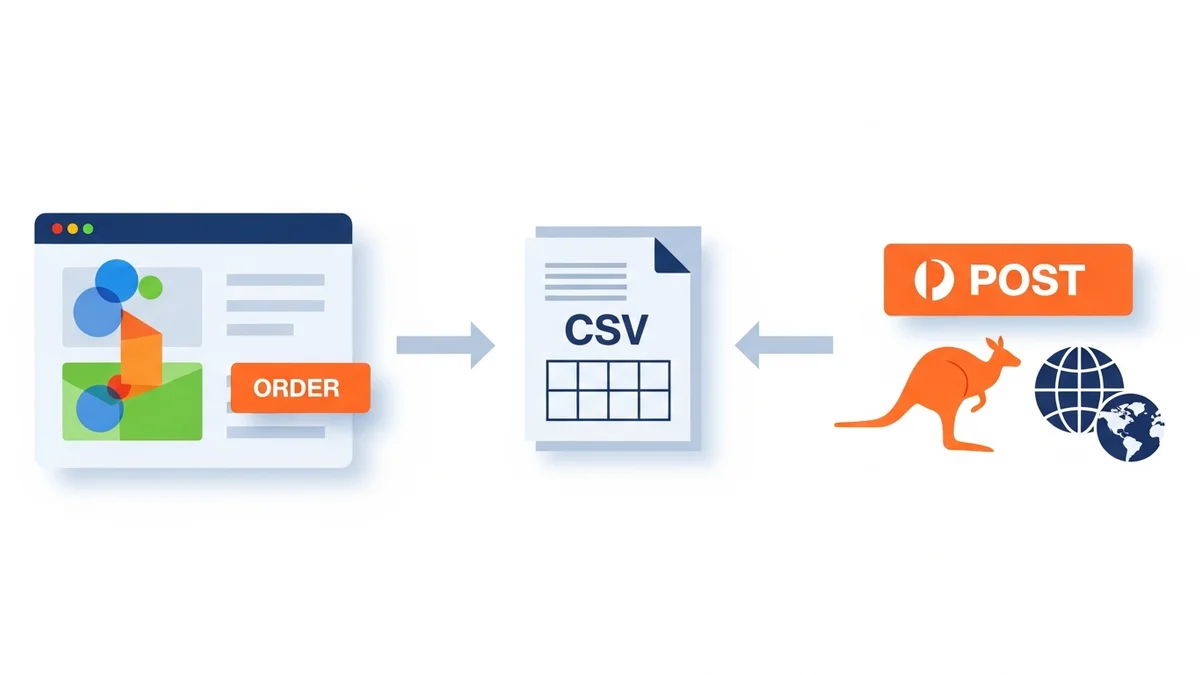
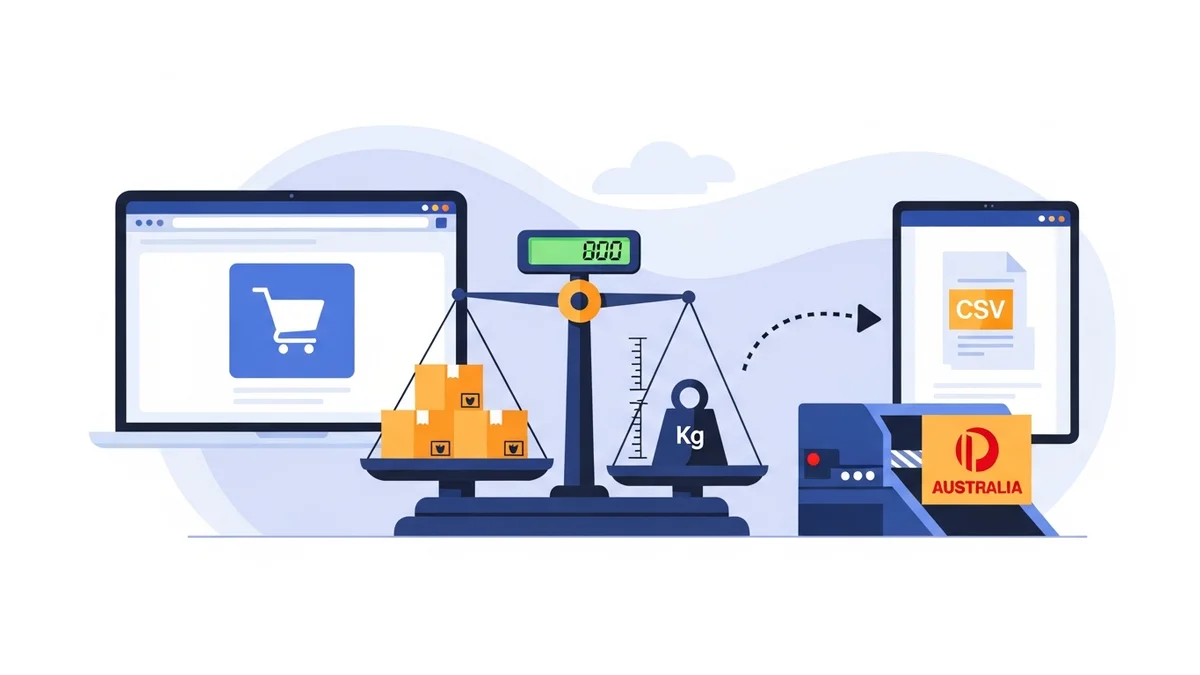
For any WooCommerce store owner in Australia, efficient and accurate shipping is paramount. When it comes to fulfilling orders with Australia Post, one of the most critical pieces of information is the product's weight. Without correctly configured weights in your WooCommerce store, you risk inaccurate shipping calculations, unexpected charges, and potential delays when generating shipping labels through CSV export.
This guide will walk you through the precise steps to set up product weights within WooCommerce, covering both simple and variable products. By following these instructions, you'll ensure your Australia Post CSV exports always contain the correct weight data, streamlining your shipping process and helping you avoid costly mistakes.
Why Accurate Product Weights are Crucial for Australia Post Shipping
Understanding why product weights are so important is the first step to mastering your shipping workflow. Australia Post, like most carriers, bases its shipping costs heavily on the weight and dimensions of your parcels. Incorrect weight data can lead to several problems:
- Inaccurate Shipping Costs: If your product weights are too low, you might undercharge customers for shipping, eating into your profits. If they're too high, you risk overcharging, which can deter repeat business.
- Shipping Label Errors: When you export your orders to a CSV for Australia Post, the system uses the weights you've entered. If these are wrong, the generated shipping labels will have incorrect weight information, potentially leading to additional charges or rejections at the post office.
- Delays and Extra Fees: Parcels with incorrect weight declarations can be held up for manual inspection, delaying delivery. Australia Post may also apply additional surcharges if the actual weight differs significantly from the declared weight.
- Parcel Size & Weight Limits: Accurate weight helps you stay within Australia Post's maximum weight limits for various services, preventing issues before they arise.
Understanding WooCommerce Weight Units
Before you start entering weights, it's vital to ensure your WooCommerce store is set to the correct weight unit. Consistency here is key for accurate calculations and exports.
Checking Your Global Weight Unit
WooCommerce allows you to define a global weight unit that applies across your entire store. This setting dictates how all product weights are interpreted.
-
Go to your WordPress dashboard and navigate to WooCommerce.
-
Click on Settings.
-
Select the Products tab, then click on the General sub-tab.
-
Scroll down to the Measurements section. Here you will find the Weight unit dropdown.
-
Ensure it is set to kg (kilograms) or g (grams), whichever you prefer to work with consistently. Australia Post often works with kilograms for larger parcels, so kg is a common and recommended choice.
-
Click Save changes at the bottom of the page.
Once set, all weights you enter for individual products will automatically be interpreted using this global unit.
Step-by-Step Guide: Setting Up Weights for Simple Products
A simple product is a unique item with no variations (like size or colour). Setting its weight is straightforward.
-
Access Your Product: From your WordPress dashboard, navigate to Products > All Products. Find the simple product you wish to edit and click on its title to open the product editor.
-
Locate Product Data Box: Scroll down the product editor page until you find the Product data meta box. This box typically contains tabs like General, Inventory, Shipping, etc.
-
Go to the Shipping Tab: Click on the Shipping tab within the Product data box.
-
Enter Product Weight: You will see a field labelled Weight (kg) (or your chosen global unit). Enter the accurate weight of your product including its typical packaging in this field. For example, if your product weighs 0.5kg and its packaging adds another 0.1kg, you would enter
0.6. -
Update the Product: Once you've entered the weight, scroll up and click the Update button on the right-hand side of the screen to save your changes.
Tip: Always measure your products on a reliable scale. Don't guess! Remember to factor in the weight of the box, satchel, bubble wrap, or any other packaging materials you typically use for that item.
Step-by-Step Guide: Setting Up Weights for Variable Products
Variable products, such as a t-shirt available in different sizes, often have different weights for each variation. Setting these up requires a few extra steps.
-
Access Your Product: From your WordPress dashboard, navigate to Products > All Products. Find the variable product you wish to edit and click on its title to open the product editor.
-
Locate Product Data Box: Scroll down to the Product data meta box.
-
Go to the Variations Tab: Click on the Variations tab within the Product data box.
-
Expand Each Variation: For each variation (e.g., "Size: Small", "Size: Medium"), click on the small triangle or arrow icon to expand its settings.
-
Enter Variation Weight: Within the expanded variation settings, you will find a Weight (kg) field. Enter the accurate weight for that specific variation, including its typical packaging. For example, a "Size: Large" t-shirt might weigh more than a "Size: Small" t-shirt.
If the weight is the same for all variations, you can leave this field empty and the variation will inherit the parent product's weight (set under the Shipping tab for the main product). However, it's generally best practice to explicitly set the weight for each variation for clarity and accuracy.
-
Repeat for All Variations: Expand and enter the weight for every variation you offer.
-
Save Changes: After setting weights for all variations, click the Save changes button within the Variations tab, and then click the main Update button on the right-hand side of the product editor page to save all product changes.
Important: If you set a weight for a specific variation, that weight will override any weight set for the main (parent) product. This ensures that the correct weight is always used for the specific variant ordered by the customer.
Best Practices for Product Weight Management
To ensure ongoing accuracy and efficiency with your Australia Post CSV exports, consider these best practices:
- Measure with Precision: Invest in a good digital scale. Manual measurements are prone to error. Always measure the item as it would be packaged for shipping.
- Factor in Packaging Weight: This is a common oversight. The weight of your box, satchel, void fill, tape, and labels all add up. Include this in your product weight to avoid undercharging. For example, if your product is 0.8kg and your standard box is 0.2kg, enter 1.0kg.
- Be Consistent with Units: Stick to either kilograms (kg) or grams (g) across your entire store. Don't mix them up, as this can lead to massive calculation errors during export.
- Regular Audits: Periodically review your product weights, especially if you change packaging materials or suppliers. New product versions might also have different weights.
- Consider a Bulk Editor Plugin: If you have hundreds or thousands of products, individually editing weights can be a huge task. A WooCommerce bulk editor plugin can save you significant time by allowing you to update weights for multiple products simultaneously.
- Understand Dimensional Weight: While not directly entered in WooCommerce product weights, carriers like Australia Post also consider "dimensional weight" (the weight based on a package's size) if it's greater than the actual weight. Knowing your product's dimensions (also set in the Shipping tab) helps a comprehensive shipping strategy.
How Product Weights Influence Australia Post CSV Export
When you use a tool to export your WooCommerce orders into an Australia Post compatible CSV file, the data from your product settings is directly pulled into the export. Here’s how it works:
- Individual Item Weight: The weight you've carefully entered for each simple product or variable product variation is precisely what will appear in the 'Item Weight' or 'Product Weight' column of your CSV.
- Total Order Weight Calculation: For orders containing multiple items, the export tool will sum up the weights of all individual products in the order to calculate the 'Total Package Weight'. This is the crucial figure Australia Post uses to determine the final shipping cost and appropriate service.
- Accurate Label Generation: With correct total package weights in your CSV, Australia Post's system can accurately generate shipping labels, reducing the risk of discrepancies and extra charges when your parcels are scanned.
Without accurate product weights, your CSV export will provide incomplete or incorrect data to Australia Post, leading to manual corrections, delays, or unexpected costs.
Troubleshooting Common Weight Issues
Even with the best intentions, weight setup can sometimes go awry. Here are common issues and how to fix them:
- Missing Weights: If a product has no weight entered, it might default to 0 kg in your export, leading to an incorrect total package weight. Always ensure every shippable product has a weight.
- Incorrect Units: If your global unit is set to 'kg' but you entered '500' thinking it was grams, the system will interpret it as 500 kg! Double-check your global unit setting and the values you're entering.
- Variable Product Weight Not Applied: If a variable product's weight isn't reflecting correctly, ensure you've expanded the specific variation and entered its weight. If left blank, it might inherit the parent product's weight, which could be inaccurate for larger variations.
- Packaging Not Included: If your shipping costs are consistently higher than estimated, you might not be factoring in packaging weight. Re-measure products with their typical packaging.
- Decimal Point Errors: Ensure you're using a decimal point (e.g.,
0.75for 750 grams) and not a comma if your WooCommerce setup expects a decimal point.
Related Articles
Continue your learning with these related resources:
- The Complete Guide to WooCommerce Shipping for Australian Stores (Comprehensive Guide)
- How to Configure Default Shipping Service and Packaging in WooCommerce for Australia Post
- How to Customize Your Australia Post WooCommerce Export Table Columns
- How to Set Up Sender Details in WooCommerce for Australia Post CSV Export
- How to Set Signature on Delivery and Extra Cover Defaults for Australia Post WooCommerce Exports
- How to Export Domestic and International WooCommerce Orders in a Single Australia Post CSV
Conclusion
Setting up accurate product weights in WooCommerce is a fundamental step towards a smooth and cost-effective shipping operation, especially when preparing orders for Australia Post via CSV export. By meticulously following the steps for both simple and variable products, and by adhering to best practices, you can eliminate common shipping headaches.
Accurate weights lead to correct shipping charges for your customers, seamless label generation, and fewer issues with Australia Post. This attention to detail not only saves you time and money but also enhances customer satisfaction by providing predictable shipping costs and reliable delivery.