Introduction
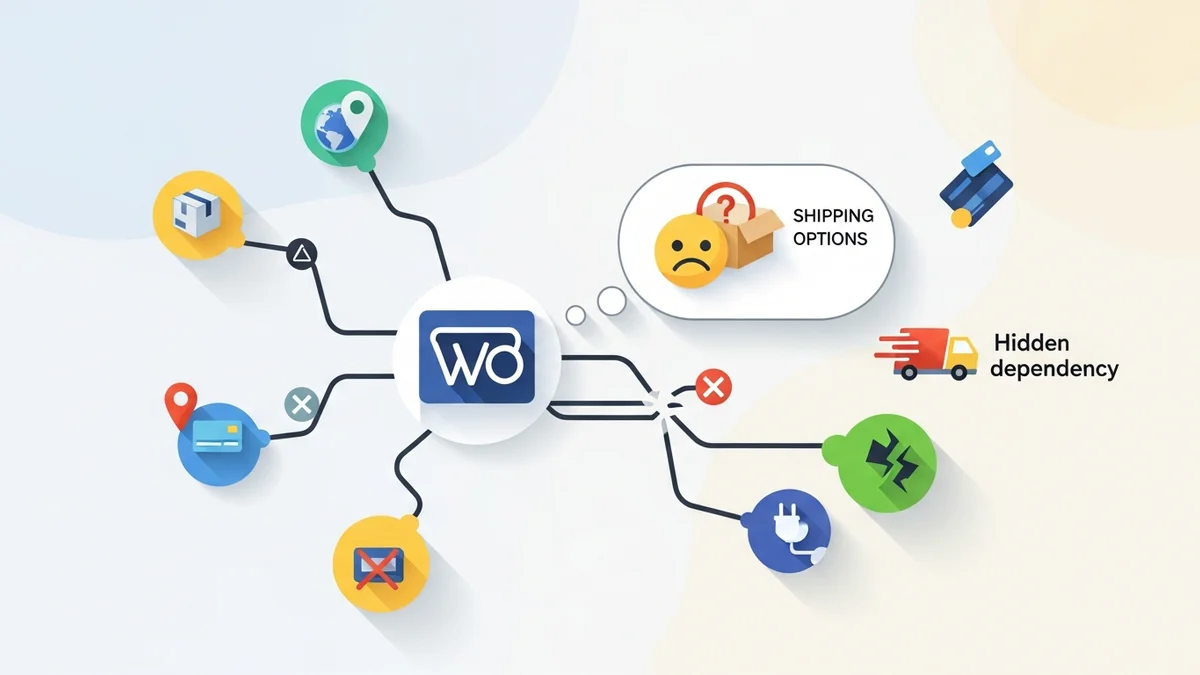
As an e-commerce store owner, few things are more frustrating than a customer abandoning their cart because "no shipping options" are available. This common problem often points to a critical underlying issue: your WooCommerce shipping rates have stopped loading. The culprit is frequently an invisible dependency – the external Application Programming Interfaces (APIs) that your shipping plugins rely on to fetch real-time rates.
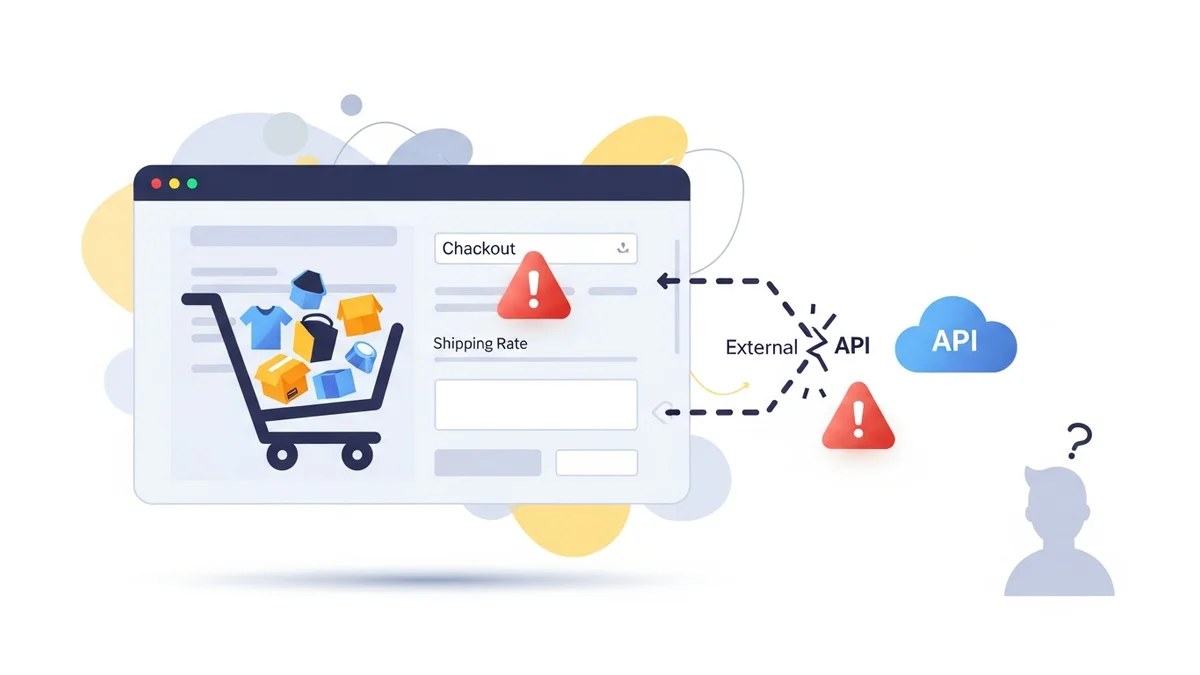
These third-party shipping APIs are the backbone of dynamic rate calculations, connecting your store to carriers like Australia Post. When they become unreachable, your checkout process grinds to a halt, directly impacting sales and customer trust. Understanding why these failures occur, what your customers see, and how to quickly diagnose them is crucial for maintaining a smooth operation.
Understanding the Dependency: Why Shipping Rates Vanish
Most WooCommerce shipping plugins don't calculate rates themselves. Instead, they act as a bridge, sending customer address and cart data to an external carrier's API (e.g., Australia Post's PAC API). This API then returns the available services and their costs, which your plugin displays on the checkout page.
This reliance on external services means your shipping rates are vulnerable to issues outside your direct control. A WooCommerce shipping API failure can stem from several sources:
- Carrier Outages: The most common reason. The shipping carrier's own servers might be down or experiencing maintenance.
- Plugin Using a Retired Endpoint: Carriers periodically retire old API endpoints when transitioning to new ones. In April 2026, Australia Post retired their old PAC API endpoint at
/api/postage/, completing a transition to the current endpoint at/postage/. Australia Post had responsibly run both endpoints during the transition period, giving plugin developers time to update. However, the official Australia Post Shipping Method for WooCommerce plugin, even at its most up-to-date version, wasn't updated to use the current endpoint. Sauce Code identified the root cause and notified the plugin developers, prompting the fix. If your plugin uses a retired endpoint, it will fail to connect. - Invalid API Keys: Expired, revoked, or incorrect API keys will prevent your plugin from authenticating with the carrier's service.
- Network or Server Issues: Problems with your own web host's connection to the outside world, or temporary DNS issues, can block API requests.
- Plugin Conflicts or Bugs: Less common, but sometimes a recent update to another plugin or theme can interfere with your shipping plugin's ability to communicate.
When any of these issues occur, your customers will encounter a broken checkout experience, leading to lost revenue and a tarnished brand reputation.
The Immediate Impact: What Your Customers See
When a WooCommerce shipping rates disappeared scenario hits, your customers are often the first to notice. They proceed to checkout, confidently entering their details, only to be met with a frustrating message. Common messages include:
- "No shipping options available for your location."
- "Please enter your address to calculate shipping." (and then no rates appear after entering it)
- "There are no shipping methods available. Please double check your address, or contact us if you need any help."
This immediately creates friction. Customers might assume your store doesn't ship to their area, or that something is broken with your website. Many will simply abandon their cart and seek alternatives, turning a potential sale into a missed opportunity and a negative customer experience.
Step-by-Step Guide: How to Detect if Your Shipping Rates Have Stopped Loading
Quickly identifying a shipping plugin stopped working WooCommerce issue is key to minimising its impact. Here's a practical, step-by-step approach for store owners:
Step 1: Simulate a Customer Checkout
The fastest way to confirm a problem is to experience it yourself, just like a customer would. This should be your first port of call.
- Add Products to Cart: Browse your store and add a few typical products to your shopping cart.
- Proceed to Checkout: Go to your cart and then the checkout page.
- Enter a Test Address: Fill in a complete shipping address within one of your active shipping zones (e.g., your own home address if you ship locally). Ensure you include postcode, suburb, and state.
- Observe Shipping Options: Check the "Shipping" section. Are rates displayed? Or do you see a message like "No shipping options available"?
- Test Different Scenarios: Try a different product, a different quantity, or an address in another shipping zone if you have multiple. This helps rule out product-specific or zone-specific issues.
If you consistently see no shipping options, you've confirmed a problem exists. Now, it's time to investigate the cause.
Step 2: Verify WooCommerce Shipping Zone Configuration
Sometimes, the issue isn't with the API but with how your shipping zones or methods are set up. A quick check can rule out simple configuration errors.
- Navigate to Shipping Zones: In your WordPress admin, go to WooCommerce > Settings > Shipping > Shipping Zones.
- Check Active Zones: Ensure that the shipping zones relevant to your test address (from Step 1) are active and correctly configured for the regions you serve.
- Inspect Shipping Methods: Click on a relevant shipping zone. Verify that your dynamic shipping method (e.g., Australia Post) is listed and enabled. Look for a green tick next to it, or ensure the "Enable/Disable" toggle is set to "Enable".
- Review Method Settings: Click on the shipping method itself. Are there any specific settings that might be preventing it from showing, such as minimum/maximum order values, or specific product restrictions?
If your shipping zones and methods appear correctly configured and enabled, the problem likely lies deeper, often with the external API connection.
Step 3: Inspect Your Shipping Plugin Settings and Logs
Your specific shipping plugin (e.g., Australia Post Shipping Method for WooCommerce) will have its own settings and potentially a logging system. This is where you'll look for API-specific issues.
- Access Plugin Settings: Go to the plugin's dedicated settings page. This might be under WooCommerce > Settings > Shipping (by clicking on the method name), or it might have its own top-level menu item.
- Check API Keys: Crucially, verify that your API keys are correctly entered and appear valid. An incorrect or expired key will prevent communication with the carrier's API. Even a single misplaced character can cause a failure.
- Look for In-Plugin Error Messages: Some plugins display warnings or error messages directly within their settings pages if an API connection has recently failed.
- Review Plugin Debug Logs: Many quality shipping plugins include a debug or log tab. Enable logging if it's not already, then try a checkout again. Return to the logs to see if any API-related errors are recorded, often indicated by HTTP status codes (e.g., 400, 401, 500) or messages about connection timeouts.
If you find an API key issue, correcting it might resolve the problem instantly. If logs show API errors, it confirms the communication breakdown.
Step 4: Check WordPress Site Health and Server Logs
While less common for direct API failures, your server's health and WordPress's debugging logs can sometimes reveal underlying issues preventing external connections.
- WordPress Site Health: Go to Tools > Site Health. Review the "Status" and "Info" tabs. Look for any critical issues, especially those related to cURL, loopback requests, or server connectivity, which are vital for making API calls.
- WordPress Debug Log: If you have WordPress debugging enabled (by defining
WP_DEBUGandWP_DEBUG_LOGin yourwp-config.phpfile), check thewp-content/debug.logfile. Search for terms like "API error," "cURL error," or the name of your shipping carrier. This can provide valuable clues about server-side issues or unhandled exceptions. - Host Error Logs: If you have access to your web hosting control panel (e.g., cPanel, Plesk), check the server error logs. These can sometimes show network issues or timeouts that prevent your site from reaching external APIs.
Step 5: External API Status Checks
If all your internal settings and logs appear correct, the problem might be entirely with the shipping carrier's service itself. This is a common cause of WooCommerce third party shipping API disruptions.
- Carrier Status Pages: Most major shipping carriers maintain a public "system status" page. For Australia Post, you would check their business portal or relevant support pages. Look for notices about API outages, maintenance, or known issues.
- Social Media: Check the carrier's official Twitter or Facebook accounts. They often post real-time updates about service disruptions.
- Third-Party Uptime Monitors: Websites like DownDetector or similar services can aggregate reports of outages from users, giving you a broader picture of a carrier's service availability.
If the carrier confirms an outage, all you can do is wait for them to resolve it. In the meantime, consider temporarily enabling a flat-rate shipping method to keep your checkout functional.
Step 6: Leverage Proactive Monitoring with WooCommerce Shipping Monitor Pro
While the manual steps above are essential for diagnosis, they are reactive. You only know there's a problem once a customer (or you) encounters it. For a proactive approach, consider a dedicated monitoring solution like WooCommerce Shipping Monitor Pro.
This plugin is specifically designed to prevent the scenario where you discover a WooCommerce shipping API error hours or days after it began. Here's how it helps:
- Instant Email Alerts: It immediately notifies your store administrator via email when a shipping API becomes unreachable. This means you know about problems within minutes, not hours, often before customers are even affected. Alerts tell you if a "Fallback Triggered," "All Endpoints Failing," or if a "Health Check Failed."
- Scheduled Health Checks: The plugin runs regular, lightweight health checks against the Australia Post PAC API using WordPress native cron. (Currently, Australia Post is the only supported provider; additional providers may be added in future versions.) These checks proactively verify that the API endpoints are responding correctly, catching issues even when your store isn't processing orders.
- Last-Resort Fallback Mechanism: If a primary API endpoint fails, such as when your plugin is using a retired endpoint like in April 2026, the plugin attempts to cycle through previously known endpoints. This "fallback" isn't guaranteed to work, but in situations where an alternative endpoint is available, it can keep your checkout functioning while you investigate and apply a proper fix.
- Comprehensive Event Logging: Every health check, alert, and fallback attempt is logged to a custom database table. You get a full event history viewable per provider in the WordPress admin dashboard, giving you a clear audit trail of API performance.
- Dashboard Overview: The plugin provides a dashboard with a status card for the Australia Post provider, showing "healthy," "fallback," or "down" statuses at a glance. (Currently, Australia Post is the only supported provider; additional providers may be added in future versions.)
Using a tool like WooCommerce Shipping Monitor Pro transforms your approach from reactive problem-solving to proactive prevention. It ensures you're always in the loop regarding the health of your critical shipping integrations.
The Real Cost of Undetected Shipping API Failures
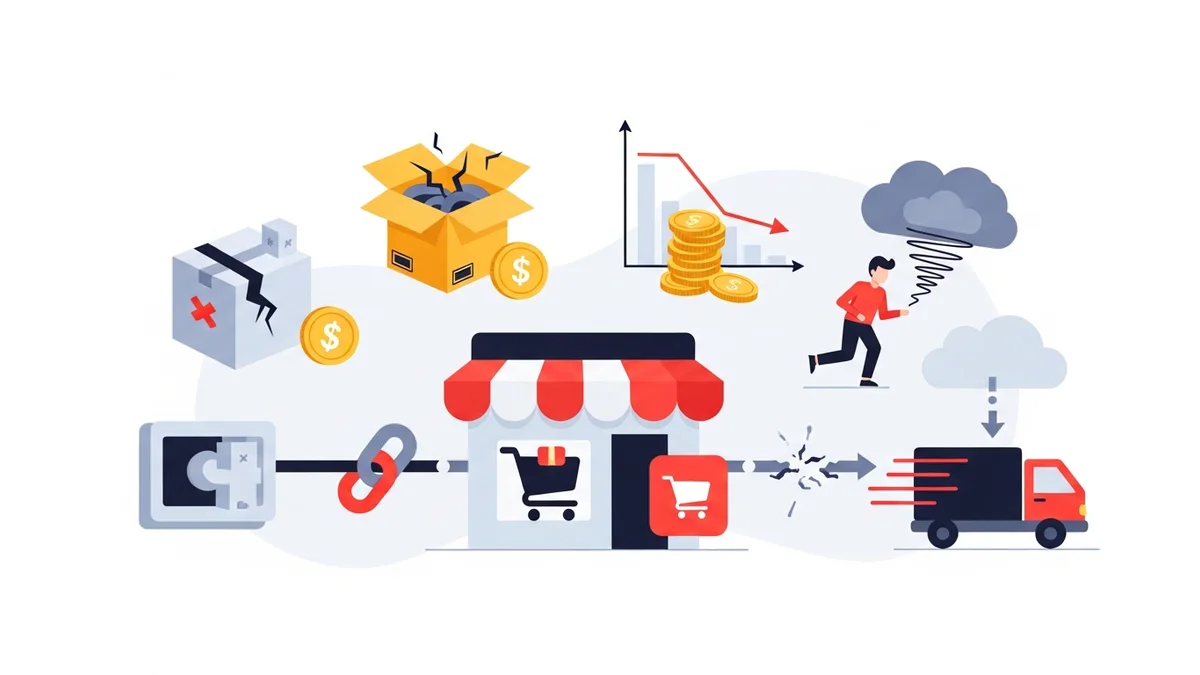
The impact of undetected shipping API failures extends far beyond a single abandoned cart. The cumulative costs can be substantial:
- Lost Revenue: Every customer who leaves your site due to a lack of shipping options is a direct loss of a sale. Over time, these add up significantly.
- Damaged Brand Reputation: A broken checkout experience erodes customer trust. Shoppers may perceive your store as unreliable or unprofessional, making them less likely to return.
- Increased Support Burden: Customers will inevitably contact your support team about shipping issues, diverting resources from other important tasks.
- Operational Delays: If you're manually processing orders or dealing with customer complaints, your team's productivity suffers.
- SEO Impact: A high cart abandonment rate can indirectly signal to search engines that your site provides a poor user experience, potentially affecting your rankings.
Investing in tools and processes to quickly detect and mitigate these issues is not just about convenience; it's about protecting your store's bottom line and long-term success.
Related Articles
Continue your learning with these related resources:
- Why WooCommerce Shipping Breaks (And How to Stop It From Costing You Sales) (Comprehensive Guide)
- The Real Cost of Shipping Downtime for WooCommerce Stores
- Why "Set and Forget" Doesn't Work for WooCommerce Shipping Plugins
- What Automatic Endpoint Fallback Means for Your WooCommerce Store
- How to Get Email Alerts When Your WooCommerce Shipping API Has Issues
- Your WooCommerce Shipping Reliability Checklist for Peak Season
Conclusion
Disappearing WooCommerce shipping rates are a critical problem that every e-commerce store owner must be prepared to tackle. By understanding the hidden dependencies on external shipping APIs and knowing how to systematically diagnose common issues, you can minimise downtime and prevent lost sales. While manual checks are essential for initial diagnosis, proactive monitoring solutions like WooCommerce Shipping Monitor Pro offer an invaluable safety net. They ensure you're immediately aware of any API disruptions, allowing you to react swiftly and maintain a seamless checkout experience for your customers, even when third-party services falter.