Introduction
For many small business owners, their WordPress website is a vital hub for sharing valuable resources. Whether it's whitepapers, e-books, training manuals, or client documents, understanding how these files are engaged with is crucial. Knowing that a file was downloaded is one thing, but knowing who downloaded it, when, and how often provides a much deeper level of insight.
Traditional analytics tools can tell you the number of downloads, but they often fall short on identifying individual users. This guide will walk you through how to implement robust file download tracking on your WordPress site, focusing on solutions that provide per-user analytics. We'll explore how to capture this essential data and use it to make informed business decisions.
Why Track File Downloads on Your WordPress Site?
Detailed file download tracking offers a range of strategic advantages for your business:
- Lead Generation & Nurturing: If you're offering valuable content like e-books or reports in exchange for an email address, tracking downloads helps you identify potential leads and understand their interests. This data is invaluable for targeted follow-up.
- Content Performance Analysis: Which of your resources are most popular? Tracking individual downloads helps you pinpoint your most valuable content, informing future content strategy and resource allocation.
- Client & Member Engagement: For client portals or membership sites, knowing which clients or members are accessing specific documents or resources can highlight engagement levels and inform service improvements.
- Security & Compliance: In scenarios involving sensitive documents, an audit trail of who accessed what and when is critical for security, accountability, and compliance requirements.
- Personalisation: Understanding a user's download history allows you to tailor future recommendations or communications, enhancing their experience and your relationship with them.
The Challenge of Traditional Download Tracking
Many WordPress site owners initially rely on general analytics tools or server logs for download tracking. While useful, these methods have limitations when it comes to identifying specific users:
- Google Analytics: Can track events like "file download" and give you aggregate numbers, but it generally cannot tell you who downloaded a specific file. It provides anonymous data.
- Server Access Logs: These logs record every request made to your server, including file downloads. They contain IP addresses and timestamps, but linking an IP address to a specific user (especially if they're not logged in) is often difficult and not GDPR-compliant without explicit consent.
- Manual Workarounds: Trying to manually track downloads through custom code or complex setups is often time-consuming, prone to errors, and difficult to scale.
To truly track who downloaded a file on WordPress, you need a system that integrates user identification with content access, often through a controlled access mechanism.
Introducing a Dedicated Solution: WordPress Gatekeeper Pro
To overcome the limitations of traditional methods and gain true per-user download insights, a dedicated WordPress plugin like WordPress Gatekeeper Pro offers a comprehensive solution. Gatekeeper Pro is designed to restrict access to your digital assets and, crucially, manage and track who gains access and interacts with them.
The plugin achieves this by gating your content behind an access request and approval workflow. When a visitor wants to download a file, they first submit a request. Once approved, they receive a secure, time-limited access token. This controlled process allows the plugin to log every approved access and subsequent download by that specific user.
Key features of Gatekeeper Pro for effective download tracking include:
- Built-in Access Request Workflow: Captures user details (name, email) before granting access.
- Secure Token-Based Access: Each approved user receives a unique, secure token, ensuring that only authorised individuals can download your files.
- Per-User Analytics: Provides a clear overview of who has requested and accessed your gated content.
- Detailed Access Logs: Records every instance of content access, including downloads, by specific users.
- CSV Export: Allows you to export all your access data for deeper analysis in spreadsheets or integration with other business tools.
Step-by-Step Tutorial: Tracking File Downloads with Gatekeeper Pro
Let's walk through how to set up Gatekeeper Pro to track who downloads files on your WordPress site.
Step 1: Install and Activate WordPress Gatekeeper Pro
- Purchase & Download: Obtain the Gatekeeper Pro plugin from the official source. You'll receive a plugin .zip file.
- Upload to WordPress: Log in to your WordPress admin dashboard. Navigate to Plugins > Add New > Upload Plugin. Choose the .zip file you downloaded and click "Install Now".
- Activate Plugin: Once installed, click "Activate Plugin".
- Enter Licence Key: After activation, you'll be prompted to enter your licence key. This unlocks all features and ensures you receive updates.
With the plugin active, you're ready to start protecting and tracking your files.
Step 2: Protect Your Files and Content
Gatekeeper Pro allows you to easily mark any post, page, or custom post type as "locked" and attach your downloadable files.
- Create or Edit Content: Go to the editor for the post or page where you want to offer a downloadable file.
- Mark as Locked: In the document settings (usually on the right sidebar in Gutenberg or as a meta box for classic editor/page builders), locate the "Gatekeeper Pro" section. Tick the checkbox to "Lock this content".
- Attach Your File: Under the Gatekeeper Pro section, you'll find options to attach files. Upload your file (e.g., PDF, ZIP, DOCX). Gatekeeper Pro will automatically move it to a secure, protected directory, making direct access via URL impossible.
- Choose Access Mode (Optional): Decide if access to this file requires a "per-item token" (a token specifically for this one resource) or a "sitewide token" (a token that unlocks all gated content). For granular tracking of specific files, "per-item" is often preferred.
Now, this content and its attached file are protected. Visitors won't be able to access the download until they've been approved.
Step 3: Configure the Access Request Form
Before visitors can request access, you need to ensure your request form is set up to capture the necessary "who" information.
- Access Gatekeeper Pro Settings: In your WordPress dashboard, navigate to Gatekeeper Pro > Settings > Request Form.
- Customise Form Fields: Here, you can define which fields appear on the access request form (e.g., Name, Email, Phone, Company, Location, Message). Ensure that "Name" and "Email" are visible and marked as required to capture user identity.
- Drag and Drop Ordering: Organise the fields in the order you prefer for your users.
- Enable Spam Protection: This built-in AJAX request form includes native spam protection (honeypot, nonce) and optional integration with Google reCAPTCHA v3 or Cloudflare Turnstile, which is highly recommended.
This form is what your visitors will see when they try to access your locked content. It's how you gather the crucial "who" data.
Step 4: Manage and Approve Access Requests
Once your content is locked and the form is ready, visitors will start submitting requests. You'll need to approve these to grant download access.
- Receive Notifications: Admins receive an email notification for every new access request.
- One-Click Approval: The email notification includes direct links to "Approve" or "Disapprove" the request. You can manage requests directly from your inbox without needing to log into WordPress.
- Admin Dashboard Management: Alternatively, go to Gatekeeper Pro > Access Requests in your WordPress dashboard. Here, you'll see a list of all pending, approved, and disapproved requests. You can approve or disapprove requests individually or in bulk.
- Automatic Email to User: Upon approval, Gatekeeper Pro automatically sends an email to the requester with a secure access link. This link contains their unique token, allowing them to download the file.
This approval step is where the link between a user and their access to your file is established and logged.
Step 5: Monitor Downloads with Per-User Analytics
Gatekeeper Pro's dashboard provides immediate insights into content access and downloads.
- View Analytics Dashboard: Navigate to Gatekeeper Pro > Analytics in your WordPress dashboard.
- Overview of Access: You'll see high-level metrics like total requests, approved requests, and token usage.
- Per-User Access History: Scroll down to view a detailed table of access events. This table shows:
- Who: The name and email of the user who requested and accessed the content.
- What: The specific file or content they accessed.
- When: The timestamp of their access.
- How Often: The number of times they have accessed or downloaded that particular resource.
This section is your central hub for understanding your audience's interaction with your gated content, providing clear answers to "who downloaded this file?".
Step 6: Export Access Logs for Deeper Analysis
For more advanced analysis, for manual import into CRM systems, or compliance, you can export all your access data.
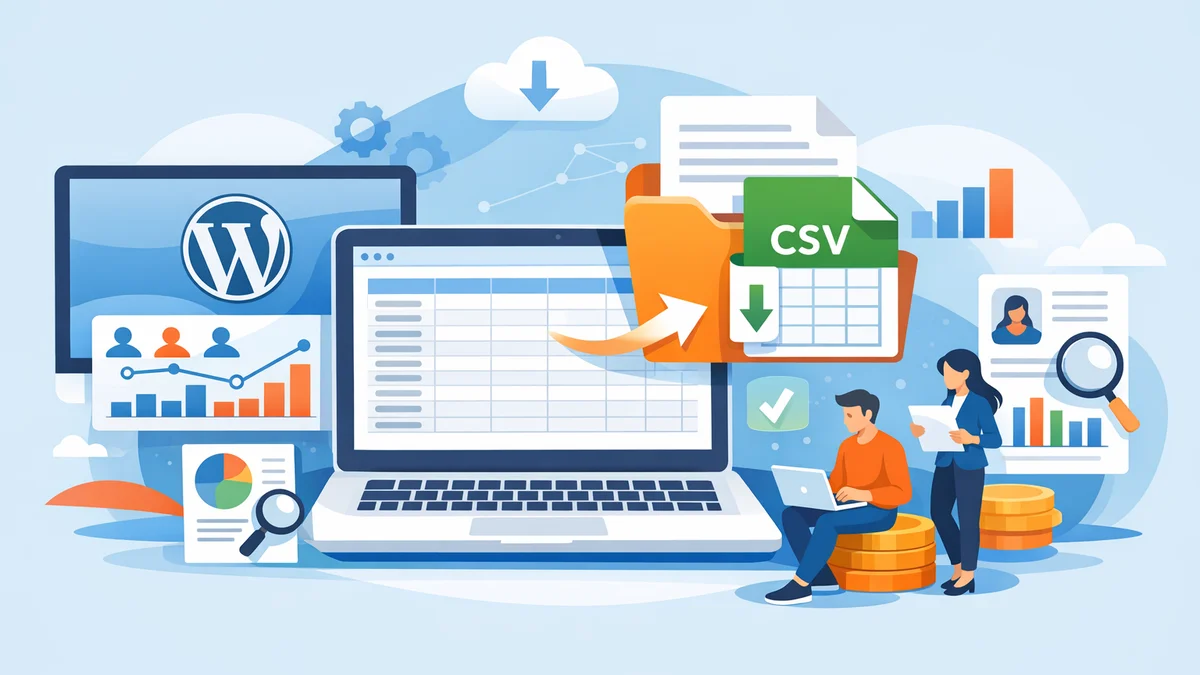
- Access Export Options: In the Gatekeeper Pro > Analytics section, look for the "Export to CSV" button.
- Download CSV File: Click the button to download a CSV (Comma Separated Values) file containing all your access requests and log data.
- Analyse Your Data: Open the CSV file in a spreadsheet program (like Microsoft Excel, Google Sheets, or LibreOffice Calc). You'll find columns detailing:
- Requester Name
- Requester Email
- Date of Request
- Approval Status
- Associated Post/Content Title
- Attached File Name
- Token Status (Active, Expired, Revoked)
- Last Access Timestamp
- Total Accesses/Downloads
- IP Address (if enabled)
This robust export capability gives you full control over your download data, enabling you to slice, dice, and integrate it as needed for comprehensive business intelligence.
Leveraging Your Download Data for Business Decisions
Collecting data on who downloads your files is just the first step. The real value comes from using these insights:
- Qualify Leads: Identify individuals who are actively engaging with your most valuable content. These are likely warm leads ready for a sales conversation or targeted marketing.
- Personalise Outreach: If a user downloads a specific whitepaper, you can follow up with related content, services, or product information tailored to their expressed interest.
- Optimise Content Strategy: Notice that certain files are consistently downloaded by a particular audience segment? Create more content like it, or tailor existing content to better serve that group.
- Enhance Client Relationships: For client portals, see which clients are reviewing shared documents. This can prompt proactive check-ins or offer additional support.
- Improve Content Accessibility: If a crucial document has low download rates, investigate why. Is it hard to find? Is the title unappealing? Is the request process too complex?
- Audit and Compliance: Maintain a verifiable record of who has accessed sensitive information, which is invaluable for regulatory compliance or internal audits.
By leveraging Gatekeeper Pro's detailed tracking capabilities, you transform anonymous website activity into actionable business intelligence.
Related Articles
Continue your learning with these related resources:
- How to Protect and Restrict Content on WordPress: The Complete Guide (Comprehensive Guide)
- How to Export Content Access Data as CSV From WordPress
- How Long Should You Keep Content Access Logs on WordPress?
- WordPress Content Access Analytics: What to Track and Why It Matters for Agencies
- Unleashing the Power of Access Request Data for Lead Qualification on Your WordPress Site
- Mastering Gated Video Libraries on WordPress: Setup and Best Practices for Agencies
Conclusion
Tracking who downloads files on your WordPress site moves beyond simple traffic metrics, providing invaluable insights into user behaviour, content performance, and lead quality. While traditional tools offer a glimpse, a dedicated solution like WordPress Gatekeeper Pro empowers you with precise, per-user analytics.
By implementing an access request and approval workflow, you gain control over your valuable digital assets while simultaneously building a rich database of user engagement. From lead nurturing and content optimisation to security and compliance, understanding "who" is interacting with your files is a powerful asset for any small business looking to maximise its online presence and resource distribution.