Introduction
There's nothing more frustrating for an e-commerce store owner than customers abandoning their carts because "no shipping options are available" or rates appear incorrect. When your WooCommerce shipping isn't working as expected, it can lead to lost sales and a poor customer experience.
Many factors can contribute to WooCommerce shipping problems, from misconfigured settings to external API outages. This comprehensive, step-by-step troubleshooting guide will help you diagnose and fix the most common issues, ensuring your customers can complete their purchases smoothly.
Why WooCommerce Shipping Issues Occur
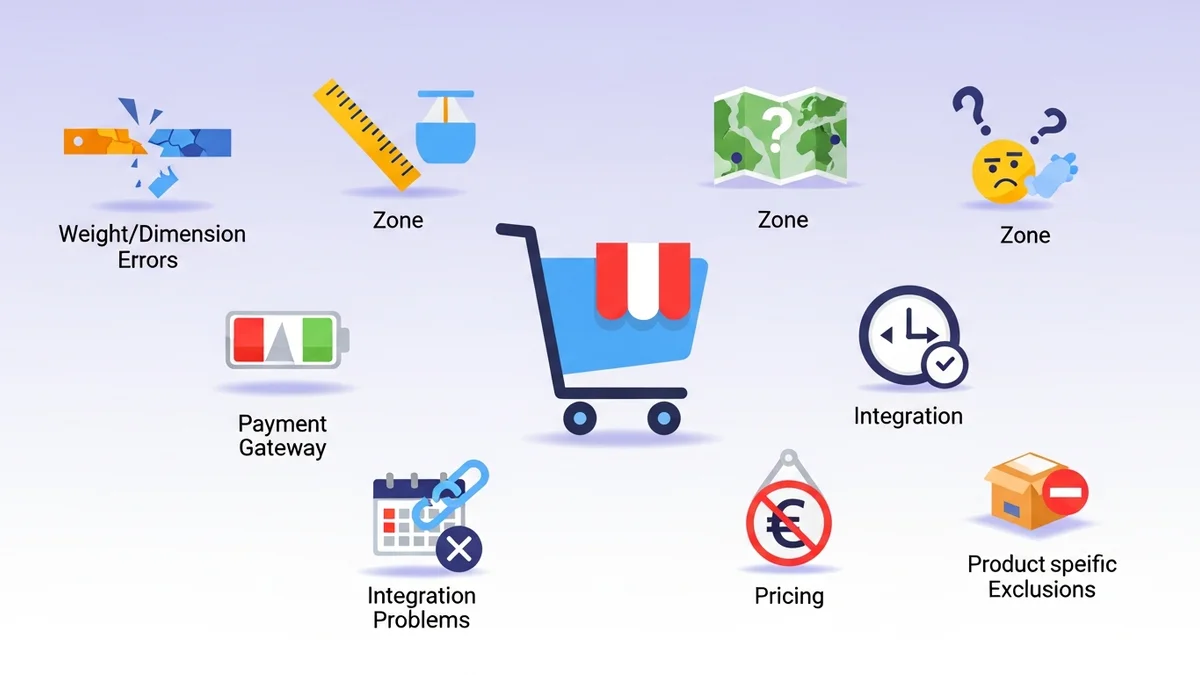
WooCommerce shipping relies on a complex interplay of settings, plugins, and often, external services. Understanding the common culprits can help you narrow down your investigation:
- Incorrect Shipping Zone Configuration: Your store needs to know where it ships to and from.
- Misconfigured Shipping Methods: Each method (e.g., Flat Rate, Free Shipping, Live Rates) has its own settings that can go awry.
- Product Data Issues: Missing weights, dimensions, or incorrect shipping classes can prevent rates from calculating.
- Plugin Conflicts: Other plugins or your theme might interfere with WooCommerce shipping functionality.
- External API Failures: Live shipping rate plugins depend on external carrier APIs (like Australia Post). If these APIs become unreachable or your plugin is using a retired endpoint, your rates won't show.
- Caching Problems: Aggressive caching can sometimes prevent real-time shipping calculations.
Step-by-Step Troubleshooting Guide
Follow these steps to systematically identify and resolve your WooCommerce shipping issues.
Step 1: Confirm the Issue with a Test Order
Before diving into settings, always confirm the problem yourself. This helps you understand exactly what the customer is experiencing.
- Clear Your Browser Cache: Ensure you're seeing the freshest version of your store.
- Add a Simple Product to Cart: Choose a product with a known weight and dimensions.
- Proceed to Checkout: Enter a realistic shipping address that falls within one of your configured shipping zones.
- Observe the Shipping Options: Note whether "no shipping options" appears, rates are missing, or rates are incorrect.
- Check for Error Messages: Sometimes WooCommerce or your shipping plugin will display a specific error message.
Step 2: Check WooCommerce Shipping Zones
Shipping zones are the foundation of your WooCommerce shipping setup. If they're not configured correctly, no rates will appear.
- Navigate to WooCommerce > Settings > Shipping > Shipping Zones: Here you'll see a list of all your defined zones.
- Verify Zone Coverage: Ensure the customer's shipping address falls within one of your active shipping zones.
- Check Zone Order: WooCommerce processes zones from top to bottom. Ensure your most specific zones are listed before broader zones.
- Review Shipping Methods within Zones: Click on a specific zone to see the shipping methods assigned to it. Ensure the methods you expect to see are present and enabled.
Step 3: Review Individual Shipping Method Settings
Each shipping method has its own configuration. Incorrect settings here can lead to incorrect rates or methods not showing up.
- Edit Each Method: Within your shipping zones, click "Edit" next to each shipping method.
- Check Method Status: Is the method enabled? Does it have a title visible to customers?
- Verify Cost and Tax Settings: For Flat Rate, ensure the cost is correctly entered.
- Examine Conditional Logic: Many methods have conditions based on cart total, shipping classes, or product quantities.
- API Key Validation (for Live Rates): For methods like Australia Post Shipping Method for WooCommerce that rely on external APIs, ensure your API keys are correctly entered and validated.
Step 4: Examine Product-Specific Shipping Data
WooCommerce shipping calculations, especially for live rates, heavily depend on accurate product data. Missing or incorrect data can cause rates to fail.
- Edit Your Test Product: Go to Products > All Products and edit the product you used for your test order.
- Check Product Data > Shipping Tab: Ensure weight, dimensions, and shipping class are correctly set.
- Check Variations: If your product has variations, ensure each variation has its own weight and dimensions defined.
Many "no shipping options" issues for live rate plugins stem from missing weight or dimension data on products.
Step 5: Check for Plugin Conflicts & Theme Issues
A conflict between your theme or another plugin can break shipping functionality without obvious symptoms.
- Temporarily Switch Theme: Activate a default WordPress theme like Storefront or Twenty Twenty-Four. Re-test your checkout.
- Deactivate Plugins (One by One): Deactivate all plugins EXCEPT WooCommerce and your primary shipping plugin. Re-test. If shipping works, reactivate plugins one by one until you find the conflicting plugin.
- Check for JavaScript Errors: Open your browser's developer console and look for any red error messages.
Step 6: Investigate External API Dependencies for Live Rates
If you're using live shipping rate plugins, they rely on external carrier APIs. These APIs can become unreachable or your plugin may be using a retired endpoint, causing your shipping calculations to fail.
In April 2026, Australia Post retired their old PAC API endpoint at /api/postage/, completing a transition to /postage/. Australia Post had responsibly run both endpoints during the transition period, giving plugin developers time to update. However, the official Australia Post Shipping Method for WooCommerce plugin, even at its most up-to-date version, wasn't updated to use the current endpoint. Sauce Code identified the root cause and notified the plugin developers, prompting the fix. Many store owners only discovered the issue when customers complained.
Manually checking the status of these APIs can be difficult and reactive. This is where a dedicated monitoring solution becomes invaluable. The WooCommerce Shipping Monitor Pro plugin by SauceCode is designed specifically to address this challenge.
It proactively monitors the external API endpoints your shipping plugins depend on. When an API endpoint becomes unreachable, it immediately alerts you via email. This means you know about problems within minutes, not hours or days when customer complaints start rolling in.
As a last-resort safety net, the plugin attempts to cycle through previously known endpoints if the active one fails. In situations where your plugin is using a retired endpoint but an alternative is available, this can keep your checkout operational while you investigate and apply a proper fix.
Even better, WooCommerce Shipping Monitor Pro runs scheduled health checks against each monitored API using WordPress native cron. This proactive approach catches problems before customers are affected.
Step 7: Temporarily Enable a Flat-Rate Fallback
While you're troubleshooting a persistent issue, you need a way to keep taking orders. A simple flat-rate shipping method can act as a temporary safety net.
- Add a Flat Rate Method: To your primary shipping zone, add a "Flat Rate" shipping method.
- Set a Reasonable Cost: Choose a cost that covers your basic shipping expenses but isn't prohibitive for customers.
- Prioritise or Disable Other Methods: You can either disable your problematic live rate methods temporarily or ensure the Flat Rate method has a lower cost/higher priority.
This ensures customers always have a shipping option, preventing cart abandonment while you work on a permanent solution.
Step 8: Contact Shipping Plugin Support
If you've gone through all the above steps and your WooCommerce shipping is still not working, it's time to reach out for expert help.
- Gather Information: Prepare details of your troubleshooting steps, screenshots of errors, and your WooCommerce system status report.
- Contact Your Shipping Plugin's Support: Their support team will be best equipped to help with their product.
- Provide Specifics: Clearly describe the problem, the product you used for testing, the shipping address, and what you've already tried.
Preventative Measures: Proactive Monitoring
While this guide helps you reactively fix problems, proactively monitoring your shipping infrastructure can prevent them from impacting your sales. Tools like WooCommerce Shipping Monitor Pro provide that essential layer of defence.
By regularly checking the health of external shipping APIs and providing immediate alerts and fallback options, you can convert potential crises into minor inconveniences. Knowing about an API outage before your customers do empowers you to take swift action.
Related Articles
Continue your learning with these related resources:
- Why WooCommerce Shipping Breaks (And How to Stop It From Costing You Sales) (Comprehensive Guide)
- The Real Cost of Shipping Downtime for WooCommerce Stores
- Why "Set and Forget" Doesn't Work for WooCommerce Shipping Plugins
- What Automatic Endpoint Fallback Means for Your WooCommerce Store
- How to Get Email Alerts When Your WooCommerce Shipping API Has Issues
- Your WooCommerce Shipping Reliability Checklist for Peak Season
Conclusion
Troubleshooting WooCommerce shipping issues can feel daunting, but by following a systematic approach, you can diagnose and resolve most problems effectively. From verifying your shipping zones and method settings to checking product data and identifying plugin conflicts, each step brings you closer to a fully functional checkout.
For live shipping rates, remember the critical role of external APIs and consider proactive monitoring solutions like WooCommerce Shipping Monitor Pro. This will help you stay ahead of potential outages and API endpoint retirements, ensuring a seamless shipping experience for your customers and consistent revenue for your store.