Introduction
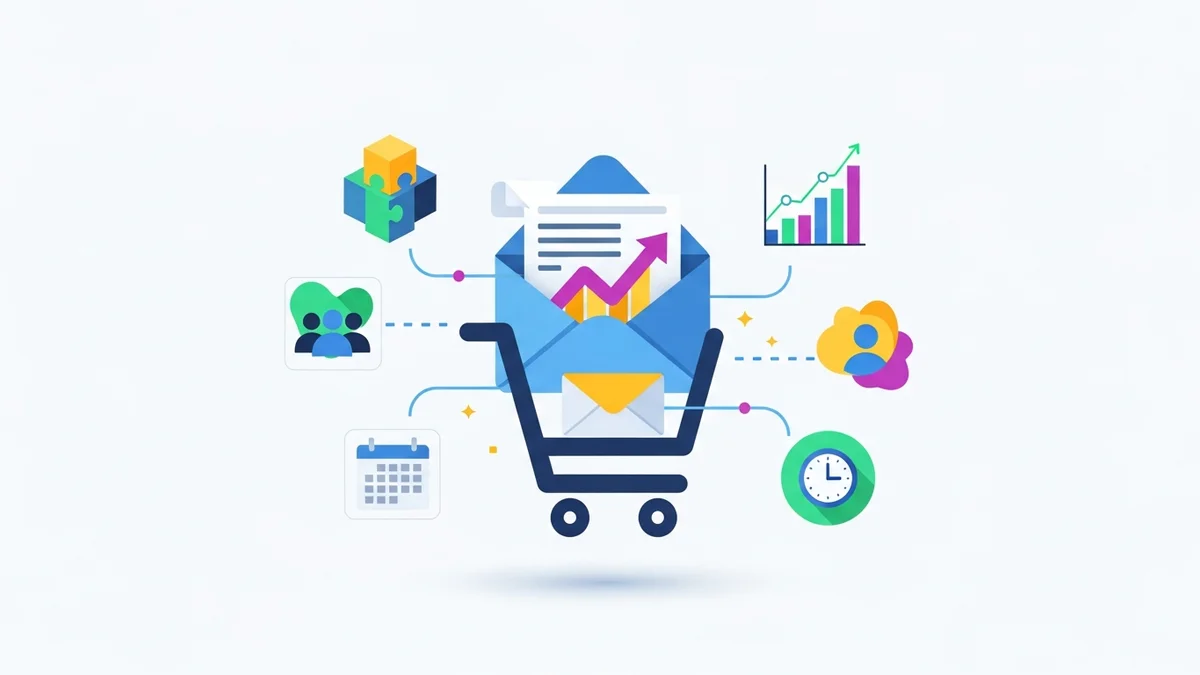
Email marketing remains one of the most powerful and cost-effective channels for e-commerce stores to connect with customers, drive sales, and build lasting loyalty. For WooCommerce store owners, integrating a robust email marketing platform is not just an option, it's a necessity for sustainable growth. This guide focuses on Campaign Monitor, a platform known for its intuitive design, powerful segmentation tools, and excellent deliverability, showing you how to harness its full potential for your WooCommerce business.
Whether you're looking to grow your subscriber list, automate personalised campaigns, or analyse customer behaviour, Campaign Monitor provides the tools you need. We'll walk through everything from initial setup and list building strategies to advanced segmentation, essential campaign flows, and measuring your success, all tailored for the unique needs of a WooCommerce store.
Why Email Marketing is Essential for WooCommerce Stores
In the crowded e-commerce landscape, relying solely on paid ads or organic search can be unpredictable. Email marketing offers a direct, owned communication channel with your audience, providing unparalleled advantages:
- High Return on Investment (ROI): Email marketing consistently delivers one of the highest ROIs compared to other digital marketing channels. For every dollar spent, email marketing can generate significant returns, making it an incredibly efficient way to drive revenue.
- Direct Customer Communication: Unlike social media where algorithms dictate reach, email allows you to communicate directly with your customers and prospects. You own your list, ensuring your messages always have a path to their inbox.
- Personalisation at Scale: With the right tools like Campaign Monitor, you can segment your audience and send highly personalised messages based on customer profile data, engagement, and (with proper integration) purchase history, creating a more relevant and impactful experience.
- Customer Retention and Loyalty: Email is ideal for nurturing customer relationships beyond the initial purchase. Automated flows can keep customers engaged, encourage repeat purchases, and build a community around your brand.
- Data Ownership: Your email list is a valuable asset that you control. This data provides insights into customer preferences and behaviours, which can inform broader business and marketing strategies.
Getting Started with Campaign Monitor and WooCommerce
Integrating Campaign Monitor with your WooCommerce store is the first step towards a powerful email marketing strategy. The official Campaign Monitor for WooCommerce plugin primarily allows customer profile data to flow seamlessly between the two platforms. It's crucial to understand that this standard plugin *only* syncs basic customer profile data such as name, email, and address. It does not directly sync detailed purchase history, order data, specific products purchased, or complex engagement patterns like abandoned carts into Campaign Monitor's subscriber fields. For advanced e-commerce functionalities such as purchase-based segmentation or abandoned cart recovery, specialized third-party integrations or custom development beyond the scope of the standard plugin are typically required.
Connecting WooCommerce to Campaign Monitor
The easiest way to connect your WooCommerce store is by using the official Campaign Monitor for WooCommerce plugin. This plugin bridges the gap, allowing data synchronization and enabling e-commerce specific functionalities.
- Install the Plugin: From your WordPress dashboard, navigate to
Plugins > Add New, search for "Campaign Monitor for WooCommerce," install, and activate it. - Connect Your Account: Once activated, you'll find a new "Campaign Monitor" section in your WooCommerce settings. Here, you'll typically enter your Campaign Monitor API Key and Client ID, which can be found in your Campaign Monitor account settings under
Account Settings > API keys. - Configure Sync Settings: The plugin will allow you to choose which customer profile data to sync (e.g., name, email, address) and whether to automatically add new customers to a specific Campaign Monitor list. You can also map WooCommerce custom fields to Campaign Monitor custom fields for richer profile data.
- Enable E-commerce Tracking (if available through separate means): While the plugin itself doesn't sync all e-commerce data, ensuring any available e-commerce tracking features are enabled (e.g., Campaign Monitor's own JavaScript tracking if implemented) is crucial for monitoring purchases, abandoned carts, and product views, which power many of Campaign Monitor's advanced features when properly integrated.
Once connected, your WooCommerce customer profile data (such as name and email) will begin synchronizing with your Campaign Monitor account. This foundational data allows for basic segmentation and personalized campaigns based on customer demographics. For more advanced e-commerce specific automations and segmentation based on purchase history or abandoned carts, additional integrations or custom solutions are necessary, as the standard plugin focuses solely on profile data.
Building Your Email List: Strategies for WooCommerce
A thriving email list is the lifeblood of your email marketing efforts. For WooCommerce stores, there are numerous effective ways to encourage visitors and customers to opt-in.
On-Site Opt-in Forms
Your website is a prime location for capturing email addresses. Campaign Monitor offers various ways to create and embed forms.
- Pop-up Forms: These are highly effective for capturing attention. Consider using:
- Exit-Intent Pop-ups: Appear when a visitor is about to leave your site, offering a last-chance incentive.
- Time-Based Pop-ups: Appear after a visitor has spent a certain amount of time on a page, indicating engagement.
- Scroll-Based Pop-ups: Trigger when a user scrolls a certain percentage down a page.
- Embedded Forms: Place these discreetly in your website's footer, sidebar, or on dedicated "Sign Up" pages. They are less intrusive and capture highly interested subscribers.
- "Spin the Wheel" or Gamified Pop-ups: These interactive elements add an element of fun and often yield higher opt-in rates by offering a chance to win various discounts.
Checkout Opt-in
The checkout process is a critical point for list growth, as customers are already demonstrating purchase intent.
- Checkbox Opt-in: Include a clear, unchecked checkbox during the checkout process (e.g., "Sign up for exclusive offers and updates"). Ensure compliance with privacy regulations like GDPR and CCPA by explicitly stating what subscribers will receive.
- Post-Purchase Thank You Page: Offer an opportunity to subscribe on the order confirmation page. They've just completed a purchase, indicating trust in your brand.
Lead Magnets and Incentives
Sweeten the deal to encourage sign-ups.
- First-Purchase Discount: Offer a percentage off or a fixed amount off their first order when they subscribe. This is highly effective for new visitors.
- Exclusive Content: If applicable, offer a free guide, ebook, or curated product list in exchange for an email address.
- Giveaways and Contests: Run contests where email sign-up is an entry requirement. This can rapidly grow your list, though ensure the prize is relevant to your products to attract qualified leads.
- Free Shipping Offer: A classic incentive that often converts well.
Leveraging Social Media
Promote your email list across your social channels.
- Link in Bio: Include a direct link to your email sign-up form in your Instagram or TikTok bio.
- Facebook Lead Ads: Use Facebook's lead generation ads to collect emails directly from the platform.
- Regular Mentions: Periodically remind your social media followers to join your email list for exclusive updates and offers.
Segmentation: Powering Personalisation for WooCommerce Customers
Sending generic emails to your entire list is a missed opportunity. Segmentation is the process of dividing your email list into smaller, more targeted groups based on shared characteristics or behaviours. This allows for highly personalised campaigns that resonate more deeply with recipients, leading to higher engagement and conversions. While the standard WooCommerce plugin syncs customer profile data, advanced segmentation based on detailed e-commerce data like purchase history or abandoned carts often requires additional e-commerce tracking implementations or specialized third-party integrations to feed this rich data into Campaign Monitor.
Why Segmentation is Crucial for E-commerce
- Increased Relevance: Customers receive messages that are specific to their interests or past actions.
- Higher Open and Click Rates: Personalised subject lines and content stand out in a crowded inbox.
- Improved Conversion Rates: Targeted offers are more likely to result in a purchase.
- Reduced Unsubscribe Rates: Relevant content keeps subscribers engaged and less likely to opt-out.
- Stronger Customer Relationships: Shows customers you understand their needs and preferences.
Key Segmentation Criteria for WooCommerce Stores
With the right data integration, Campaign Monitor can allow you to segment your list using a wide array of data points.
- Purchase Behavior (requires specialized integration):
- Products Purchased: Target customers who bought a specific product with related accessories or complementary items.
- Product Categories: Segment by the categories of products a customer frequently buys (e.g., "activewear buyers," "home decor enthusiasts").
- Total Spend (Lifetime Value): Identify your VIP customers (highest spenders) for exclusive offers and your low-value customers for re-engagement.
- Last Purchase Date: Segment customers by how recently they've purchased (e.g., "purchased in last 30 days," "purchased 90+ days ago" for win-back campaigns).
- Number of Purchases: Differentiate first-time buyers from repeat customers.
- Browsing Behaviour (requires specialized integration):
- Viewed Products: Target customers who viewed specific products but didn't purchase.
- Abandoned Cart Items: Crucial for abandoned cart recovery emails (requires specialized integration).
- Customer Lifecycle Stage:
- New Subscribers: Those who've just joined your list but haven't purchased.
- First-Time Buyers: Customers who've made their initial purchase (if purchase data is integrated).
- Repeat Customers: Loyal customers who have made multiple purchases (if purchase data is integrated).
- At-Risk Customers: Those who haven't purchased in a while and are showing signs of inactivity (if purchase data is integrated).
- VIP Customers: Your most valuable, high-spending customers (if purchase data is integrated).
- Email Engagement:
- Opened Specific Emails: Target those who showed interest in a particular campaign.
- Clicked Specific Links: Segment by interest in certain products or content.
- Inactive Subscribers: Those who haven't opened or clicked in a long time, for re-engagement or list cleaning.
- Demographics (if collected):
- Location: For region-specific promotions, shipping offers, or local events.
- Gender/Age: If relevant for product targeting.
How to Segment in Campaign Monitor
Campaign Monitor makes segmentation straightforward using its "Segments" feature. While basic customer profile data (like name and email) can be synced directly via the standard plugin, leveraging advanced e-commerce specific data for segmentation requires Campaign Monitor's dedicated e-commerce tracking to be properly configured, often through additional integrations or custom setup beyond the basic plugin's data sync.
- Leverage E-commerce Data (with proper integration): For advanced segmentation, Campaign Monitor's e-commerce tracking monitors customer actions like purchases, product views, and abandoned carts. This data, when successfully integrated, is then available within Campaign Monitor to define powerful segments. Note that the standard WooCommerce plugin primarily syncs profile data, and advanced e-commerce tracking often requires separate setup or specialized integrations.
- Define Segments: Go to your list in Campaign Monitor and create a new segment.
- Set Rules: Use a combination of conditions based on subscriber fields, activity, and any e-commerce data tracked by Campaign Monitor (e.g., "Total Spent is greater than $500 AND Last Purchase Date is less than 90 days ago" - assuming this data is integrated).
- Combine Conditions: Use "AND" and "OR" operators to create highly specific segments. For example, "Purchased Category 'Electronics' AND did NOT purchase Product 'Extended Warranty'" (again, assuming data integration).
Regularly review and refine your segments as your business and customer base evolve.
Campaigns That Convert: Essential Email Flows for E-commerce
Once your list is segmented using available customer profile data, or more advanced e-commerce data (if integrated), you can set up automated email journeys (Campaign Monitor calls these "Journeys") that respond to customer actions and lifecycle stages. These automated flows are workhorses, nurturing leads and driving sales around the clock, though the scope of automation will depend
Related Articles
Explore these related guides for more detailed information:
- How to Run a Black Friday Email Campaign for Your WooCommerce Store in Campaign Monitor
- What Email List Opt-in Incentives Work Best for WooCommerce Stores
- How to Create a Win-Back Email Campaign for Lapsed WooCommerce Customers in Campaign Monitor
- How to Re-Engage WooCommerce Customers Who Never Opted in to Your Email List
- How to Reduce WooCommerce Customer Churn with Targeted Retention Emails in Campaign Monitor