Introduction
Running a WooCommerce store in Australia that ships internationally opens up your business to a global customer base. However, this exciting opportunity comes with its own set of administrative challenges, particularly when it comes to customs declarations. Manually filling out forms for every international order can be a significant drain on your time and resources.
Accurate customs declarations are crucial for ensuring your parcels clear international borders without delay. Incorrect or incomplete information can lead to customs holds, fines, or even returned shipments, frustrating both you and your customers. The good news is that you don't have to tackle this manually.
The Challenge of Manual Customs Declarations
Imagine processing dozens of international orders daily. For each parcel, you'd need to gather specific details: the recipient's information, a detailed description of each item, its value, weight, and country of origin. This data often needs to be transferred from your WooCommerce order system to a separate customs form, either online or on paper.
This manual process is not only time-consuming but also highly susceptible to errors. A simple typo in an address or an incorrect item description can cause significant headaches down the line. For Australian businesses shipping worldwide, navigating various country-specific requirements adds another layer of complexity.
How Pre-Filling Customs Declarations Helps Your WooCommerce Store
Pre-filling customs declarations directly from your WooCommerce order data offers a powerful solution to these challenges. By automating this process, you can transform a tedious task into a quick, efficient step in your shipping workflow.
The core benefits include:
- Significant Time Savings: Eliminate the need to manually re-enter data for every international order. Process dozens of shipments in minutes instead of hours.
- Increased Accuracy: Reduce the risk of human error. Data is pulled directly from your WooCommerce orders, ensuring consistency and correctness.
- Improved Compliance: Ensure all necessary fields are completed accurately, helping your parcels comply with international shipping regulations and clear customs smoothly.
- Faster Dispatch: Streamline your entire dispatch process, allowing you to get international orders out the door quicker and improve customer satisfaction.
Understanding Customs Declarations for International Shipping from Australia
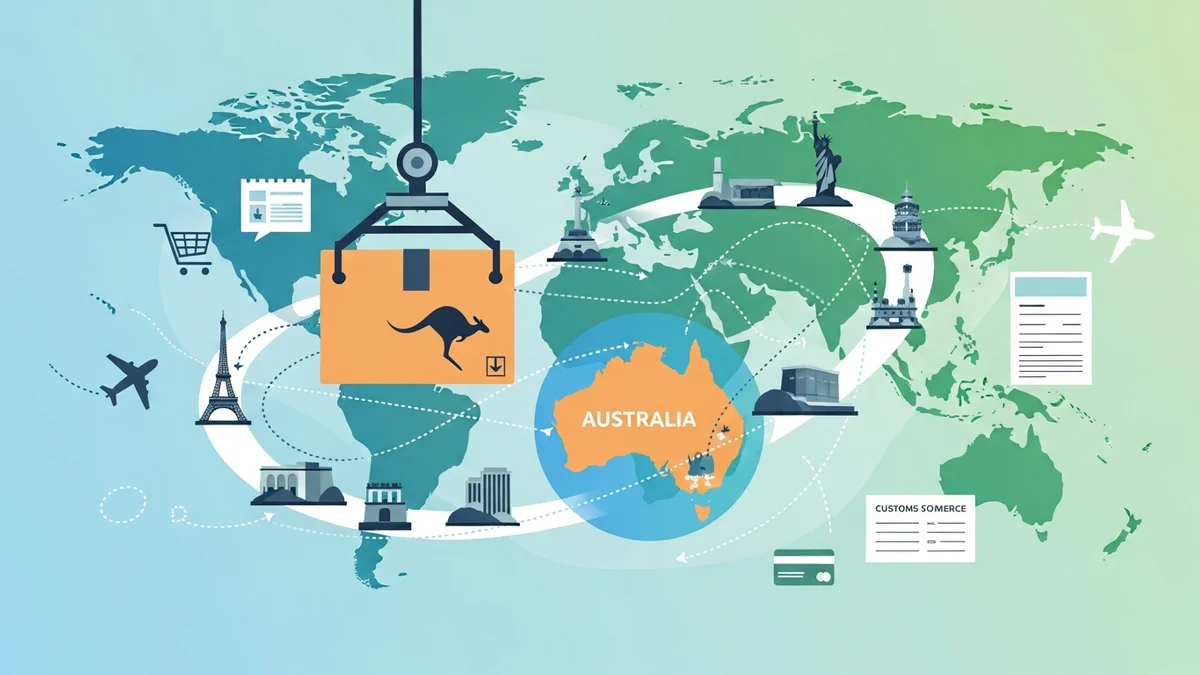
When you ship internationally from Australia, customs declarations serve as official documents detailing the contents and value of your parcel. They are essential for customs authorities in the destination country to assess duties, taxes, and ensure prohibited items are not entering their borders.
Key Information Required on Customs Declarations:
- Sender Details: Your business name and address in Australia.
- Recipient Details: The full name, address, and contact information of your customer.
- Detailed Contents Description: A clear, specific description of each item in the parcel. Avoid vague terms like "gifts" or "merchandise."
- Harmonized System (HS) Codes: These are internationally standardised numbers that classify products. While not always mandatory for every shipment, including them can speed up customs clearance.
- Quantity and Value: The number of each item and its individual selling price.
- Total Declared Value: The sum of all item values in the parcel.
- Weight: The total weight of the parcel, including packaging.
- Country of Origin: The country where each product was manufactured.
- Reason for Export: (e.g., Sale of Goods, Gift, Commercial Sample).
Australia Post, like other international carriers, has specific requirements for the data format it accepts for bulk international shipping. Knowing these requirements is key to a smooth process, which is where dedicated tools come into play.
Step-by-Step Guide: Pre-Filling Customs Declarations from WooCommerce Order Data
This tutorial will walk you through the process of automating your customs declarations, specifically focusing on how to export your WooCommerce order data into a format that Australia Post accepts for international shipping.
Step 1: Ensure Product Data is Complete in WooCommerce
The foundation of accurate pre-filled customs declarations lies in the quality of your product data within WooCommerce. Before you even think about exporting, make sure your products have the following essential details:
- Accurate Product Names/Descriptions: Use clear, specific names that accurately describe the item for customs purposes.
- Correct Weights: Ensure every product has an accurate weight entered in its WooCommerce product data. This is crucial for calculating total parcel weight for customs. If weights are missing, the system will use a default, which might not be accurate.
- Country of Origin: While not a standard WooCommerce field, you might use a custom attribute or ensure you know the origin for your products. This information is required for customs.
Taking the time to set this up correctly once will save you countless hours later. For more general advice on setting up international shipping, refer to our guide: "WooCommerce International Shipping from Australia: The Complete Setup Guide".
Step 2: Install and Configure the Export Plugin
To efficiently pre-fill customs declarations, you'll need a tool that can extract the necessary data from your WooCommerce orders and format it correctly for Australia Post. The WooCommerce Australia Post CSV Export Pro plugin is designed specifically for this purpose.
After installing and activating the plugin, you'll need to configure your sender details. This typically includes your business name, address, and contact information. These details will automatically be included in the exported customs declarations, ensuring compliance.
The plugin leverages your existing WooCommerce product and order data to populate all the required fields for international customs, significantly reducing your manual workload.
Step 3: Review and Prepare International Orders for Export
With the plugin installed, you'll find a new section in your WordPress admin area dedicated to exporting Australia Post shipments. This area typically displays all your "Processing" orders, separating them into domestic and international tables for clarity.
For your international orders, you can review each one individually. While the plugin automates most of the data pre-filling, you might want to:
- Confirm Shipping Service: Choose between Standard or Express international shipping, depending on the customer's selection or your default.
- Select Packaging: Indicate whether you're using Australia Post satchels/boxes or your own packaging (your own boxes).
- Add Extra Cover/Signature: Optionally add extra cover for valuable items or require a signature on delivery for added security.
The plugin will automatically pull the recipient's address, the items purchased, their values, and the calculated total weight from the order. It then formats this into the correct structure for customs declarations.
Step 4: Export Your International Orders with Customs Data
Once you've reviewed and prepared your international orders, the next step is to export them. The WooCommerce Australia Post CSV Export Pro plugin provides an option to export only international orders, ensuring you get a clean CSV file specifically for your global shipments.
- Navigate to the Plugin's Export Section: In your WordPress dashboard, go to the plugin's dedicated menu.
- Locate the International Orders Table: You'll see a table listing all your "Processing" international orders.
- Select Orders to Export: You can select individual orders or use a "select all" option to export multiple orders at once.
- Choose Export Option: Click the "Export International Orders" button (or similar). The plugin will generate a CSV file on your computer.
This CSV file will contain all the necessary recipient and parcel details, including the automatically pre-filled customs declaration information (parcel contents, individual item values, total weight, etc.), ready for the next stage.
Step 5: Upload to Australia Post and Generate Labels
The CSV file you just exported is now ready for the Australia Post Business Portal. This is where the magic of bulk label generation happens.
- Log in to the Australia Post Business Portal: Access your account on the Australia Post website.
- Navigate to the Bulk Upload Section: Look for an option like "Create Labels," "Send & Track," or "Bulk Upload."
- Upload Your CSV File: Select the CSV file you exported from your WooCommerce store. The portal will process the data.
- Review and Generate Labels: The Australia Post Business Portal will display your orders. Review them one last time, confirm shipping preferences, and then proceed to generate and print your international shipping labels, complete with integrated customs forms.
By following these steps, you eliminate the manual data entry that often makes international shipping a chore, making your WooCommerce international shipping process much more efficient.
Tip: What if Product Weights are Missing?
It's a common scenario for some products to be missing weight data in WooCommerce. The WooCommerce Australia Post CSV Export Pro plugin intelligently handles this. If a product's weight isn't specified, it will use a sensible default weight (e.g., 0.5kg) for that item to ensure the total parcel weight is calculated, preventing errors during export and upload.
However, for maximum accuracy, it's always best to update your product weights directly in WooCommerce.
Tip: Combining Domestic and International Exports
If you have both domestic and international orders to ship, the plugin also offers a "Combined CSV" export option. This allows you to export all your "Processing" orders into a single CSV file, which can then be uploaded to the Australia Post Business Portal. The portal will correctly distinguish between domestic and international shipments, processing them accordingly, including the pre-filled customs declarations for international parcels.
Best Practices for WooCommerce International Shipping from Australia
Beyond automating customs declarations, consider these best practices for a smooth international shipping operation from your Australian WooCommerce store:
- Accurate Product Descriptions: Always provide clear, detailed, and honest descriptions of your products. This helps customs officers classify items quickly and correctly.
- Understand Import Regulations: Research common import restrictions or duties for your most frequent international destinations. While you don't calculate these, being aware can help you inform customers.
- Transparent Shipping Policies: Clearly outline your international shipping costs, estimated delivery times, and any potential customs duties or taxes that customers might be responsible for on your website.
- Use Reliable Tools: Invest in plugins like the WooCommerce Australia Post CSV Export Pro to automate repetitive tasks and reduce manual errors.
- Packaging: Use durable packaging suitable for international transit. Ensure items are well-protected to prevent damage.
Related Articles
Continue your learning with these related resources:
- The Complete Guide to WooCommerce Shipping for Australian Stores (Comprehensive Guide)
- How to Configure Default Shipping Service and Packaging in WooCommerce for Australia Post
- How to Customize Your Australia Post WooCommerce Export Table Columns
- How to Set Up Sender Details in WooCommerce for Australia Post CSV Export
- How to Set Up WooCommerce Product Weights for Accurate Australia Post CSV Export
- How to Set Signature on Delivery and Extra Cover Defaults for Australia Post WooCommerce Exports
Conclusion
Shipping internationally from your Australian WooCommerce store doesn't have to be a daunting task, especially when it comes to customs declarations. By leveraging your existing WooCommerce order data and a specialised export tool like the WooCommerce Australia Post CSV Export Pro, you can largely automate the pre-filling of these crucial documents.
This not only saves you significant time and reduces the likelihood of costly errors but also ensures your international parcels move through customs more efficiently. Embrace automation to streamline your workflow, expand your global reach, and keep your international customers happy.