Introduction
For any WooCommerce store owner, preparing data for bulk shipping label generation is a game-changer. It transforms a tedious, hour-long task into a quick, efficient process, especially when dealing with multiple orders daily. However, even with the best systems in place, you might occasionally encounter hiccups that prevent your data from being correctly prepared for label generation.
Whether you're struggling with incorrect data, rejected CSV files, or labels being generated with the wrong service, these issues can be frustrating and delay your shipments. This guide will walk you through common problems when preparing data for bulk label generation in WooCommerce, their likely causes, and practical solutions to get your orders out the door smoothly.
Understanding Your Bulk Label Workflow
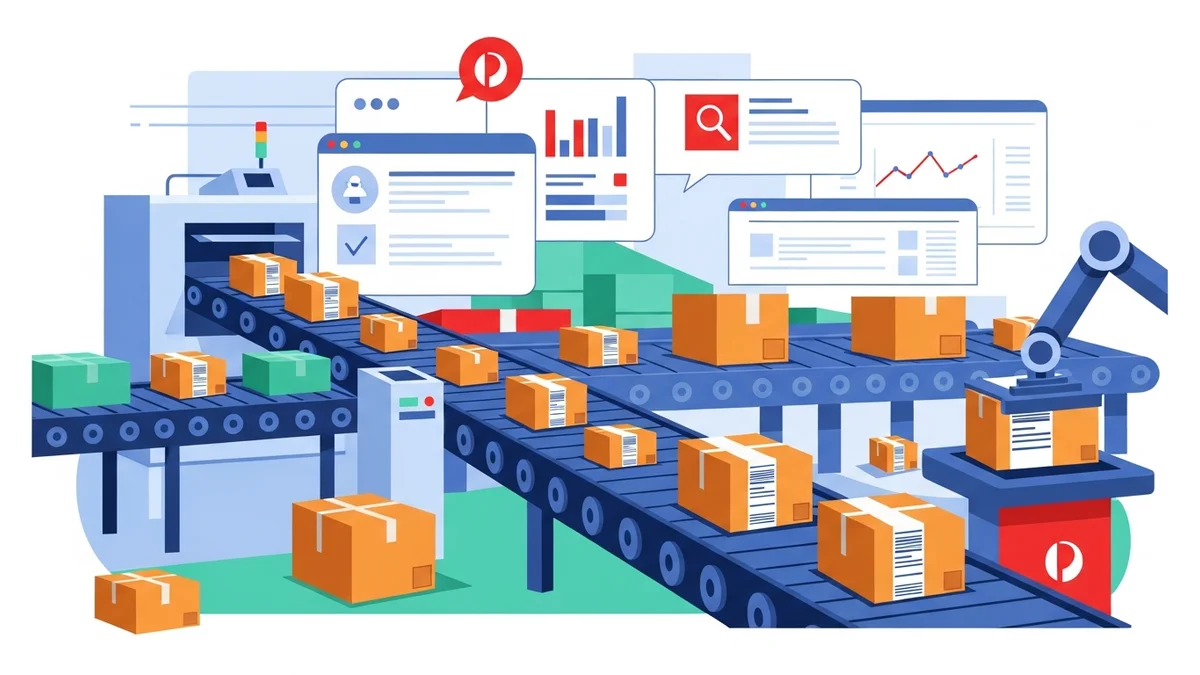
Before diving into troubleshooting, it’s helpful to understand the typical bulk label generation workflow. Generally, it involves:
- Data Collection: Your WooCommerce store collects customer shipping details, product weights, and dimensions.
- Export/Processing: A plugin or tool (like the WooCommerce Australia Post CSV Export Pro) gathers this data from "Processing" orders and formats it.
- Carrier Integration: The formatted data is uploaded to your shipping carrier (e.g., Australia Post) via their business portal.
- Label Generation: The carrier's system processes the data and generates the shipping labels, which you then print.
Problems can arise at any of these stages, particularly during data preparation and CSV upload.
Common Bulk Label Generation Problems and Solutions
Problem 1: Incorrect Customer Shipping Information on Labels
One of the most common issues is labels being generated with wrong or incomplete customer addresses, names, or contact details.
Cause
- Customer Input Error: The customer might have entered incorrect or incomplete details during checkout.
- Data Entry Mistakes: If you manually edited an order, an error might have been introduced.
- Plugin Configuration: Sometimes, a plugin might not correctly retrieve or map all necessary fields from WooCommerce.
Solution
Review Order Details in WooCommerce: Always start by checking the original order in your WooCommerce admin panel. Navigate to WooCommerce > Orders, select the problematic order, and review the billing and shipping addresses. Correct any obvious mistakes directly.
- Educate Customers: Encourage customers to double-check their shipping details before finalizing an order. Consider using address validation plugins at checkout to minimise errors upfront.
- Check Plugin Mappings: If using a third-party bulk export plugin, ensure its settings correctly map WooCommerce fields to the required carrier fields. For a plugin like WooCommerce Australia Post CSV Export Pro, this mapping is pre-configured to match Australia Post's exact specifications, reducing this specific error source.
Problem 2: Carrier Business Portal Rejects Your Exported CSV File
You’ve exported your orders to a CSV, but when you try to upload it to your carrier's portal (like the Australia Post Business Portal), it's rejected with an error message.
Cause
- Incorrect CSV Format: The most frequent cause. Carriers require a very specific CSV structure, including column headers, data types, and field order. Any deviation can lead to rejection.
- Missing Mandatory Fields: Critical information (e.g., recipient postcode, parcel weight) might be missing for some orders.
- Invalid Data: A postcode might not match a state, a service code might be incorrect, or a character not allowed.
Solution
Use a Carrier-Specific Export Plugin: This is often the most effective solution. Generic CSV exporters might not generate the precise format required. A plugin specifically designed for your carrier, such as the WooCommerce Australia Post CSV Export Pro, is built to produce the exact CSV structure that Australia Post requires, drastically reducing rejection rates.
- Review Error Messages: The rejection message from your carrier's portal often provides clues. Look for specifics like "Invalid Postcode in Row 5" or "Missing Parcel Weight."
- Check for Blank Fields: Before exporting, quickly scan your orders for missing essential information, especially product weights and dimensions, which are crucial for parcel calculations. If product weights are not set, a plugin like ours will use a default (e.g., 0.5kg) to ensure the CSV is complete.
- Verify Service Codes: Ensure the shipping service codes (e.g., Parcel Post, Express Post) you're using are valid for the selected destination and carrier.
Problem 3: Labels are Generated with Wrong Shipping Service or Packaging Type
You intended to send an order via Express Post, but the label is generated as Parcel Post, or you selected "Own Packaging" (meaning your own boxes, not Australia Post satchels/boxes) but it defaults to a satchel.
Cause
- Default Settings Override: Your bulk export plugin might have default shipping services or packaging types set that are not being overridden by specific order selections.
- Incorrect Selection During Export: You might have overlooked changing the service or packaging for specific orders before initiating the export.
- WooCommerce Shipping Zone Conflicts: Sometimes, shipping methods defined in WooCommerce shipping zones can influence how data is interpreted by export tools.
Solution
Review Per-Order Settings in Your Export Tool: Most dedicated bulk export plugins, including the WooCommerce Australia Post CSV Export Pro, provide an interface to review and adjust shipping services (Parcel Post, Express Post) and packaging types (Australia Post satchels, own packaging) for individual "Processing" orders *before* export. Make these adjustments carefully.
- Check Plugin Defaults: Familiarise yourself with your export plugin's default settings. If most orders use Parcel Post, set that as the default and manually change Express Post orders.
- Clear Caching: If you've made changes and they're not reflected, clear any caching on your WooCommerce site.
Problem 4: Issues with International Orders and Customs Declarations
International shipments often come with additional complexities, especially concerning customs information.
Cause
- Missing Product Customs Data: Information like country of origin, item value, and detailed descriptions might be missing from your WooCommerce products.
- Incorrectly Formatted Customs Declarations: The exported CSV might not correctly format the customs declaration fields as required by the destination country or carrier.
Solution
Ensure Complete Product Data in WooCommerce: For every product you ship internationally, ensure all customs-related fields are populated in WooCommerce. This includes accurate product descriptions, values, and countries of origin.
- Use an International-Ready Export Plugin: A robust plugin like the WooCommerce Australia Post CSV Export Pro handles international orders by automatically populating the necessary data for customs declarations, pre-filling parcel contents, values, weights, and country of origin from your WooCommerce order data. This helps streamline customs form completion and ensures correct data formatting for Australia Post.
- Verify Destination Requirements: Be aware that some countries have specific import restrictions or require additional declarations. While a plugin simplifies the process, it's good to be generally informed.
Problem 5: Slow Export Process or Server Timeouts
When trying to export a large number of orders, your site might slow down, or the export process might time out before completing.
Cause
- Large Order Volume: Processing hundreds or thousands of orders at once can be resource-intensive.
- Server Resource Limits: Your hosting environment might have low memory limits or execution time limits.
- Plugin Inefficiency: Some plugins are not optimised for large datasets.
Solution
Export in Batches: Instead of trying to export all "Processing" orders at once, select a smaller range (e.g., 50-100 orders) and export them in batches. This reduces the load on your server.
- Increase Server Resources: If you consistently run into timeouts, contact your hosting provider to discuss increasing PHP memory limits and execution time. This is a common requirement for growing e-commerce stores.
- Optimised Plugin Selection: Choose plugins specifically designed for efficiency. The WooCommerce Australia Post CSV Export Pro is built to handle various order volumes efficiently.
Problem 6: Orders Not Appearing in the Export List
You have new orders, but they aren't showing up in your bulk export plugin's interface.
Cause
- Incorrect Order Status: Most bulk export tools, including the WooCommerce Australia Post CSV Export Pro, are designed to only show orders with a "Processing" status, as these are typically the ones ready for fulfilment.
- Filters Applied: You might have inadvertently applied a filter within the plugin that hides certain orders.
Solution
Verify Order Status: Check the status of the missing orders in your WooCommerce admin. If they are "Pending payment," "On hold," or "Completed," they won't appear in the standard export list. Change their status to "Processing" once they are ready to ship.
- Clear Plugin Filters: Ensure no date range, search, or status filters are active within your bulk export plugin's interface.
Best Practices for Smooth Bulk Label Generation
Preventative measures are always better than troubleshooting after the fact. Adopt these best practices to minimise issues:
- Maintain Clean Product Data: Regularly review your WooCommerce products to ensure weights, dimensions, and customs information (for international shipping) are accurate and complete.
- Use a Dedicated Carrier Export Plugin: Invest in a plugin like the WooCommerce Australia Post CSV Export Pro that is purpose-built to prepare data for your specific carrier's bulk import system. This ensures correct CSV formatting and data mapping.
- Set Up Smart Defaults: Configure your export plugin with sensible default shipping services and packaging types to minimise manual adjustments for most orders.
- Test New Configurations: Whenever you make significant changes to your shipping setup or plugin settings, run a small test export with one or two orders to ensure everything is working as expected.
- Keep Plugins Updated: Ensure your WooCommerce core, themes, and all plugins (especially shipping-related ones) are always updated to their latest versions. This ensures compatibility and access to the latest bug fixes and features.
Related Articles
Continue your learning with these related resources:
- The Complete Guide to WooCommerce Shipping for Australian Stores (Comprehensive Guide)
- How to Configure Default Shipping Service and Packaging in WooCommerce for Australia Post
- How to Customize Your Australia Post WooCommerce Export Table Columns
- How to Set Up Sender Details in WooCommerce for Australia Post CSV Export
- How to Set Up WooCommerce Product Weights for Accurate Australia Post CSV Export
- How to Set Signature on Delivery and Extra Cover Defaults for Australia Post WooCommerce Exports
Conclusion
Troubleshooting issues related to preparing data for bulk label generation in WooCommerce doesn't have to be a daunting task. By systematically identifying the problem, understanding its cause, and applying the right solution, you can quickly get your shipping workflow back on track.
Leveraging tools like the WooCommerce Australia Post CSV Export Pro can significantly reduce these issues by handling complex formatting and data retrieval automatically. A smooth, efficient process for preparing data for bulk label generation is crucial for saving time, reducing errors, and ultimately enhancing your customers' shipping experience.