Introduction
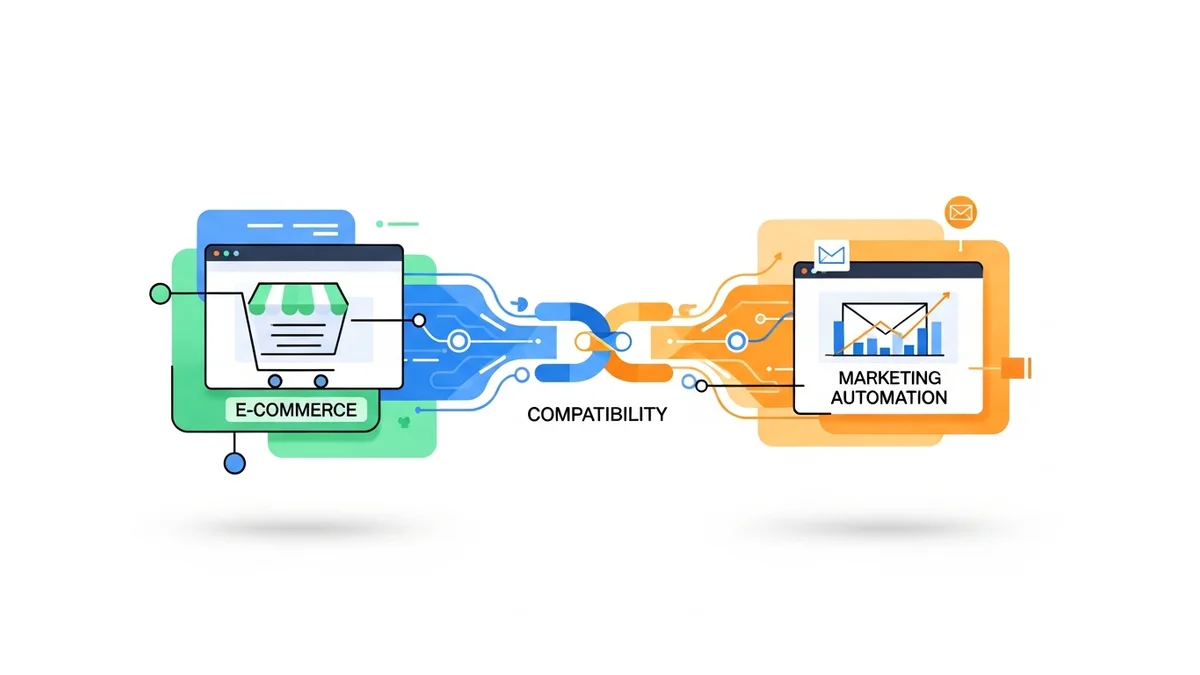
In today's digital landscape, maintaining robust privacy and security measures is paramount for any e-commerce operation. When integrating third-party tools like Campaign Monitor with your WooCommerce store, these considerations become even more critical. The WooCommerce Campaign Monitor Pro plugin is designed with these principles in mind, offering features that support GDPR compliance, secure API key handling, comprehensive activity logging, and compatibility with modern WooCommerce advancements like High-Performance Order Storage (HPOS).
However, even with well-designed tools, specific configurations or environmental factors can lead to challenges. This guide is crafted for WordPress developers and technical implementers, providing a structured approach to troubleshoot common privacy and security settings within the WooCommerce Campaign Monitor Pro plugin. We'll explore typical problems, their underlying causes, and practical solutions to ensure your integration remains secure, compliant, and efficient.
Understanding Privacy and Security in WooCommerce Campaign Monitor Pro
Before diving into troubleshooting, it's essential to understand the core privacy and security features embedded within the WooCommerce Campaign Monitor Pro plugin. These features are designed to protect both your store's data and your customers' personal information, while ensuring a smooth integration with Campaign Monitor.
The plugin facilitates the secure syncing of customer profile data (such as name, email, phone, and billing address) from WooCommerce to designated Campaign Monitor lists. It's important to note that Campaign Monitor itself handles email delivery, automations, and segmentation, utilizing the subscriber data provided by the plugin. For successful data transfer, custom fields and lists must be pre-configured and exist within your Campaign Monitor account before mapping them in the plugin settings.
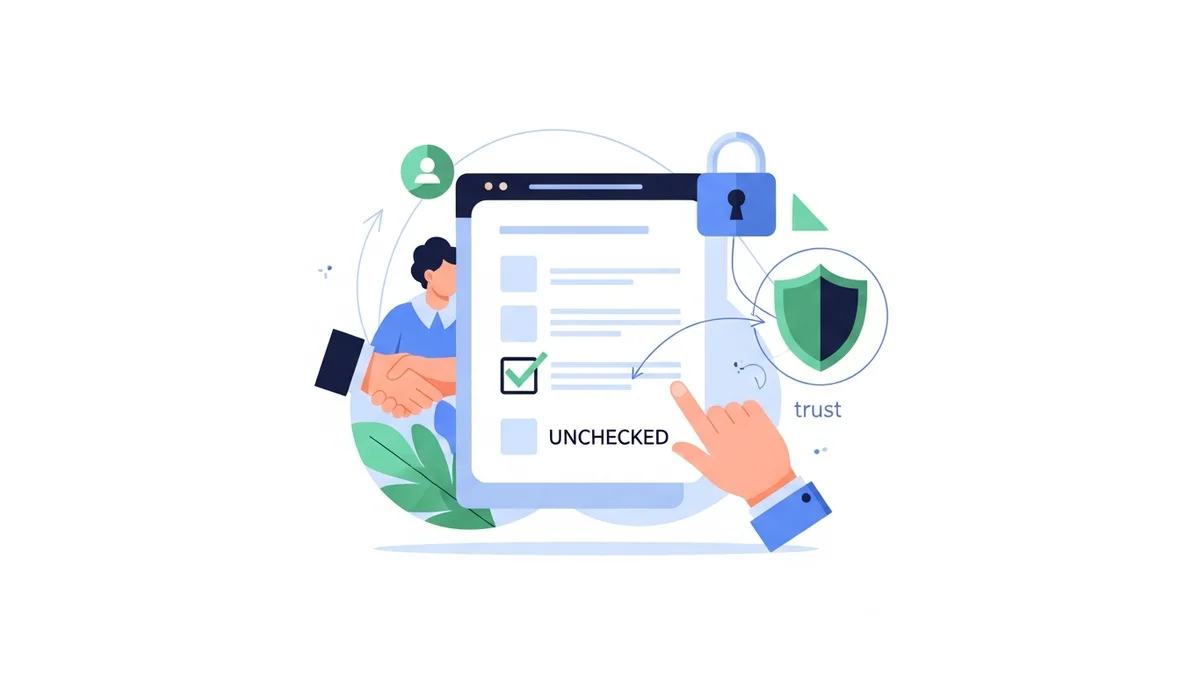
- GDPR-Compliant Opt-in: The plugin offers an opt-in checkbox at checkout that is unchecked by default, requiring explicit consent from customers. This is a fundamental aspect of GDPR WooCommerce newsletter compliance.
- Secure API Key Handling: Your Campaign Monitor API key, vital for connecting your store, is stored securely using WordPress's native encryption methods, mitigating risks associated with plain-text storage.
- Comprehensive Activity Logging: A detailed activity logging WordPress feature records all interactions between your WooCommerce store and Campaign Monitor. This log is invaluable for auditing, compliance, and debugging.
- WooCommerce HPOS Compliance: The plugin is built to be compatible with WooCommerce High-Performance Order Storage (HPOS), ensuring that customer profile data synchronisation functions correctly and efficiently in modern WooCommerce environments.
By understanding these foundational elements, you can better diagnose and resolve any issues that may arise, ensuring your email marketing efforts remain ethical and legally sound.
Troubleshooting GDPR Compliance Issues
GDPR (General Data Protection Regulation) compliance is a critical aspect of collecting customer data, particularly email addresses for newsletters. The WooCommerce Campaign Monitor Pro plugin provides specific features to aid in this, primarily through its checkout opt-in functionality.
Problem: Newsletter Opt-in Checkbox is Pre-checked or Missing
A common compliance concern is when the newsletter opt-in checkbox at checkout is pre-ticked, or not visible at all, potentially leading to non-compliant data collection.
Cause:
- Incorrect Plugin Settings: The plugin's "Opt-in Checkbox Default State" setting might be configured to "Checked" instead of "Unchecked."
- Auto-Subscribe Mode Enabled: The "Auto-Subscribe" mode bypasses the checkbox entirely, automatically subscribing all customers. While useful in specific scenarios (e.g., if consent is captured elsewhere), it's not GDPR-compliant for general opt-in.
- Theme/Plugin Conflicts: Other plugins or your theme might be interfering with the WooCommerce checkout page rendering, causing the checkbox to disappear or behave unexpectedly.
- CSS Hiding the Checkbox: Custom CSS from your theme or a child theme might unintentionally hide the checkbox element.
Solution:
- Verify Plugin Settings: Navigate to
WooCommerce > Settings > Campaign Monitor. Under the "Checkout Opt-in" section, ensure "Opt-in Checkbox Default State" is set to "Unchecked" for GDPR compliance. - Disable Auto-Subscribe: Confirm that the "Auto-Subscribe Mode" is not enabled unless you have a separate, explicit consent mechanism in place for all customers.
- Check for Conflicts: Temporarily deactivate other plugins one by one and switch to a default WordPress theme (like Storefront or Twenty Twenty-Four) to isolate if a conflict is preventing the checkbox from displaying or functioning correctly.
- Inspect CSS: Use your browser's developer tools to inspect the checkout page. Look for CSS rules that might be setting
display: none;orvisibility: hidden;on elements related to the opt-in checkbox. - Test Checkout Position: Experiment with different "Checkout Position" settings within the plugin to see if the checkbox appears in an alternative location.
Problem: Lack of Clear Consent Record for Auditing
For GDPR compliance, it's not enough to just get consent; you must also be able to demonstrate it. Without a proper record, auditing can be challenging.
Cause:
- Activity Logging Disabled: The plugin's activity logging feature might be turned off, or its retention period too short to keep historical consent records.
- Misunderstanding of "Proof of Consent": Relying solely on the "Opt-in Checkbox Default State" without considering the broader logging context.
Solution:
- Enable Activity Logging: Go to
WooCommerce > Settings > Campaign Monitor > Logs. Ensure "Enable Activity Logging" is checked. This crucial feature provides a timestamped record of when a customer opts in. - Adjust Log Retention: Set an appropriate "Log Retention Period" (e.g., 90 days, 180 days, or indefinitely) to ensure you have sufficient historical data for auditing purposes.
- Review Log Entries: Regularly review the activity logs (
WooCommerce > Settings > Campaign Monitor > Logstab) to verify that subscriber syncs, including opt-in status, are being recorded accurately. Each entry should clearly indicate if a user opted in.
Securing API Key Handling and Connectivity
The Campaign Monitor API key is the bridge between your WooCommerce store and your email marketing platform. Its security is paramount, as a compromised key could grant unauthorised access to your subscriber lists.
Problem: API Key Not Saving or Connection Errors
Users often encounter issues where their API key doesn't seem to save, or the connection to Campaign Monitor fails, leading to subscription sync failures.
Cause:
- Incorrect API Key: The most common cause is simply entering an incorrect or expired API key.
- Network/Firewall Restrictions: Your server's firewall, web host's security rules, or a WordPress security plugin might be blocking outgoing connections to the Campaign Monitor API endpoints.
- Server-Side Issues: PHP cURL extension not enabled, or other server configuration issues preventing external requests.
- WordPress Database Issues: Corrupted database tables or insufficient permissions preventing settings from being saved.
Solution:
- Re-enter and Verify API Key: Double-check the Campaign Monitor API key in your Campaign Monitor account settings. Copy and paste it carefully into
WooCommerce > Settings > Campaign Monitor > General. Ensure no extra spaces or characters are included. - Check Server Connectivity:
- Contact your hosting provider to ensure that outgoing connections to Campaign Monitor's API (e.g.,
api.createsend.com) are not blocked by a firewall. - Confirm that the PHP cURL extension is enabled on your server. This is usually standard but worth checking.
- Review Security Plugins: If you use security plugins (e.g., Wordfence, Sucuri), temporarily disable them to see if they are interfering. If the connection works, you'll need to whitelist Campaign Monitor's API domains within your security plugin's settings.
- Clear Caches: After making changes, clear any caching layers (WordPress, server, CDN) to ensure you're testing with the latest configuration.
- Regenerate API Key: If problems persist, try regenerating a new API key within Campaign Monitor and update it in your plugin settings.
Problem: Concerns about API Key Exposure and Security
As a developer, you might be concerned about where and how the API key security WooCommerce plugin stores sensitive credentials, especially in a shared hosting environment.
Cause:
- Misunderstanding of Storage Mechanism: Lack of clarity on how WooCommerce Campaign Monitor Pro handles API keys at rest.
- Inadequate Server Security: General server vulnerabilities unrelated to the plugin itself.
Solution:
- Understand Encrypted Storage: Reassure yourself that WooCommerce Campaign Monitor Pro stores your Campaign Monitor API key using WordPress's built-in encryption functions (specifically,
wp_encrypt()andwp_decrypt()based on theAUTH_KEYandSECURE_AUTH_KEYconstants in yourwp-config.phpfile). This means the key is not stored in plain text in the database. - Secure
wp-config.php: Ensure yourwp-config.phpfile, which contains the encryption keys, has strong file permissions (e.g.,644or640) and is protected from unauthorised access. - Strong Security Constants: Verify that your
AUTH_KEYandSECURE_AUTH_KEYinwp-config.phpare long, complex, and unique to your installation. Regenerate them if you suspect a compromise. - Implement General Server Security Best Practices: While the plugin secures the key at rest, overall server security is crucial. This includes strong passwords, regular backups, and keeping all WordPress core, themes, and plugins updated.
Leveraging and Troubleshooting Activity Logging
The activity logging feature in WooCommerce Campaign Monitor Pro is an invaluable resource for debugging, compliance, and understanding how your data flows. It records every interaction, including subscriber syncs, API calls, and errors.
Problem: Missing or Incomplete Activity Logs
When issues arise, the first place to look is often the logs. If they're missing or don't contain the expected information, troubleshooting becomes much harder.
Cause:
- Logging Disabled: The "Enable Activity Logging" option in the plugin settings might be unchecked.
- Short Retention Period: The "Log Retention Period" is set too short, leading to logs being purged before you can review them.
- Database Issues: Problems with your WordPress database preventing log entries from being written or retrieved.
- High Traffic/Performance Settings: In very high-traffic scenarios, some logging might be skipped if not optimised, or if the database is overloaded.
Solution:
- Enable Logging: Navigate to
WooCommerce > Settings > Campaign Monitor > Logsand ensure "Enable Activity Logging" is checked. Save changes. - Adjust Retention Period: Set the "Log Retention Period" to a duration that suits your auditing and troubleshooting needs (e.g., 30, 90, 180 days, or "Keep Forever").
- Check Database Health: Use a plugin like WP-Optimise or a tool from your hosting control panel (e.g., phpMyAdmin) to check and repair your WordPress database tables. Ensure the tables related to the plugin (often prefixed with
_cm_pro_logsor similar) are intact. - Review Server Error Logs: Sometimes, PHP errors might prevent logs from being written. Check your server's PHP error logs for any related warnings or fatal errors.
Problem: Log Data Overwhelming Storage or Performance
While comprehensive logs are useful, they can accumulate rapidly on high-traffic sites, potentially consuming significant database space or impacting site performance.
Cause:
- Excessive Log Detail: Capturing every single event without needing that level of granularity for an extended period.
- Very High Traffic Volume: A large number of customer interactions (orders, opt-ins) generates a continuous stream of log entries.
- Unoptimised Database: A database that hasn't been regularly optimised can struggle with large log tables.
Solution:
- Configure Log Retention Period: This is your primary tool. Set the "Log Retention Period" to a reasonable duration (e.g., 30 or 60 days) to automatically purge older entries. Only choose "Keep Forever" if absolutely necessary and you have a robust database management strategy.
- Monitor Database Size: Regularly monitor your WordPress database size. If the log tables are disproportionately large, it indicates that the retention period needs adjustment or manual cleanup is required.
- Manual Log Cleanup: The plugin provides a "Clear All Logs" button on the Logs tab. Use this button periodically if needed, after ensuring you no longer require the older data.
- Database Optimisation: Perform regular database optimisation routines using tools provided by your host or plugins to keep the database running efficiently, even with substantial log data.
Ensuring WooCommerce HPOS (High-Performance Order Storage) Compatibility
WooCommerce High-Performance Order Storage (HPOS), formerly known as Custom Order Tables, is a significant architectural change designed to improve scalability and performance for order management. It's crucial that all integrated plugins, including WooCommerce Campaign Monitor Pro, are fully compatible.
The WooCommerce Campaign Monitor Pro plugin explicitly states its WooCommerce HPOS compliance, meaning it's designed to work seamlessly with this new data storage structure.
Problem: Data Synchronisation Issues with HPOS Enabled
Despite HPOS compatibility, you might encounter situations where customer profile data isn't syncing correctly to Campaign Monitor after enabling HPOS.
Cause:
- Outdated Plugin Version: You might be running an older version of WooCommerce Campaign Monitor Pro that predates its full HPOS compatibility.
- Incomplete HPOS Migration: If you've recently enabled HPOS, the migration process might not have fully completed, leading to inconsistencies.
- Theme/Plugin Conflicts: Other plugins or your theme might not be HPOS-compliant, causing conflicts that indirectly affect customer profile data flow from WooCommerce to integrated extensions.
- WooCommerce Core Issues: Rare but possible, issues within WooCommerce core itself during the HPOS transition.
Solution:
- Update WooCommerce Campaign Monitor Pro: Ensure you are running the latest version of the plugin. Developers continually release updates to maintain compatibility with WooCommerce core changes.
- Verify HPOS Status: Go to
WooCommerce > Settings > Advanced > Features. Ensure HPOS is enabled and, if you've recently transitioned, check the "Compatibility" tab to see if any pending migration tasks or conflicts are reported. - Perform a Test Order: After verifying updates and HPOS status, place a test order on your site as a customer who opts into the newsletter. Check the Campaign Monitor Pro activity logs and your Campaign Monitor list to see if the subscriber syncs correctly.
- Check for Conflicts: Temporarily deactivate other plugins and switch to a default theme to rule out any HPOS incompatibility from other sources that might be disrupting the customer profile data flow.
- Review HPOS Migration Logs: WooCommerce often provides logs for HPOS migration. Check these for any errors or warnings that might indicate an incomplete or problematic transition.
Problem: Performance Concerns After HPOS Migration
While HPOS is designed for performance, some users might observe unexpected slowdowns or resource consumption post-migration, which could be attributed incorrectly to compatible plugins.
Cause:
- Database Overload During Migration: The migration process itself can be resource-intensive, and residual effects might linger.
- Unoptimised Database: If your database wasn't optimised before or after the HPOS migration, performance issues can arise.
- Other Non-HPOS Compliant Plugins: Other plugins that are not HPOS-compatible might be struggling, impacting overall site performance.
Solution:
- Monitor System Resources: Use your hosting provider's tools to monitor CPU, memory, and database query load before and after the HPOS migration. This helps identify the source of any performance bottlenecks.
- Ensure Plugin Updates: Reiterate the importance of keeping WooCommerce Campaign Monitor Pro and all other plugins updated. HPOS compliance often includes performance optimisations.
- Database Optimisation: Perform comprehensive database optimisation. This includes clearing transients, optimising tables, and removing unused data.
- Staging Environment Testing: Always test HPOS migration and plugin compatibility in a staging environment first. This allows you to identify and resolve performance issues without impacting your live site.
General Troubleshooting Steps for Privacy & Security
Beyond specific issues, a general troubleshooting workflow can help diagnose and resolve most problems related to plugin functionality, including privacy and security settings.
- Check for Plugin Updates: Always ensure you are running the latest version of WooCommerce Campaign Monitor Pro, WooCommerce, and WordPress. Updates often include bug fixes, security patches, and compatibility improvements.
- Clear Caches: Caching can often mask changes or lead to outdated information being displayed. Clear all levels of cache (WordPress, server, CDN) after making any configuration changes.
- Isolate Conflicts: Temporarily deactivate other plugins one by one, and switch to a default WordPress theme (e.g., Storefront, Twenty Twenty-Four). If the issue resolves, reactivate them systematically to pinpoint the culprit.
- Review Server Error Logs: Your web server's error logs (e.g., Apache, Nginx, PHP error logs) can provide critical clues about underlying server or PHP-related issues that might be affecting the plugin.
- Enable WordPress Debug Mode: For a deeper dive, enable WordPress debug mode by adding
define( 'WP_DEBUG', true );anddefine( 'WP_DEBUG_LOG', true );to yourwp-config.phpfile. This will log all PHP errors, warnings, and notices to adebug.logfile in yourwp-contentdirectory. - Contact Support: If you've exhausted your troubleshooting options, don't hesitate to reach out to the plugin's support team with detailed information about your setup, steps taken, and any error messages encountered.
Best Practices for Ongoing Privacy and Security
Proactive measures are always better than reactive fixes. Implementing these best practices will help maintain a secure and compliant WooCommerce Campaign Monitor Pro integration.
- Regular Security Audits: Periodically review your site's security posture, including user permissions, plugin settings, and server configurations.
- Stay Updated: Consistently update WordPress core, themes, and all plugins. This is the single most effective way to protect against known vulnerabilities.
- Strong Credentials: Use strong, unique passwords for your WordPress admin and hosting accounts. Ensure your Campaign Monitor API key is securely managed and only accessible to authorised personnel.
- Understand Data Flow: Have a clear understanding of what customer profile data is being collected by WooCommerce, what is being synced to Campaign Monitor, and how it is used there. This transparency is key for privacy compliance.
- Privacy Policy: Maintain an up-to-date and easily accessible privacy policy on your website that clearly outlines your data collection practices, including the use of email marketing services and the WooCommerce Campaign Monitor Pro plugin.
- Regular Backups: Implement a reliable backup strategy for your entire WordPress site and database. This is your safety net in case of a security incident or misconfiguration.
Related Articles
Continue your learning with these related resources:
- Mastering WooCommerce Campaign Monitor Pro: Your Ultimate Integration Guide for E-commerce Growth (Comprehensive Guide)
- How to Optimize WooCommerce Order Sync Timing for Campaign Monitor
- How to Set the Subscriber Name Format Sent from WooCommerce to Campaign Monitor
- How to Manually Sync a WooCommerce Order to Campaign Monitor from the Order Admin
- How to Choose the Right Campaign Monitor List for Your WooCommerce Store
- How to Bypass Campaign Monitor Double Opt-in for WooCommerce Checkout Subscribers
Conclusion
Ensuring the privacy and security of your WooCommerce store, especially when integrating with external services like Campaign Monitor, is a continuous effort. The WooCommerce Campaign Monitor Pro plugin provides robust features for GDPR compliance, secure API key handling, detailed activity logging, and HPOS compatibility, giving developers and store owners the tools they need to manage these critical aspects effectively.
By understanding the plugin's mechanisms, diligently troubleshooting common issues, and adhering to best practices, you can maintain a secure, compliant, and high-performing integration. This proactive approach not only protects your customers' data but also builds trust and safeguards your business reputation in the long run.