Introduction
Connecting your WooCommerce store with an email marketing platform like Campaign Monitor is a powerful way to communicate with your customers. It allows you to send targeted promotions, order updates, and build lasting relationships. One of the most important decisions you'll make during this setup process is choosing the correct Campaign Monitor list for your customer data.
This choice isn't just a technical step; it’s a foundational decision for your entire email marketing strategy. Selecting the right list ensures your customer information is organised efficiently, allowing you to send highly relevant messages. This article will guide you through understanding Campaign Monitor lists, planning your strategy, and making the best choice for your WooCommerce store.
Understanding Campaign Monitor Lists for WooCommerce
In Campaign Monitor, a "list" is essentially a container for your subscribers. Think of it like a filing cabinet where you store contact information for different groups of people. For a WooCommerce store, these "subscribers" are your customers or potential customers.
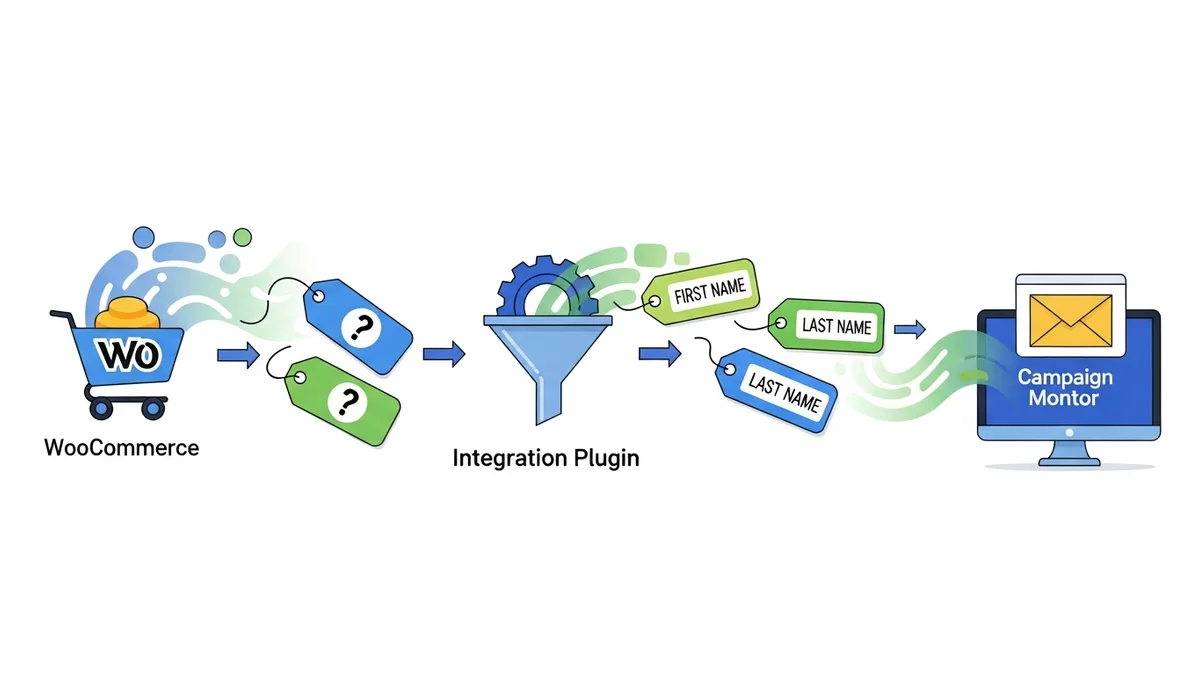
It's crucial to understand that while the integration connects your customer base, the standard plugin typically syncs only core customer profile data (like name and email address) to Campaign Monitor. Detailed purchase history, specific order data, or granular engagement patterns from your WooCommerce store are generally *not* synced directly by the plugin. Segmentation capabilities within Campaign Monitor will primarily rely on this profile data and any custom fields you might manually populate or integrate via other means.
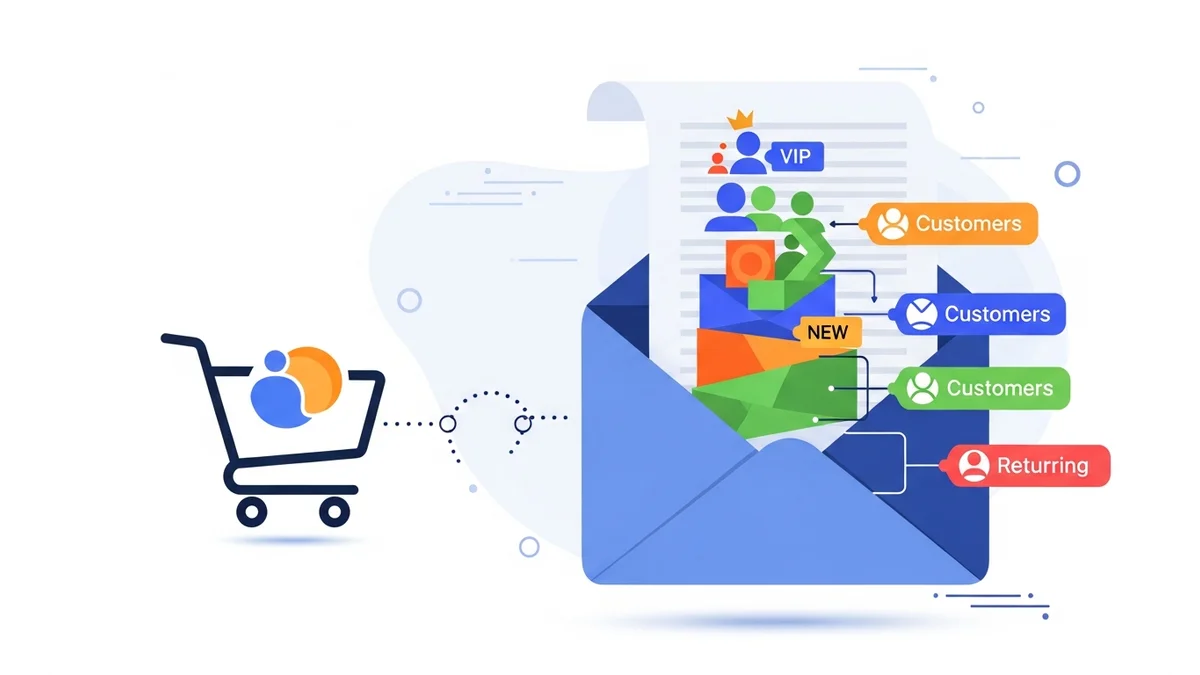
The primary purpose of organising your contacts into lists (or segments within a list) is to enable targeted communication. Sending the same email to every single person on your list, regardless of their specific interests or how they engaged with your store, often leads to lower engagement and fewer sales. By contrast, sending relevant messages to specific groups significantly boosts your email marketing effectiveness.
Why List Choice Matters for Your Store
- Targeted Messaging: Deliver promotions for products customers are likely to buy, based on their declared interests or how they engaged with your store.
- Personalised Communication: Address customers by name and reference their recent interactions with your store, making them feel valued.
- Improved Engagement: Relevant emails are more likely to be opened, clicked, and acted upon, leading to better ROI for your email campaigns.
- Efficient Management: Keep your customer data organised and easy to access for different marketing initiatives.
Planning Your Email Strategy: Before You Choose
Before you even open your plugin settings, take a moment to consider your email marketing goals. A little planning now can save you a lot of reorganisation later. Ask yourself the following questions:
What are your main marketing goals?
- Are you focussed on nurturing new customers?
- Do you want to announce sales and promotions to all customers?
- Is recovering abandoned carts a top priority?
- Do you need to segment customers for loyalty programs or VIP offers?
Who are your different customer types?
- New Customers: People who made their first purchase.
- Repeat Buyers: Loyal customers who have purchased multiple times.
- Newsletter Subscribers: Individuals who signed up for your newsletter but haven't purchased yet.
- Wholesale Clients: If you run a B2B operation alongside your retail store.
- Specific Product Interests: Customers who bought from a particular product category (e.g., pet supplies vs. garden tools).
What information do you want to collect and use for personalisation?
Campaign Monitor allows you to store custom fields for additional profile information. Thinking about what *profile data* you want to collect (e.g., preferences they explicitly state) will help you decide if a single list with robust segmentation or multiple lists is the best fit.
Option 1: The Single Master List Approach
For many WooCommerce stores, especially those just starting out or with a relatively simple product catalog, using a single master list in Campaign Monitor is the easiest and most straightforward option. All your WooCommerce customers, new subscribers, and anyone else who opts in will be added to this one main list.
How it Works
When you set up your Campaign Monitor integration plugin, you simply select one existing list (e.g., "All WooCommerce Customers" or "Main Newsletter") as your default. Every customer who makes a purchase, signs up for your newsletter, or otherwise opts in through your WooCommerce store will be added to this list.
Pros of a Single Master List
- Simplicity: Easiest to set up and manage initially. You don't need to worry about which customer goes where.
- Centralised Data: All your customer data is in one place, making it easy to see your entire audience at a glance.
- Cost-Effective (with Campaign Monitor): Campaign Monitor bills based on unique subscribers across all lists. Using one list avoids potential confusion about subscriber counts.
- Powerful Segmentation Within Campaign Monitor: Campaign Monitor excels at creating segments from a single list. You can use customer profile data (such as how they opted in, their location, or any custom fields you've populated with declared interests) to build highly targeted segments even if all customers are on one list.
Cons of a Single Master List
- Potential for Overwhelm (without proper segmentation): If you don't utilise Campaign Monitor's segmentation features, you might end up sending generic emails to everyone, which can reduce engagement.
- Less Granular Control (at the plugin level): The plugin itself won't send different customer types to different lists; it just sends everyone to the one you choose.
When to Use a Single Master List
- You have a smaller store or are just starting with email marketing.
- Your product range is not extremely diverse, or your customers tend to be interested in all your products.
- You plan to use Campaign Monitor’s robust segmentation features to create targeted campaigns from a single list.
- You prioritise ease of setup and management over complex multi-list structures.
Option 2: Multiple Segmented Lists Approach
As your WooCommerce store grows, or if you have diverse product lines and distinct customer segments, using multiple Campaign Monitor lists might be a better fit. This approach involves creating separate lists for different groups of customers or for distinct marketing purposes.
How it Works
Instead of one master list, you might create lists like "New Customers," "Repeat Buyers," "Newsletter Subscribers Only," or even lists for specific product categories (e.g., "Garden Enthusiasts," "Pet Owners"). Your Campaign Monitor plugin for WooCommerce allows you to configure which list different types of subscribers are added to, often based on their action (e.g., checkout opt-in vs. newsletter signup).
Pros of Multiple Segmented Lists
- Highly Targeted Messaging: Each list can receive emails specifically tailored to their interests or relationship with your brand. For example, new customers might get a welcome series, while repeat buyers receive loyalty offers.
- Clearer Organisation: Visually separate your different customer groups within Campaign Monitor, making it easy to see and manage distinct audiences.
- Simplified Campaign Creation: If a campaign is only for a specific audience (e.g., wholesale), you just select that list, rather than building a segment from a larger list each time.
- Reduced Irrelevance: Customers are less likely to receive emails that aren't relevant to them, improving their experience and reducing unsubscribe rates.
Cons of Multiple Segmented Lists
- Increased Initial Setup: Requires more planning and configuration within Campaign Monitor and your WooCommerce plugin.
- Potential for Duplication (handled by CM billing): A customer might exist on multiple lists (e.g., "Newsletter Subscribers" and "New Customers"). While Campaign Monitor bills based on unique email addresses, managing which list receives which communication can become complex if not well-planned.
- More Complex Management: You need to actively decide which list new customers go to and ensure your campaigns target the correct lists.
When to Use Multiple Segmented Lists
- You have a large store with a diverse product range and distinct customer demographics.
- You run very different marketing campaigns for different customer groups (e.g., retail vs. wholesale).
- You prefer the visual separation of customer groups into distinct lists within Campaign Monitor.
- You are comfortable with a slightly more complex initial setup for greater long-term targeting capabilities.
Step-by-Step: Choosing Your List in Your Campaign Monitor Plugin
Once you’ve decided on your list strategy (single or multiple), it’s time to configure it within your Campaign Monitor plugin for WooCommerce. This guide assumes you have already installed and connected the plugin to your Campaign Monitor account.
- Navigate to Plugin Settings:
- From your WordPress admin dashboard, go to WooCommerce > Settings.
- Click on the Campaign Monitor tab.
- Locate the List Selection Section:
- Scroll down to the "Campaign Monitor List Settings" or a similarly named section.
- You will see a dropdown menu labelled "Campaign Monitor List" or "Default Subscriber List."
- Select Your Chosen List:
- Click on the dropdown menu. This menu will be populated with all the lists you have created in your Campaign Monitor account.
- If you're using a single master list approach, simply select that one list (e.g., "All Customers" or "Main Newsletter List").
- If you're using a multiple segmented lists approach, you will likely see options for different customer types (e.g., "Customers who opt-in at checkout," "Newsletter Subscribers"). Select the appropriate list for each specific opt-in point or customer type the plugin allows you to configure. For example, you might have one setting for checkout opt-ins and another for a dedicated newsletter signup form.
- Important Tip: If you don't see the list you want, double-check that you've created it in your Campaign Monitor account first. You may need to refresh the plugin settings page after creating a new list in Campaign Monitor.
- Configure Additional List Options (if applicable):
- Depending on your plugin version, you might have other options related to list management, such as:
- Double Opt-in: Decide if subscribers need to confirm their email address before being added to your list. This is highly recommended for list hygiene and compliance.
- Name Format: Choose how customer names are stored (e.g., "First Name Last Name" or "Full Name").
- Custom Fields: Ensure any custom profile fields you want to sync are correctly mapped to your chosen list.
- Depending on your plugin version, you might have other options related to list management, such as:
- Save Your Changes:
- After making your selections, scroll to the bottom of the page and click the Save Changes button.
- Your WooCommerce store is now configured to send customer data to your chosen Campaign Monitor list(s).
Best Practices for Campaign Monitor List Management
Choosing your list is just the first step. Ongoing list management ensures your email marketing remains effective and compliant.
- Regularly Review and Clean Your Lists: Remove inactive subscribers or those who haven't engaged in a long time. This improves deliverability and reduces costs.
- Utilise Custom Fields: Even with a single master list, custom fields are incredibly powerful for storing additional *profile data* about your customers (e.g., their expressed preferences, signup source, or demographic information). This data can then be used to create highly specific segments within Campaign Monitor.
- Segment Aggressively: Don't be afraid to create many segments within your chosen lists. Segments are dynamic groups of subscribers based on specific criteria. Examples include "Customers who opted in at checkout," "Newsletter Subscribers," or "Customers from a specific region."
- Test Your Setup: After configuring your list, make a test purchase on your WooCommerce store (or sign up for your newsletter) to ensure the customer data is correctly flowing to the intended Campaign Monitor list.
- Comply with Regulations: Always ensure your opt-in processes (especially double opt-in) comply with privacy regulations like GDPR and CCPA.
Troubleshooting Common List Issues
Sometimes, things don't go exactly as planned. Here are a few common issues and how to address them:
- List Not Appearing in Dropdown:
- Ensure you have created the list in your Campaign Monitor account.
- Refresh the plugin settings page in WooCommerce.
- Clear any caching plugins you might be using on your WordPress site.
- Subscribers Not Syncing:
- Check your Campaign Monitor API key and Client ID in the plugin settings to ensure they are correct.
- Verify that the "Enable Sync" or similar option is turned on in the plugin.
- Look for any error messages in your WordPress site's error logs or within the plugin's status reports.
- Subscribers Going to the Wrong List:
- Carefully review all list selection dropdowns in your plugin settings. Some plugins have separate settings for checkout opt-ins, newsletter forms, etc.
- Confirm that your Campaign Monitor lists have distinct names to avoid confusion during selection.
Related Articles
Continue your learning with these related resources:
- Mastering WooCommerce Campaign Monitor Pro: Your Ultimate Integration Guide for E-commerce Growth (Comprehensive Guide)
- How to Optimize WooCommerce Order Sync Timing for Campaign Monitor
- How to Set the Subscriber Name Format Sent from WooCommerce to Campaign Monitor
- How to Manually Sync a WooCommerce Order to Campaign Monitor from the Order Admin
- How to Bypass Campaign Monitor Double Opt-in for WooCommerce Checkout Subscribers
- How to Connect WooCommerce to Campaign Monitor: Complete Setup Guide
Conclusion
Choosing the right Campaign Monitor list for your WooCommerce store is a critical step in building an effective email marketing strategy. Whether you opt for the simplicity of a single master list with robust segmentation or the granular control of multiple segmented lists, careful planning and correct plugin configuration will set you up for success. By understanding your goals and utilising Campaign Monitor’s powerful features, you can ensure your email campaigns are always relevant, engaging, and drive more sales for your business.