Introduction
For e-commerce managers, every customer interaction is an opportunity to build lasting relationships and drive repeat business. Capturing email subscribers at the point of sale, specifically during the WooCommerce checkout process, is a highly effective strategy. However, Campaign Monitor's default double opt-in setting can sometimes introduce an extra step, potentially reducing your initial subscriber conversion rates.
While double opt-in offers benefits like a cleaner list and higher engagement, for customers already making a purchase, an additional confirmation email can feel redundant and create unnecessary friction. This article will guide you through the process of bypassing Campaign Monitor's double opt-in specifically for your WooCommerce checkout subscribers, allowing you to seamlessly add engaged customers to your marketing lists while maintaining crucial consent and compliance.
Understanding Double Opt-in and Its Role in E-commerce
Double opt-in is an email subscription process where, after a user initially signs up, they receive a confirmation email. They must click a link within this email to finalize their subscription. This method is widely praised for several reasons:
- Higher Engagement: Confirmed subscribers are generally more engaged as they've actively opted in twice.
- Cleaner Lists: It helps filter out fake emails, typos, and spam bots, leading to better deliverability and lower bounce rates.
- Enhanced Compliance: It provides undeniable proof of consent, which is particularly valuable for regulations like GDPR and CAN-SPAM.
Despite these advantages, the e-commerce checkout flow presents a unique scenario. A customer completing a purchase has already demonstrated a strong intent and commitment. Introducing a double opt-in step at this critical juncture can sometimes be counterproductive, leading to:
- Reduced Sign-ups: Some customers might forget or neglect to click the confirmation link, meaning you miss out on a valuable subscriber.
- Delayed Engagement: You cannot immediately send your welcome series or other post-purchase marketing until they confirm, potentially missing the window of high intent.
- Customer Friction: An extra step can subtly interrupt the smooth customer journey.
For these reasons, many e-commerce businesses choose to implement a single opt-in strategy for checkout subscribers, provided they still obtain explicit consent. This allows for immediate addition to your marketing list, enabling timely follow-ups and nurturing.
Prerequisites for Bypassing Double Opt-in
Before you begin configuring your settings, ensure you have the following in place:
- Active WooCommerce Store: Your online store must be fully functional.
- Campaign Monitor Account: You need an active Campaign Monitor account with at least one mailing list configured.
- SauceCode Campaign Monitor for WooCommerce Plugin: This plugin must be installed, activated, and properly connected to your Campaign Monitor account. If you haven't connected it yet, please refer to our setup guide on connecting your Campaign Monitor account. It's important to note that this plugin primarily syncs customer profile data (e.g., name, email address) to Campaign Monitor. It does not sync detailed purchase history, order data, or engagement patterns from WooCommerce.
- Basic Understanding of Consent: Familiarity with legal requirements for email marketing consent (e.g., GDPR, CCPA) is essential, even when bypassing double opt-in.
Step-by-Step Guide: Bypassing Campaign Monitor Double Opt-in
This tutorial assumes you have already installed and connected the SauceCode Campaign Monitor for WooCommerce plugin to your Campaign Monitor account. If not, please complete that initial setup first.
Step 1: Navigate to Plugin Settings
Start by logging into your WordPress admin dashboard. From the left-hand navigation menu, hover over WooCommerce, then click on Settings. On the Settings page, navigate to the Integrations tab. Here, you should see a sub-tab for Campaign Monitor. Click on it to access the plugin's configuration options.
Step 2: Select Your Target Campaign Monitor List
Within the Campaign Monitor integration settings, you will find a dropdown menu labeled "Campaign Monitor List." This is where you select which of your Campaign Monitor lists new subscribers from your WooCommerce checkout will be added to. Choose the appropriate list for your e-commerce customers. It's often beneficial to have a dedicated list or segment for these highly engaged customers.
Step 3: Locate the Double Opt-in Setting
Scroll down through the plugin settings until you find an option related to subscriber confirmation. This option is typically labeled something similar to "Require Double Opt-in" or "Enable Double Opt-in." It will usually be presented as a checkbox or a toggle switch. This is the crucial setting you need to adjust.
Step 4: Disable Double Opt-in
To bypass the double opt-in process, ensure this checkbox is unchecked or the toggle is set to "Off." By doing so, you are instructing the plugin to add new subscribers directly to your chosen Campaign Monitor list as active subscribers, without requiring them to click a confirmation link in an email.
Step 5: Configure the Checkout Opt-in Field and Consent Message
Disabling double opt-in does not mean bypassing consent. It is absolutely critical that you still obtain explicit consent from your customers to receive marketing emails. The SauceCode plugin provides a dedicated section to manage the opt-in checkbox displayed on your WooCommerce checkout page.
Look for settings such as:
- "Enable Checkout Opt-in Field": Ensure this checkbox is checked to display the opt-in option.
- "Checkout Opt-in Field Label": This is the text displayed next to the checkbox on your checkout page. It must be clear, concise, and unambiguously state what the customer is agreeing to receive.
Example Opt-in Field Labels:
- "Yes, I'd like to receive marketing emails and updates."
- "Sign me up for exclusive offers and news."
- "Receive our newsletter with product updates and promotions."
Make sure the language is easy to understand and clearly indicates that by checking the box, they are agreeing to receive promotional communications.
Step 6: Save Your Changes
After making all the necessary adjustments – selecting your list, disabling double opt-in, and configuring your consent message – scroll to the bottom of the Campaign Monitor settings page and click the "Save Changes" button. Failing to save will result in your configurations not being applied.
Step 7: Test Your Setup
The final and most important step is to thoroughly test your new setup. Follow these steps:
- Open your WooCommerce store in an incognito or private browser window.
- Add a product to your cart and proceed to checkout.
- Locate the email marketing opt-in checkbox and ensure it is displayed correctly with your chosen consent message.
- Check the opt-in box and complete a test purchase using a unique email address you have access to.
- Once the order is placed, log into your Campaign Monitor account.
- Navigate to the list you selected in Step 2.
- Verify that the email address used for the test purchase appears as an active subscriber on that list, without any pending confirmation status.
If the subscriber appears immediately, your setup is successful. If not, retrace your steps or consult the troubleshooting section.
Best Practices and Considerations
While bypassing double opt-in for checkout subscribers can be highly effective, it comes with responsibilities. Here are some best practices to ensure success and compliance:
Maintain Legal Compliance with Clear Consent
Even without double opt-in, explicit consent is non-negotiable. The opt-in checkbox on your checkout page must be:
- Unchecked by default: Customers must actively choose to opt-in.
- Clear and specific: The text must clearly state what they are signing up for (e.g., "marketing emails," "promotions," "newsletters").
- Easy to understand: Avoid jargon and fine print.
This proactive approach helps you comply with regulations like GDPR, CCPA, and CAN-SPAM, safeguarding your business from potential legal issues and maintaining customer trust.
Leverage Immediate Engagement with Welcome Series
The primary benefit of single opt-in at checkout is the ability to engage customers immediately. Configure an automated welcome series in Campaign Monitor that triggers as soon as a new subscriber is added to your list. This series can introduce your brand, offer a discount on their next purchase, or highlight popular products, capitalizing on their recent purchase intent.
Segment Your Checkout Subscribers
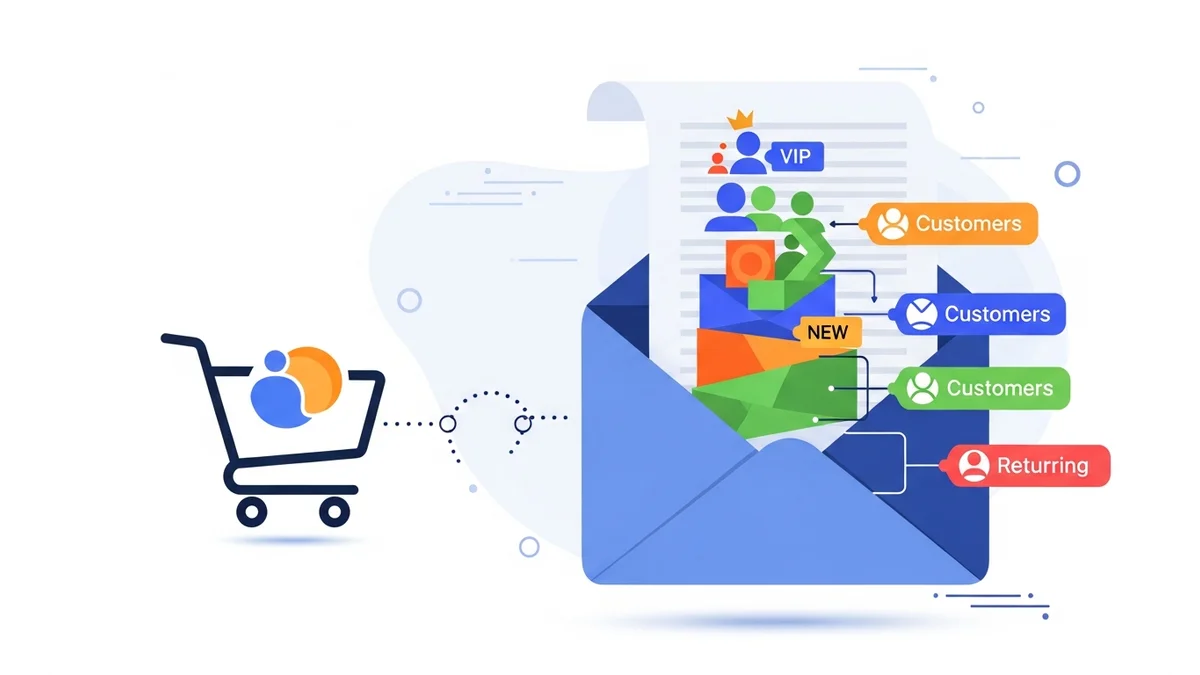
Customers who opt-in at checkout are highly valuable. Use Campaign Monitor's segmentation tools to create a specific segment for these subscribers. This allows you to tailor future campaigns based on their status as a paying customer and their engagement within Campaign Monitor, leading to higher conversion rates and better ROI.
Monitor List Health and Engagement
Without double opt-in, there's a slightly increased risk of invalid email addresses or less engaged subscribers. Regularly monitor your Campaign Monitor list's health. Look at open rates, click-through rates, and bounce rates. Implement re-engagement campaigns for inactive subscribers and consider periodically removing unengaged contacts to maintain a high-quality list and protect your sender reputation.
Review Your Strategy Periodically
Your marketing strategy should evolve. Periodically review whether bypassing double opt-in continues to serve your business goals. For certain types of subscriptions (e.g., blog-only subscribers, lead magnet downloads), a double opt-in might still be preferable to ensure higher intent and quality. The key is to choose the strategy that best fits the specific context of the subscriber's interaction with your brand.
Troubleshooting Common Issues
If you encounter problems after configuring your settings, consider these common troubleshooting steps:
- Subscriber Not Appearing in Campaign Monitor:
- Double-check that the plugin is fully connected to Campaign Monitor and that your API key is correct.
- Ensure you selected the correct Campaign Monitor list in the plugin settings.
- Verify that the "Enable Checkout Opt-in Field" is checked and the customer actually checked the opt-in box during the test purchase.
- Check your WooCommerce System Status report for any errors related to the Campaign Monitor plugin.
- Opt-in Checkbox Not Displaying on Checkout:
- Confirm that "Enable Checkout Opt-in Field" is checked in the plugin settings.
- Ensure there are no theme conflicts or other plugins interfering with the checkout page rendering. Temporarily disable other plugins to test.
- Clear your website's cache if you use a caching plugin.
- Incorrect Consent Message:
- Go back to the "Checkout Opt-in Field Label" setting and ensure your desired text is saved correctly.
Related Articles
Continue your learning with these related resources:
- Mastering WooCommerce Campaign Monitor Pro: Your Ultimate Integration Guide for E-commerce Growth (Comprehensive Guide)
- How to Optimize WooCommerce Order Sync Timing for Campaign Monitor
- How to Set the Subscriber Name Format Sent from WooCommerce to Campaign Monitor
- How to Manually Sync a WooCommerce Order to Campaign Monitor from the Order Admin
- How to Choose the Right Campaign Monitor List for Your WooCommerce Store
- How to Connect WooCommerce to Campaign Monitor: Complete Setup Guide
Conclusion
Bypassing Campaign Monitor's double opt-in for your WooCommerce checkout subscribers offers a powerful way to streamline your email list growth and foster immediate customer engagement. By reducing friction at a crucial point in the customer journey, you can capture more leads and initiate your marketing automation sequences sooner.
Remember, efficiency should never come at the expense of compliance. Always ensure you obtain clear, explicit consent from your customers through a well-configured checkout opt-in field. With the SauceCode Campaign Monitor for WooCommerce plugin, you can strike the perfect balance between robust list building and ethical marketing practices, driving greater ROI for your e-commerce business.