Introduction
For any WooCommerce merchant, customer retention is just as crucial as acquisition. Bringing back customers who haven't purchased in a while – often referred to as "lapsed customers" – can be a highly cost-effective strategy to boost revenue and foster long-term loyalty. These customers already know your brand and products, making them prime candidates for re-engagement.
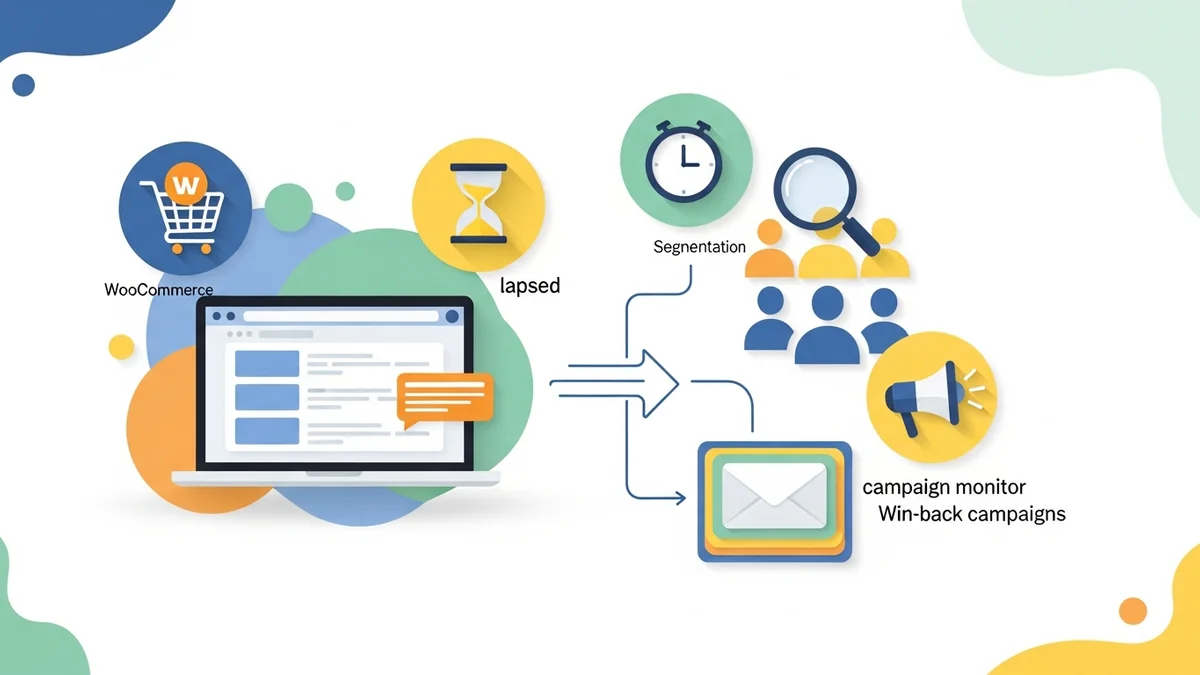
Campaign Monitor, when integrated with your WooCommerce store, provides robust segmentation tools that allow you to precisely identify and target these valuable individuals. This guide will walk you through the step-by-step process of building a powerful lapsed customer segment, setting the foundation for impactful win-back campaigns.
Why Targeting Lapsed Customers is Essential for Your Business
Neglecting lapsed customers is a missed opportunity. Re-engaging this segment offers several significant benefits that directly impact your business's bottom line and sustainability.
- Higher Return on Investment (ROI): It's generally more affordable to retain an existing customer than to acquire a new one. Win-back campaigns leverage existing brand familiarity, often yielding a better return on your marketing spend.
- Increased Customer Lifetime Value (CLTV): Successfully bringing back a lapsed customer extends their purchasing relationship with your brand, contributing significantly to their overall lifetime value.
- Brand Loyalty and Advocacy: A well-executed win-back campaign can not only reactivate a customer but also reinforce their positive perception of your brand, potentially turning them into advocates.
- Valuable Insights: Analysing why customers lapse and what brings them back provides critical insights into your customer journey, product satisfaction, and overall customer experience.
Prerequisites: Connecting WooCommerce to Campaign Monitor
Before you can build a lapsed customer segment, it's essential to have your WooCommerce store properly integrated with Campaign Monitor. This integration is vital as it syncs customer profile data directly into your Campaign Monitor lists.
Ensure your integration is active and data is flowing correctly. Please note that the standard plugin primarily syncs customer profile data. Detailed purchase history, order data, and engagement patterns are not automatically synced. Therefore, if you wish to use custom fields related to purchase activity (such as Last Purchased, Total Spend, and Order Count) for segmentation, these would need to be populated in Campaign Monitor through alternative methods (e.g., manual import, other integrations, or e-commerce tracking setup) beyond the scope of the basic WooCommerce plugin connection.
Defining a "Lapsed Customer" for Your Business
The definition of a "lapsed customer" isn't universal; it varies significantly depending on your industry, product type, and typical customer buying cycles. What constitutes "lapsed" for a coffee subscription service will be different from a furniture retailer.
Consider the following factors when defining your segment:
- Product Lifecycle: If you sell consumables (e.g., coffee, skincare), a customer might be considered lapsed after 60-90 days. For durable goods (e.g., electronics, large appliances), this period could extend to 6-12 months or even longer.
- Average Purchase Frequency: Analyse your average customer's buying habits. If customers typically purchase every three months, someone who hasn't bought in six months is definitely lapsed.
- Seasonal Trends: Account for seasonality. A customer who buys gifts only around Christmas might not be lapsed until well after the holiday season has passed.
For this guide, we'll use an example of 90 days without a purchase, but you should adjust this timeframe to best suit your unique business model.
Step-by-Step Guide: Building Your Lapsed Customer Segment in Campaign Monitor
Now, let's dive into the practical steps of creating your lapsed customer segment within Campaign Monitor.
Step 1: Navigate to Your Subscriber List
First, log in to your Campaign Monitor account. From your dashboard:
- Go to the Lists & subscribers section.
- Select the specific subscriber list that contains your WooCommerce customer data. This is typically the main list you use for all your customer communications.
Step 2: Create a New Segment
Once you're on your chosen list's page:
- Click on the Segments tab at the top.
- Click the Create a new segment button. This will open the segmentation builder.
Step 3: Set Segmentation Rules for Last Purchase Date
This is where you define who is considered lapsed. We'll use the Last Purchased custom field, assuming it has been populated in your Campaign Monitor account.
- In the segmentation builder, click Add a rule.
- From the dropdown menu, select the custom field related to purchase activity. This is usually named something like Last Purchased or Last Order Date.
- Choose the condition is older than or is before.
- Enter your chosen timeframe. For our example of 90 days, you would input
90 days ago. - Important: You must also add a rule to ensure these subscribers have made at least one purchase. This prevents including subscribers who have never bought from you in your "lapsed customer" segment, assuming an 'Order Count' field is available.
- Click Add a rule again.
- Select a field like Total Order Count or Order Count.
- Choose the condition is greater than.
- Enter
0.
Your rules should now look something like:
Last Purchased is older than 90 days agoAND Order Count is greater than 0
This combination ensures you are only targeting customers who have previously purchased but haven't done so in the last 90 days.
Step 4: Adding Additional Refinements (Optional but Recommended)
To make your lapsed customer segment even more powerful and targeted, consider adding further conditions, assuming these fields are populated in your Campaign Monitor account. These refinements can help you prioritise who to target first or tailor your win-back message more precisely.
- Total Spend: Target high-value customers who have lapsed.
- Add a rule:
Total Spend is greater than $X(e.g., $100). This helps focus your efforts on those who've contributed most to your revenue.
- Add a rule:
- Product Category Purchased: Identify customers who last purchased from a specific category. This can be useful if you're launching a new product in that category or have specific offers.
- Add a rule:
Last Purchased Category is X(e.g., "Electronics" or "Skincare").
- Add a rule:
- Last Campaign Engagement: Ensure you're not targeting customers who recently opened or clicked on another email.
- Add a rule:
Last opened an email is older than 30 days ago. This ensures you're reaching out to genuinely disengaged subscribers.
- Add a rule:
Step 5: Naming and Saving Your Segment
Once your rules are set, it's crucial to give your segment a clear and descriptive name so you can easily identify it later.
- In the "Segment name" field, enter a name like
Lapsed Customers (90+ Days)orWin-Back High Value Customers (Last Purchased > 120 Days). - Click the Save segment button.
Step 6: Reviewing Segment Members
After saving, Campaign Monitor will process your rules and display the number of subscribers who fit your criteria. It's a good practice to:
- Check the Count: Ensure the number of subscribers makes sense for your business. If it's too high or too low, you might need to adjust your timeframe or rules.
- Preview Members: Click on the segment name to see a list of the subscribers included. This allows you to spot-check if the right customers are being captured.
Crafting Effective Win-Back Campaigns
With your lapsed customer segment built, the next step is to create compelling win-back campaigns. Here are some strategies:
- Personalised Messaging: Leverage the data you have. Reference their last purchase, product preferences, or even their name in the subject line or email body. "We miss you, [Customer Name]! It's been a while since you enjoyed [Product Name]."
- Irresistible Incentives: Offer a compelling reason to return. This could be a discount code (e.g., 15% off their next order), free shipping, a special gift with purchase, or access to exclusive content.
- Showcase New Products or Features: If you've launched new products or improved existing ones since their last purchase, highlight these updates.
- Re-establish Value: Remind them of the unique benefits of your brand. Share customer testimonials, highlight your brand's mission, or showcase your commitment to quality.
- Provide an Easy Path to Return: Make it effortless for them to shop again. Include clear calls to action (CTAs) that link directly to your store, popular products, or their previous order history.
- Test and Optimise: A/B test different subject lines, offers, and email content to see what resonates best with your lapsed audience. Monitor open rates, click-through rates, and conversion rates closely.
Consider a series of emails rather than just one. A typical win-back series might include 2-3 emails spaced out over a few weeks, with escalating offers or different messaging approaches.
Tips for Ongoing Lapsed Customer Management
Building a segment is just the first step. Effective lapsed customer management is an ongoing process:
- Regularly Refresh Your Segments: Campaign Monitor segments are dynamic, meaning they automatically update as customer data changes. However, it's good practice to review them periodically.
- Create Multiple Lapsed Tiers: Instead of one broad "lapsed" segment, consider creating tiers. For example:
- Mildly Lapsed: Haven't purchased in 60-90 days (lighter incentive).
- Moderately Lapsed: Haven't purchased in 91-180 days (stronger incentive).
- Deeply Lapsed: Haven't purchased in over 180 days (perhaps a survey to understand why they left, or a very aggressive offer).
- Automate Your Win-Back Series: Once your segment and email series are refined, set up an automated journey in Campaign Monitor. This ensures that customers who meet your lapsed criteria automatically enter the win-back flow, without manual intervention.
Related Articles
Continue your learning with these related resources:
- The Complete Email Marketing Guide for WooCommerce Stores Using Campaign Monitor (Comprehensive Guide)
- How to Run a Black Friday Email Campaign for Your WooCommerce Store in Campaign Monitor
- What Email List Opt-in Incentives Work Best for WooCommerce Stores
- How to Create a Win-Back Email Campaign for Lapsed WooCommerce Customers in Campaign Monitor
- How to Re-Engage WooCommerce Customers Who Never Opted in to Your Email List
- How to Reduce WooCommerce Customer Churn with Targeted Retention Emails in Campaign Monitor
Conclusion
Building a lapsed customer segment in Campaign Monitor using your WooCommerce data is a powerful strategy for driving customer retention and increasing revenue. By precisely identifying customers who have disengaged and tailoring your win-back campaigns, you can rekindle relationships and transform past purchasers into active, loyal customers once more.
Embrace the power of data-driven segmentation. Define your lapsed customer criteria, follow the steps to build your segment, and then craft compelling, personalised win-back campaigns. This proactive approach to customer re-engagement will undoubtedly yield significant returns for your WooCommerce store.