Introduction
Managing a WooCommerce store involves many tasks, and shipping often takes up a significant portion of your day. Manually entering shipping details for each order can be a tedious and time-consuming process, especially as your business grows. This isn't just about efficiency; it's about reclaiming valuable time you could spend on other aspects of your business.
The good news is that you don't have to keep doing things the hard way. By implementing smart shipping defaults, you can significantly reduce your order processing time, minimise errors, and move towards truly preparing data for automated shipping labels. This guide will walk you through setting up these defaults, focussing on how a tool like the WooCommerce Australia Post CSV Export Pro plugin can help you streamline your shipping operations.
Why Smart Shipping Defaults Matter for WooCommerce Store Owners
Imagine processing dozens of orders in minutes instead of hours. That's the power of smart shipping defaults. They allow you to pre-configure your most common shipping choices, applying them automatically to new orders. This approach offers several key benefits:
- Save Time: Eliminate repetitive data entry for every single order. Set it once, and let your system do the heavy lifting.
- Reduce Errors: Manual data entry is prone to mistakes. Defaults ensure consistent and accurate information, reducing costly shipping errors and customer service issues.
- Ensure Consistency: Every order is processed with the same set of rules, ensuring a professional and predictable shipping experience for your customers.
- Faster Fulfilment: Speed up the entire fulfilment workflow, from order receipt to preparing data for label generation in the Australia Post Business Portal, getting products to your customers quicker.
Understanding Key Shipping Defaults
Before diving into the setup, let's understand what "shipping defaults" encompass in the context of preparing data for shipping labels:
- Shipping Service: Your preferred method, such as standard Parcel Post or faster Express Post for domestic shipments, or Standard/Express for international.
- Packaging Type: Whether you typically use Australia Post satchels (e.g., Small, Medium, Large) or your own custom packaging.
- Sender Details: Your business name and address, which need to appear on every shipping label.
- Additional Options: Common preferences like requiring a signature on delivery, opting for extra cover insurance, or including tracking.
- International Customs Information: For overseas shipments, default product descriptions, values, and country of origin can be pre-filled to speed up customs declarations.
Setting Up Your WooCommerce Store for Shipping Defaults
For any shipping automation to work effectively, your WooCommerce store needs to have accurate product data. This information forms the basis for smart defaults, allowing tools to use weights and dimensions correctly.
Accurate Product Data is Your Foundation
Make sure every product in your WooCommerce catalog has the correct weight and dimensions entered. This is crucial for accurate shipping data and for providing precise data for shipping labels. If these details are missing, your shipping plugin might use fallback defaults (like a generic weight), which could lead to incorrect postage costs or parcel sizing.
- Navigate to WooCommerce > Products in your WordPress dashboard.
- Edit each product and go to the Shipping tab in the Product Data section.
- Enter the exact Weight (kg) and Dimensions (cm) for each product.
For variable products, ensure each variation has its own weight and dimensions defined, as these can differ significantly.
Leveraging Your Shipping Plugin
While WooCommerce provides basic shipping zone settings, a dedicated plugin like the WooCommerce Australia Post CSV Export Pro takes your shipping automation to the next level. It reads your order and product data, applies your chosen defaults, and formats everything into a CSV file ready for Australia Post's Business Portal. This makes it possible to prepare data for bulk shipping label generation in the Australia Post Business Portal rather than one-by-one.
Step-by-Step: Configuring Smart Shipping Defaults with WooCommerce Australia Post CSV Export Pro
Let's walk through how to set up smart shipping defaults using the WooCommerce Australia Post CSV Export Pro plugin. This will dramatically reduce the time you spend preparing orders for Australia Post.
Step 1: Install and Access Plugin Settings
-
Install and Activate: First, ensure you have the WooCommerce Australia Post CSV Export Pro plugin installed and activated on your WordPress site.
-
Navigate to Settings: In your WordPress dashboard, go to WooCommerce > Australia Post Export. This is where you'll find all the configuration options for your shipping defaults.
Step 2: Configure Sender Details
Your sender details are vital for every shipping label. Set these once, and they'll automatically populate for all exports.
-
Go to the General Settings tab within the plugin.
-
Enter your Sender Name, Company Name, Address, Suburb, State, Postcode, and Phone Number. If left blank, the plugin will intelligently fall back to your WooCommerce store address, but it's best to specify them here for accuracy.
-
Save Changes.
Step 3: Set Default Domestic Shipping Options
These defaults apply to all your domestic orders, ensuring consistent and quick processing.
-
Go to the Domestic Defaults tab.
-
Default Service: Choose your most commonly used service, either Parcel Post (PP) or Express Post (EXP). Most stores start with Parcel Post.
-
Default Packaging: Select your typical packaging. Options include various Australia Post Satchels (Extra Small to Extra Large), Australia Post Boxes (Small to Extra Large), or Own Packaging if you use your own boxes.
-
Default Tracking: Decide if you want tracking enabled by default (this preference will be included in the exported CSV).
-
Default Signature on Delivery: Choose whether to require a signature by default for added security (this preference will be included in the exported CSV).
-
Default Extra Cover: Set a default for extra cover if you frequently ship high-value items, or leave it unchecked if you prefer to add it per-order (this preference will be included in the exported CSV).
-
Save Changes.
Step 4: Set Default International Shipping Options
For international orders, setting defaults streamlines customs declarations.
-
Go to the International Defaults tab.
-
Default Service: Choose between Standard (STD) or Express (EXP) for international shipments.
-
Default Packaging: Similar to domestic, select your preferred international packaging type.
-
Default Tracking, Signature on Delivery, Extra Cover: Configure these options as you did for domestic shipments, keeping international shipping considerations in mind (these preferences will be included in the exported CSV).
-
Default Customs Info: The plugin automatically pulls product details like description, value, and country of origin from your WooCommerce product data for customs forms. You can set a default "Description of Contents" if needed, though product-specific data is usually preferred. This feature alone drastically reduces time for international shipments.
-
Save Changes.
Step 5: Reviewing and Overriding Defaults for Specific Orders
Even with smart defaults, some orders might require special handling. The plugin makes it easy to review and adjust options before export.
-
After saving your defaults, go to the Export Orders tab.
-
Here, you'll see all your "Processing" WooCommerce orders listed in separate tables for domestic and international shipments. The plugin has already applied your configured defaults to each order.
-
Quick Adjustments: For any specific order, you can quickly change the shipping service, packaging type, or toggle tracking, signature on delivery, or extra cover directly in the table. This is perfect for a customer who paid for Express Post when your default is Parcel Post, or for a fragile item needing extra cover.
-
Confirm Details: Briefly scan the order details to ensure everything looks correct before proceeding to export.
Step 6: Exporting Your Orders
Once your defaults are applied and any necessary per-order adjustments are made, you're ready to export.
-
In the Export Orders tab, select the orders you wish to export by checking their boxes.
-
Choose your desired export option: Domestic only, International only, or Combined CSV for a single file containing both.
-
Click the Export Selected Orders button. A CSV file will download to your computer.
This CSV file is now ready to be uploaded directly to the Australia Post Business Portal for bulk shipping label generation, saving you hours of manual data entry.
The Impact of Automation: Real-World Scenarios
Applying smart shipping defaults transforms your daily shipping routine:
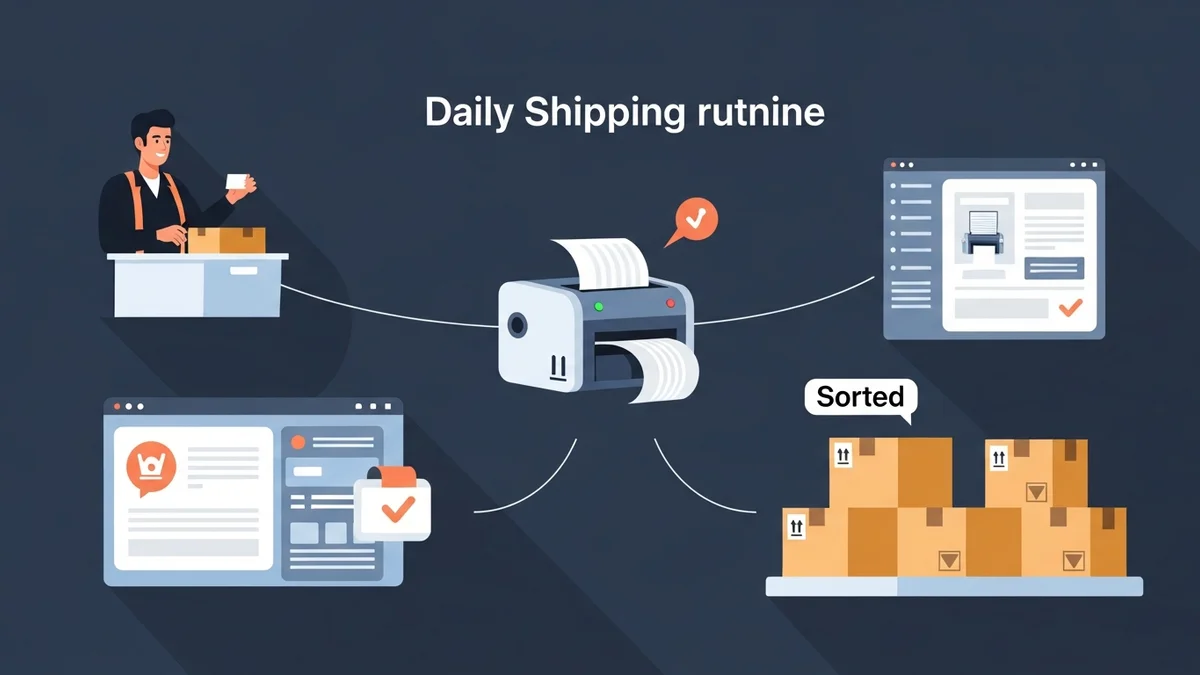
- Daily Shipping Routine: Every morning, simply review your "Processing" WooCommerce orders, make any minor adjustments, and export a combined CSV. Upload to Australia Post, print your labels from the Australia Post Business Portal, and your orders are ready for dispatch. This process can take mere minutes.
- Peak Seasons: During busy periods like holiday sales, the ability to process hundreds of orders with pre-set defaults means you can handle increased volume without being overwhelmed by manual tasks.
- Handling Exceptions: While most orders use defaults, the flexibility to quickly override them for a handful of express shipments or special requests ensures you maintain customer satisfaction without disrupting your automated workflow.
For more comprehensive automation strategies, you might also be interested in exploring how to Automate Your WooCommerce Fulfilment Workflow for Peak Efficiency, which delves into broader aspects of fulfilment beyond just shipping labels.
Related Articles
Continue your learning with these related resources:
- The Complete Guide to WooCommerce Shipping for Australian Stores (Comprehensive Guide)
- How to Configure Default Shipping Service and Packaging in WooCommerce for Australia Post
- How to Customize Your Australia Post WooCommerce Export Table Columns
- How to Set Up Sender Details in WooCommerce for Australia Post CSV Export
- How to Set Up WooCommerce Product Weights for Accurate Australia Post CSV Export
- How to Set Signature on Delivery and Extra Cover Defaults for Australia Post WooCommerce Exports
Conclusion
Reducing order processing time is crucial for any growing WooCommerce store. By implementing smart shipping defaults, you can automate a significant portion of your shipping workflow, drastically cutting down on manual data entry and minimising errors. Tools like the WooCommerce Australia Post CSV Export Pro plugin empower you to configure these defaults easily, review and adjust specific orders, and then export perfectly formatted data for bulk shipping label creation via Australia Post.
Invest a little time upfront to set up your defaults, and you'll reclaim countless hours, allowing you to focus on what truly matters: growing your business and delighting your customers.