Introduction
There's nothing more frustrating for an e-commerce store owner than a customer abandoning their cart because "no shipping options are available" at checkout. Disappearing WooCommerce shipping rates can halt sales, damage customer trust, and lead to lost revenue. When your shipping rates aren't calculating correctly, it can feel like trying to find a needle in a haystack.
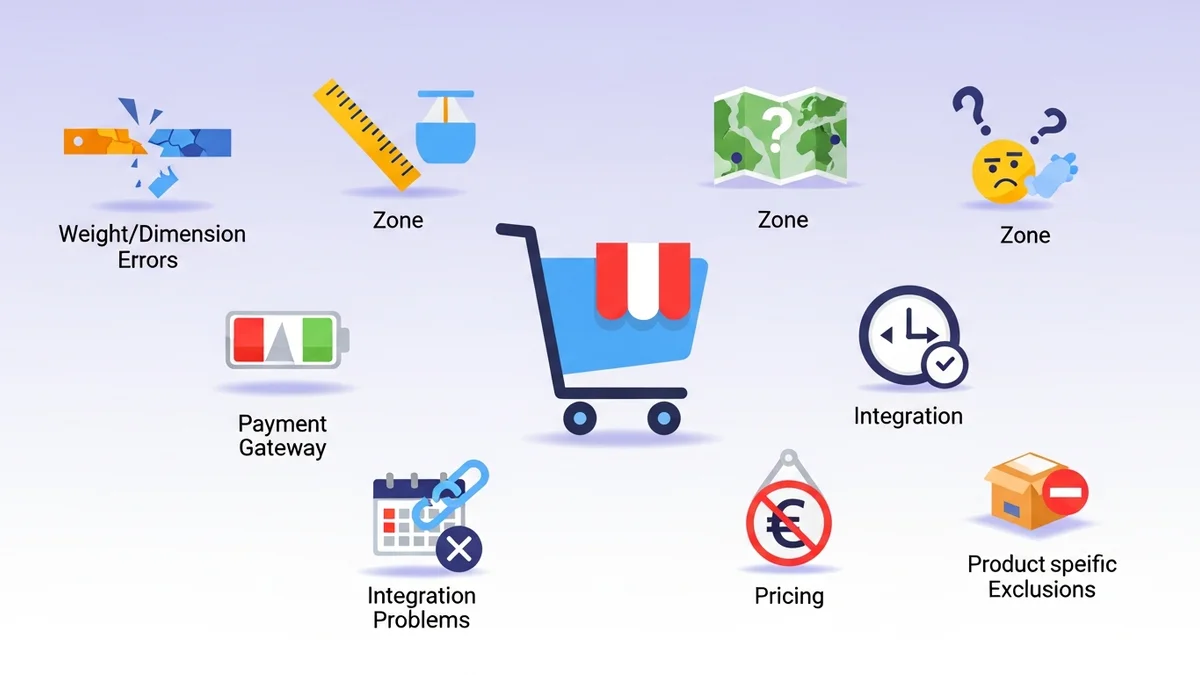
This comprehensive guide dives into the seven most common reasons why shipping rates vanish at your WooCommerce checkout. We'll provide practical, actionable advice to help you diagnose and fix these issues quickly, ensuring a smooth shipping experience for your customers and preventing cart abandonment. Understanding these pitfalls is crucial for effective WooCommerce shipping troubleshooting.
Understanding the Impact of Missing Shipping Rates
When shipping rates fail to display, customers are left in limbo. They can't complete their purchase, leading directly to a high cart abandonment rate. This not only impacts your immediate sales but also tarnishes your brand's reputation for reliability.
For businesses relying on real-time carrier calculations, a breakdown in shipping can be catastrophic. Proactively identifying and resolving these issues is paramount to maintaining a seamless customer journey and ensuring your business operates efficiently. Learning to fix WooCommerce shipping not working is a vital skill for any store owner.
7 Common Reasons WooCommerce Shipping Rates Disappear at Checkout
1. Plugin Using a Retired API Endpoint
One of the most insidious and difficult-to-diagnose issues is when your shipping plugin is configured to use an API endpoint that the carrier has retired. This happened in April 2026, when Australia Post retired their old PAC API endpoint at /api/postage/. Australia Post had responsibly run both the old and current (/postage/) endpoints during a transition period, giving plugin developers time to update. However, the official Australia Post Shipping Method for WooCommerce plugin, even at its most up-to-date version, wasn't updated to use the current endpoint. When Australia Post finally retired the old path, shipping rate calculations failed for stores using the plugin.
Sauce Code identified the root cause of this issue and notified the plugin developers, prompting the fix. This highlights the need for immediate, automated detection, you shouldn't have to wait for customer complaints to discover such problems. The solution often requires an update to your shipping plugin or manual configuration changes if the plugin allows. For store owners, this is a prime example of why proactive monitoring is essential. Tools like WooCommerce Shipping Monitor Pro can alert you immediately via email when an external API endpoint becomes unreachable. It even includes a safety net that attempts to cycle through previously known endpoints, buying you critical time while you await a proper plugin update. This helps you to fix WooCommerce shipping not working before customers are even aware there was an issue.
2. Order Weight Exceeds Carrier Limits
Every shipping carrier has specific weight limits for parcels. If an order's total weight, or the weight of an individual item, exceeds these limits, the carrier's API will not return a shipping rate. For example, Australia Post will not calculate rates for parcels that are excessively heavy, and many international carriers have even stricter weight restrictions.
To troubleshoot this, first, check the maximum weight limits for the shipping services you offer with your chosen carrier. Then, verify the weights assigned to your products in WooCommerce (Product Data > Shipping tab). If a customer's cart contains items that collectively push the total weight over the limit, no rates will appear. Consider offering alternative shipping methods for oversized or overweight items, or clearly communicate weight restrictions to customers. This is a common reason for WooCommerce shipping rates not calculating for specific orders.
3. Destination Country Not Supported by Carrier
Not all shipping carriers deliver to every country in the world. If a customer tries to ship an order to a destination that your configured carrier does not serve, or for which you haven't enabled international shipping methods, rates will disappear. For instance, while Australia Post offers extensive international services, there might be specific regions or countries they do not ship to, or where their services are temporarily suspended.
To resolve this, first confirm which countries your shipping carrier supports. Then, review your WooCommerce Shipping Zones (WooCommerce > Settings > Shipping > Shipping Zones). Ensure you have a shipping zone that includes the customer's destination country and that appropriate shipping methods are enabled within that zone. If you only have local or national zones configured, international customers will see no options. This highlights the importance of correctly setting up your WooCommerce no shipping options fix for international orders.
4. Product Missing Shipping Dimensions or Weight
Many real-time shipping calculators, especially those for major carriers, require accurate product dimensions (length, width, height) and weight to provide precise quotes. If one or more products in a customer's cart are missing this crucial information in WooCommerce, the carrier API might return an error or simply no rates at all.
Always ensure that every shippable product in your store has accurate weight and dimension data entered under the 'Shipping' tab in its product data. Even if a product has a weight, missing dimensions can sometimes cause issues for volumetric calculations. It's a fundamental step in WooCommerce shipping debugging to ensure all product data is complete. If you frequently encounter "no shipping options" for various products, this is one of the first places to look. Incorrect or missing data can severely impact WooCommerce shipping rates not calculating correctly.
5. Shipping Zone Doesn't Cover Destination
WooCommerce uses shipping zones to determine which shipping methods are available for a given customer's address. If a customer's delivery address falls outside of any configured shipping zone, or if the zones are set up incorrectly, no shipping methods will display, and thus no rates will be offered.
Navigate to WooCommerce > Settings > Shipping > Shipping Zones. Carefully review your zones:
- Zone Regions: Ensure the regions defined for your zones actually cover your customer base. For example, if you only ship within a specific state in Australia, ensure that state is listed.
- Zone Order: Zones are processed from top to bottom. If a customer matches multiple zones, the first matching zone applies. Ensure your more specific zones (e.g., local delivery) are above broader ones (e.g., national delivery).
- Shipping Methods: Within each zone, ensure you have enabled at least one shipping method (e.g., Flat Rate, Free Shipping, or your carrier-specific method like Australia Post).
Properly configuring your shipping zones is a primary step in any WooCommerce shipping troubleshooting efforts.
6. Expired or Invalid API Key
Many real-time shipping plugins rely on an API key or account credentials to authenticate with the carrier's external service. If this key expires, is revoked, or is entered incorrectly into your WooCommerce plugin settings, the connection to the carrier's API will fail. This prevents any rate calculations from occurring, leading to the familiar "no shipping options" message.
Check the settings of your specific shipping plugin (e.g., Australia Post Shipping Method for WooCommerce plugin) for the API key or account credentials section. Log into your carrier's developer portal or business account to verify the key's validity and ensure it matches what's entered in WooCommerce. Sometimes, a simple copy-paste error or an accidental space can invalidate the key. While the WooCommerce Shipping Monitor Pro doesn't store or manage API keys itself, it monitors the API endpoint. If an invalid key causes API requests to fail, the monitor will still detect the endpoint isn't returning valid responses, alerting you to a problem and prompting you to investigate your plugin's configuration. This helps with WooCommerce shipping debugging related to connectivity issues.
7. Temporary API Outage
Even the most robust shipping carriers can experience temporary outages or service disruptions. When their API servers are down or experiencing high load, your WooCommerce store won't be able to retrieve rates, resulting in the dreaded blank shipping options. These outages can be brief or last for several hours, significantly impacting your sales.
While you can't prevent a carrier's API from going down, you can be proactively alerted to it. This is where tools like the WooCommerce Shipping Monitor Pro shine. It runs scheduled health checks against your shipping providers' APIs (e.g., Australia Post PAC API) and sends immediate email alerts if a problem is detected. You'll know about the issue within minutes, not hours later when customers start complaining. The plugin even logs every event, providing a full history of API performance. Knowing quickly allows you to enable a flat-rate fallback method manually, minimising disruption and providing a temporary WooCommerce no shipping options fix during an outage.
Proactive Monitoring: A Better Way to Manage Shipping
While manually troubleshooting these issues is possible, a proactive approach saves time and prevents lost sales. This is precisely why a tool like WooCommerce Shipping Monitor Pro is invaluable for e-commerce store owners. Instead of waiting for customers to report problems, you're alerted instantly.
The plugin monitors the external API endpoints that your WooCommerce shipping plugins depend on. When an endpoint becomes unreachable, whether due to an outage or because your plugin is using a retired endpoint, you receive an immediate email notification. This allows you to address issues like WooCommerce shipping rates not calculating before they impact your customers. It even offers a last-resort safety net, attempting to cycle through previously known endpoints in specific scenarios, potentially keeping your checkout operational while you investigate.
With features like scheduled health checks, detailed event logs, and configurable alerts, the WooCommerce Shipping Monitor Pro transforms your WooCommerce shipping troubleshooting from a reactive scramble into a proactive, informed process. You gain peace of mind, knowing that your shipping functionality is continuously monitored, helping to ensure a consistent customer experience and reliable sales.
Related Articles
Continue your learning with these related resources:
- Why WooCommerce Shipping Breaks (And How to Stop It From Costing You Sales) (Comprehensive Guide)
- The Real Cost of Shipping Downtime for WooCommerce Stores
- Why "Set and Forget" Doesn't Work for WooCommerce Shipping Plugins
- What Automatic Endpoint Fallback Means for Your WooCommerce Store
- How to Get Email Alerts When Your WooCommerce Shipping API Has Issues
- Your WooCommerce Shipping Reliability Checklist for Peak Season
Conclusion
Disappearing shipping rates at checkout can be a major headache for any WooCommerce store. By understanding these seven common causes, you're well-equipped to diagnose and apply effective solutions. From verifying product data and shipping zone configurations to checking API keys and monitoring for carrier outages, proactive management is key.
Implementing tools like the WooCommerce Shipping Monitor Pro can shift your approach from reactive problem-solving to proactive prevention. This ensures your customers always see valid shipping options, leading to higher conversion rates and a more reliable e-commerce operation. Mastering WooCommerce shipping debugging is crucial for long-term success.