Introduction
As an e-commerce store owner, you rely heavily on your shipping carriers' APIs to provide accurate rates to your customers. When these external services experience issues – whether it's a temporary outage, your plugin using a retired endpoint, or a configuration problem – your customers can be left seeing "no shipping options available" at checkout. This often leads to abandoned carts and frustrated shoppers.
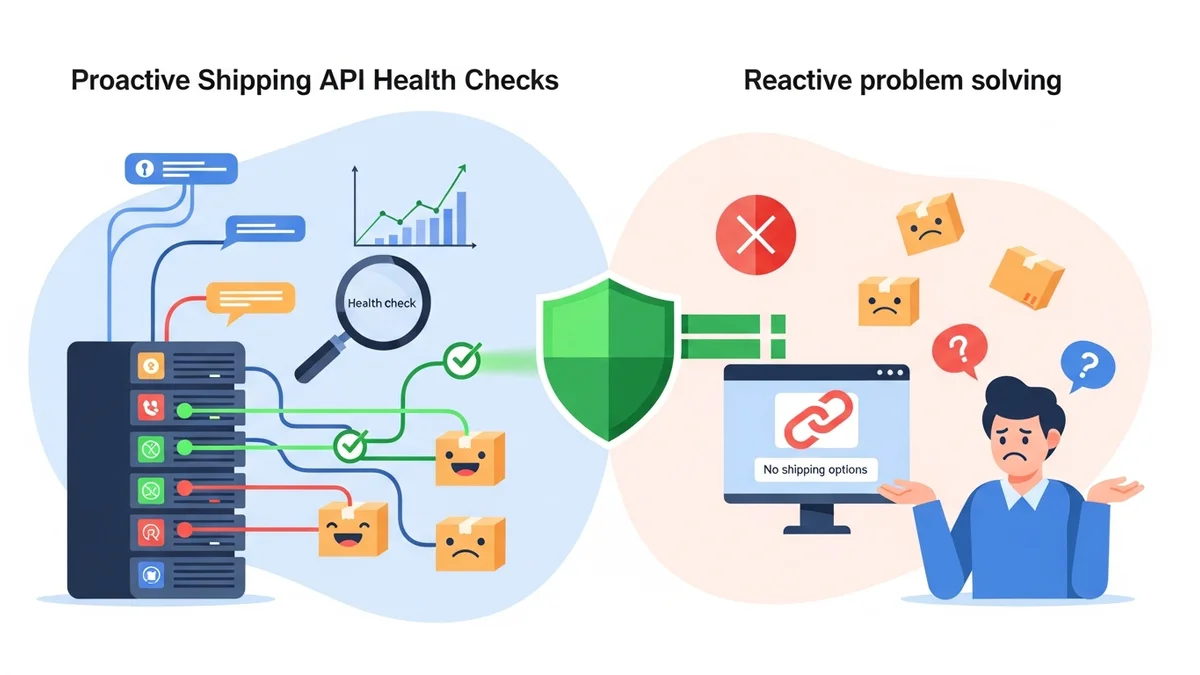
The traditional approach is reactive: you discover a problem when a customer complains. But what if you could know about these issues within minutes, before they impact many sales? This guide will walk you through setting up proactive email alerts for your WooCommerce shipping API, using a tool like WooCommerce Shipping Monitor Pro, to ensure your shipping rates are always available.
Why Proactive Shipping API Monitoring is Crucial for Your WooCommerce Store
The cost of downtime for an e-commerce store can be substantial. Every minute your shipping API is unreachable, you risk losing sales, damaging customer trust, and creating extra work for your customer service team. Relying on customer complaints means you're always playing catch-up, reacting to problems that have already impacted your bottom line.
Proactive shipping monitoring shifts you from a reactive stance to a prepared one. Imagine knowing about an Australia Post API issue at 3 AM through an email alert, allowing you to address it before your busy morning rush. This approach minimises disruptions, protects your revenue, and enhances the overall customer experience.
External shipping APIs can become unreachable for many reasons: network issues, maintenance, your shipping plugin using a retired endpoint, or even internal server errors on the carrier's side. For instance, in April 2026, Australia Post retired their old PAC API endpoint at /api/postage/, completing a transition to the current endpoint at /postage/. Australia Post had responsibly run both endpoints during the transition period, giving plugin developers time to update. However, the official Australia Post Shipping Method for WooCommerce plugin, even at its most up-to-date version, wasn't updated to use the current endpoint. Sauce Code identified the root cause and notified the plugin developers, prompting the fix. Without proactive monitoring, many store owners only discovered the problem hours or days later, often through customer complaints.
Understanding WooCommerce Shipping Monitor Pro's Alert System
WooCommerce Shipping Monitor Pro is a plugin designed to keep a watchful eye on the external API endpoints that your WooCommerce shipping plugins depend on. It runs scheduled health checks and monitors actual checkout requests, promptly detecting when a shipping API endpoint becomes unreachable.
When an issue is detected, the plugin immediately sends an email alert to your nominated address. It's built to notify you within minutes, not hours, about critical shipping API problems. This allows you to investigate and resolve issues before they escalate into major customer service incidents.
Types of Email Alerts You Can Receive
The plugin sends distinct email alerts to help you quickly understand the nature of the problem:
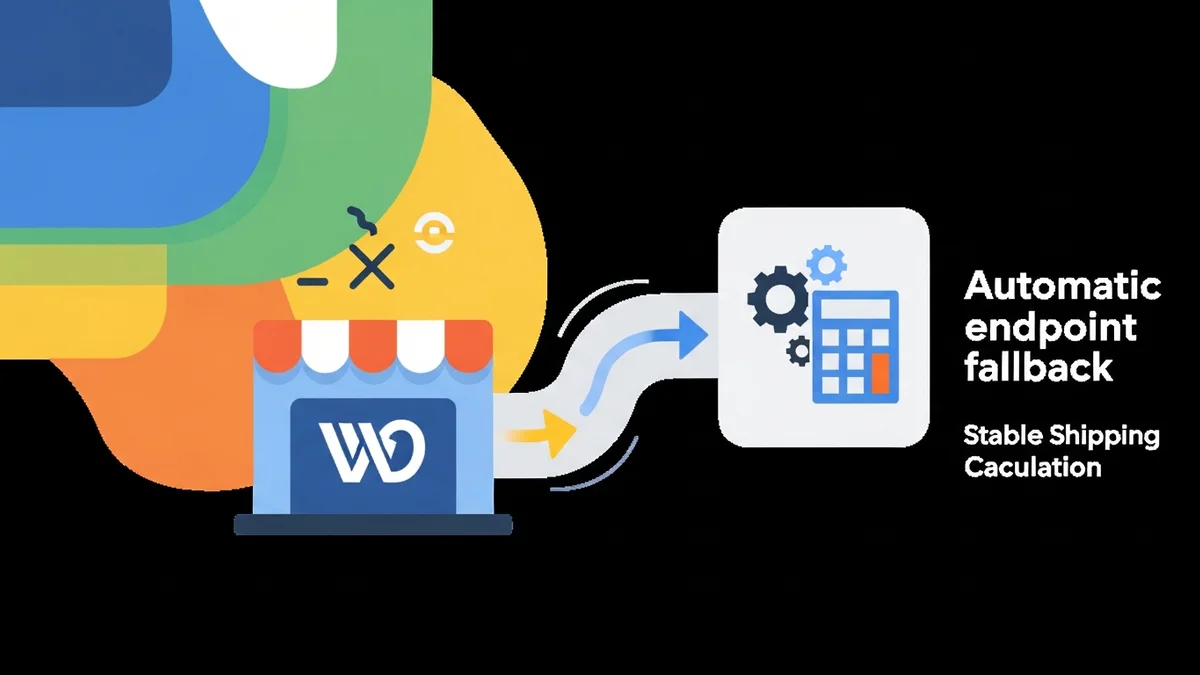
- Fallback Triggered: This alert means the primary API endpoint for a shipping provider (e.g., Australia Post) has failed, but the plugin has successfully switched to an alternate, previously known endpoint. Your checkout should still be functioning, but this is a signal to investigate the primary endpoint's issue.
- All Endpoints Failing: This is a more critical alert, indicating that all known API endpoints for a provider have failed. Your customers are likely seeing "no shipping options available," and manual intervention (like enabling a flat-rate shipping method) might be necessary.
- Health Check Failed: This alert is generated when a scheduled health check (a lightweight test request to the API) detects a problem. This is a proactive warning, often catching issues before they impact live customer checkouts.
- Recovered: A welcome alert! This email confirms that a previously failing API endpoint has started responding correctly again, and the provider's status has been restored to "healthy."
Each alert email provides crucial details like the provider name, timestamp, which endpoint was tried, which endpoint was used (if fallback), the HTTP response code, error detail, and a direct link to the provider's administration page within your WooCommerce settings. This information empowers you to quickly diagnose and address the issue.
To prevent your inbox from being flooded during prolonged outages, the plugin includes a configurable "alert cooldown." This setting ensures you only receive subsequent alerts for an ongoing issue after a specified period (e.g., 15 minutes, 1 hour, or 24 hours).
Step-by-Step Guide: Setting Up Email Alerts for Your WooCommerce Shipping API
Getting email alerts for your WooCommerce shipping API issues is straightforward with WooCommerce Shipping Monitor Pro. Follow these steps to set up proactive monitoring for your store.
Step 1: Install and Activate WooCommerce Shipping Monitor Pro
- Log in to your WordPress admin dashboard.
- Navigate to Plugins > Add New.
- Click Upload Plugin at the top of the page.
- Choose the
woocommerce-shipping-monitor-pro.zipfile you received after purchase, then click Install Now. - Once installed, click Activate Plugin.
The plugin will now appear in your list of installed plugins.
Step 2: Activate Your Licence
A valid licence is required to unlock all features, including email alerts and health checks.
- In your WordPress admin, navigate to WooCommerce > Shipping Monitor Pro.
- Click on the Licence tab.
- Enter your licence key into the provided field.
- Click Activate Licence.
You should see a green "Active" status, confirming your licence is validated.
Step 3: Review Initial Provider Status
After activation, it's good practice to check the status of your shipping providers. The plugin will automatically detect supported shipping carriers like Australia Post if their respective WooCommerce plugins are active.
- Go to WooCommerce > Shipping Monitor Pro.
- Navigate to the Dashboard tab. Here, you'll see status cards for each detected provider.
- Alternatively, click on the Providers tab for a list view.
You should see "Australia Post" with a status badge. Ideally, it will be "Healthy" (green). If it shows "Unavailable" (grey), it means the required Australia Post Shipping Method for WooCommerce plugin is not active. Ensure that plugin is installed and activated for monitoring to commence.
Step 4: Configure Global Alert Settings
These settings act as defaults for all providers unless overridden at the individual provider level.
- From the Shipping Monitor Pro menu, click on the Global Settings tab.
- Default Alert Email: Enter the email address where you want to receive general shipping API alerts. This could be your store's primary admin email or a dedicated operations email.
- Default Health Check Interval: Select how often the plugin should perform a proactive health check. Options include "Every Hour," "Every 6 Hours," "Every 12 Hours," or "Daily." For critical shipping APIs, "Every Hour" is often recommended to catch issues as early as possible.
- Default Alert Cooldown: Choose the minimum time between repeated alerts for an ongoing issue (e.g., "1 Hour"). This prevents your inbox from being overwhelmed during a prolonged outage.
- Log Retention Period: Select how long you want to keep event log entries (e.g., "90 Days").
- Click Save Changes.
Step 5: Customise Per-Provider Alert Settings (Optional but Recommended)
You might want specific providers to have different alert emails or health check intervals. For example, you might send Australia Post alerts to your fulfilment team.
- Go to the Providers tab.
- Click on the Australia Post provider from the list to view its specific settings.
- Under the "Settings" section, you'll see options to override the global settings:
- Enable Monitoring: Ensure this is toggled on to actively monitor the Australia Post API.
- Enable Fallback: Keep this on. It acts as a safety net, attempting to use alternate endpoints if the primary fails.
- Enable Health Checks: Ensure this is toggled on to allow scheduled proactive checks.
- Enable Alerts: Make sure this is toggled on to receive email notifications.
- Override Alert Email: If you want Australia Post-specific alerts to go to a different email address than your global default, enter it here.
- Override Health Check Interval: Select a different interval if needed for this provider.
- Override Alert Cooldown: Set a specific cooldown for Australia Post alerts if desired.
- Click Save Changes to apply any customisations for this provider.
Step 6: Verify Configuration and Run a Manual Health Check
To confirm everything is working, you can manually trigger a health check and review the logs.
- While on the Australia Post provider's detail page (from Step 5), locate the "Tools" section.
- Click the Run Health Check button.
The plugin will immediately perform a test. After a few moments:
- Navigate to the Event Log tab for the Australia Post provider.
- You should see a new entry with the "Event Type" of
Health Check Pass(green badge), confirming that the API is responding correctly and the monitoring system is active. This confirms your setup is correctly configured for proactive monitoring.
Step 7: Understand Alert Types and What to Expect
With your monitoring system active, you're now set to receive proactive alerts. Remember the four main alert types:
- Fallback Triggered: Your checkout is likely still working because an alternate endpoint was found. This buys you time to investigate the primary endpoint's issue.
- All Endpoints Failing: This is critical. Your shipping options are likely unavailable. You might need to temporarily enable a flat-rate shipping method in WooCommerce while you wait for the carrier to resolve their outage.
- Health Check Failed: This is a proactive warning from a scheduled check. Investigate the issue before it impacts customers during peak hours.
- Recovered: A positive sign that a previously detected issue has been resolved.
Each email will contain specific details to help you act quickly. By understanding these alerts, you can take swift, informed action, minimising the impact of shipping API issues on your WooCommerce store.
Best Practices for Proactive Shipping Monitoring
To maximise the benefits of your WooCommerce shipping monitoring setup, consider these best practices:
- Set Appropriate Health Check Intervals: For critical domestic shipping carriers like Australia Post, an "Every Hour" interval is often ideal to catch issues rapidly.
- Use a Dedicated Alert Email: Consider setting up a specific email address (e.g.,
[email protected]) for these notifications. This helps categorise alerts and ensures they don't get lost in your main inbox. You can often route these emails to a specific team or individual for quick action. - Understand Fallback Limitations: While the plugin's fallback feature is a valuable safety net, it's not a permanent fix for underlying issues. It attempts to cycle through previously known endpoints, which is effective when your plugin is using a retired endpoint but an alternative is available. However, if a carrier experiences a widespread outage affecting all known endpoints, a proper fix (e.g., a plugin update) or manual intervention will still be required.
- Regularly Review Event Logs: Even with email alerts, occasionally reviewing the "Event Log" for each provider within the plugin's admin interface can provide deeper insights into historical performance, intermittent issues, and patterns of API behaviour.
- Stay Informed: Keep an eye on your shipping carrier's status pages or social media channels during widespread outages. This external information, combined with your internal alerts, gives you a comprehensive view of any shipping disruptions.
Related Articles
Continue your learning with these related resources:
- Why WooCommerce Shipping Breaks (And How to Stop It From Costing You Sales) (Comprehensive Guide)
- The Real Cost of Shipping Downtime for WooCommerce Stores
- Why "Set and Forget" Doesn't Work for WooCommerce Shipping Plugins
- What Automatic Endpoint Fallback Means for Your WooCommerce Store
- Your WooCommerce Shipping Reliability Checklist for Peak Season
- 5 Things Every WooCommerce Store Owner Should Do to Keep Shipping Working
Conclusion
Moving from reactive problem-solving to proactive shipping API monitoring is a game-changer for any WooCommerce store owner. By implementing email alerts with a tool like WooCommerce Shipping Monitor Pro, you gain the crucial advantage of knowing about shipping API issues within minutes, not hours or days. This enables you to protect your sales, maintain customer satisfaction, and ensure your e-commerce operations run smoothly, even when external services encounter unexpected challenges.