Introduction
For any WooCommerce store owner in Australia, efficient shipping is non-negotiable. Manually preparing shipments can quickly become a bottleneck, especially when dealing with various package sizes and Australia Post's specific requirements. Properly setting up your satchels and other packaging options within WooCommerce is the first step towards a smooth, error-free shipping process.
This guide will show you how to prepare your WooCommerce store to work seamlessly with Australia Post packaging, focusing on how to configure your products and leverage tools like the WooCommerce Australia Post CSV Export Pro plugin to manage these options efficiently for your shipments.
Why Proper Packaging Setup Matters for Australia Post Shipping
The way you define and manage your packaging in WooCommerce directly impacts your shipping workflow. A well-organised setup offers several benefits:
- Cost-Effectiveness: Matching your product's size and weight to the most appropriate Australia Post satchel or 'Own Packaging' prevents overpaying for shipping and helps you pass on accurate costs to customers.
- Operational Efficiency: When product data is accurate, and shipping defaults are in place, selecting the correct packaging for each order during the shipping process becomes much faster. This drastically reduces manual effort and speeds up label creation.
- Reduced Errors: Clear packaging definitions minimise mistakes in selecting package types, ensuring your parcels comply with Australia Post's guidelines and avoid delays or additional charges.
- Faster Label Generation: Accurate packaging data is crucial for preparing your CSV exports. Preparing this data beforehand means your CSV exports, used for bulk label generation in the Australia Post Business Portal, will be correct from the start.
Understanding Australia Post Packaging Options for WooCommerce
Australia Post offers various packaging solutions, each with specific weight and dimension limits. Understanding these is crucial for making the right choices for your WooCommerce orders.
Australia Post Satchels
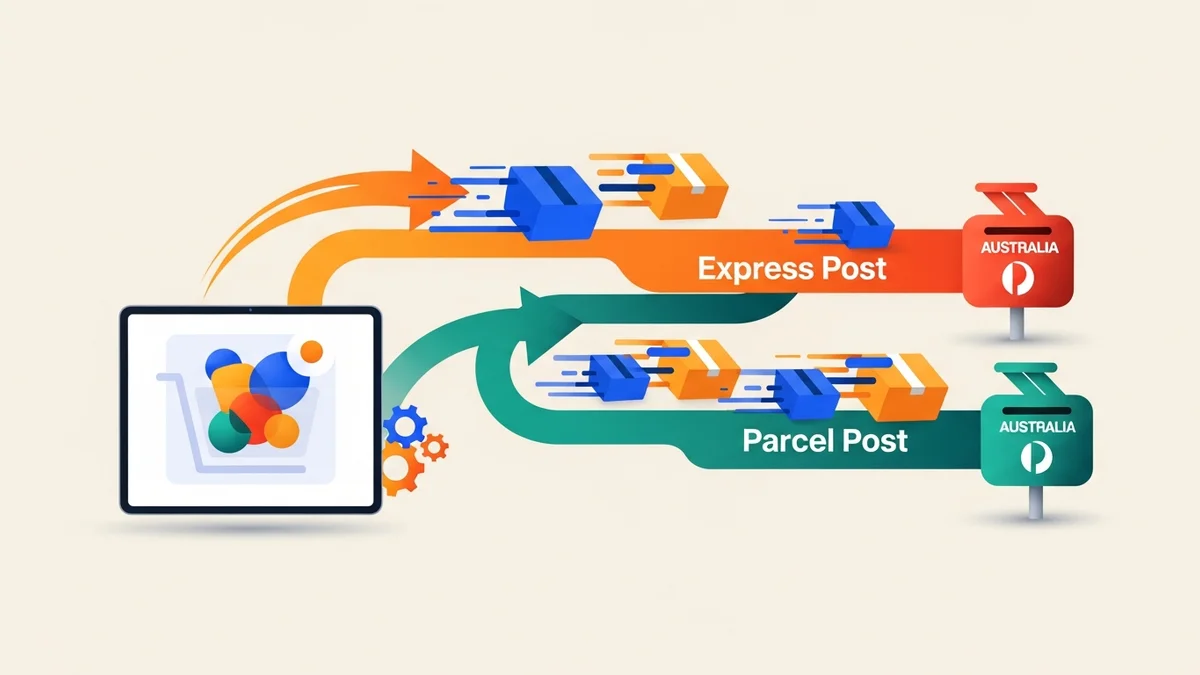
Australia Post satchels are popular for their convenience and often have fixed pricing for specific services (e.g., Express Post or Parcel Post). They come in several sizes:
- Extra Small (XS): Ideal for very small, lightweight items.
- Small (S): Suitable for small items like jewellery, accessories, or thin apparel.
- Medium (M): Good for single items of clothing, books, or small electronics.
- Large (L): Accommodates multiple clothing items, shoes, or medium-sized products.
- Extra Large (XL): For bulkier items that still fit within a satchel's flexible dimensions.
Each satchel has a maximum weight limit, regardless of its size. When using a plugin like WooCommerce Australia Post CSV Export Pro, you'll select the appropriate satchel size for each order based on the items it contains.
Own Packaging (Boxes)
If your products don't fit into standard satchels, or if you prefer to use your own branded packaging, Australia Post also accepts parcels in your "Own Packaging" (boxes). For these, shipping costs are typically determined by the parcel's weight and cubic dimensions. This option gives you maximum flexibility but requires accurate weight and dimension data for each shipment.
Step-by-Step Guide: Preparing Your WooCommerce Store for Australia Post Packaging
To effectively manage Australia Post satchels and your own packaging, follow these essential steps in your WooCommerce store.
Step 1: Set Up Product Weights and Dimensions in WooCommerce
Accurate product data is the foundation of efficient shipping. Without correct weights and dimensions for your individual products, selecting the right satchel or calculating "Own Packaging" costs becomes a guessing game. This information is vital for any Australia Post plugin that assists with shipping.
- Edit a Product: Go to your WooCommerce dashboard, navigate to Products > All Products, and click to edit an existing product.
- Access Shipping Data: Scroll down to the 'Product data' section (usually a meta box below the main editor). Click on the 'Shipping' tab.
- Enter Weight: In the 'Weight (kg)' field, enter the accurate weight of a single unit of your product. If you're selling a pack of items, enter the weight of the entire pack.
- Enter Dimensions: In the 'Dimensions (cm)' fields, enter the Length, Width, and Height of a single unit of your product. Again, if it's a pack, use the dimensions of the packed item.
- Save Changes: Click 'Update' to save your product changes.
Pro Tip: Be meticulous with this step. If a product doesn't have a weight, plugins often default to a placeholder (e.g., 0.5kg for the WooCommerce Australia Post CSV Export Pro plugin), which might lead to incorrect satchel selections later, potentially impacting shipping costs determined by Australia Post. For products without dimensions, the plugin may use a maximum product dimension, which might not be ideal for selecting the perfect satchel.
Step 2: Install and Configure the WooCommerce Australia Post CSV Export Pro Plugin
While WooCommerce doesn't natively provide detailed Australia Post packaging selection for export, dedicated plugins bridge this gap. The WooCommerce Australia Post CSV Export Pro plugin is designed specifically to help you manage these details for bulk label creation via Australia Post's Business Portal.
- Install the Plugin: Purchase, download, and install the WooCommerce Australia Post CSV Export Pro plugin on your WordPress site. Activate it like any other plugin.
- Access Plugin Settings: Once activated, you'll typically find its settings under WooCommerce > Australia Post Export or a similar menu item.
- Configure Sender Details: The first step in the plugin settings is usually to enter your sender details (name, address, phone). This information will be used for your shipping labels. The plugin can also use your WooCommerce store address as a fallback if specific sender details aren't configured.
- Review General Settings: Familiarise yourself with general settings like default shipping service (e.g., Parcel Post, Express Post), whether the 'Tracking Notification' option is enabled by default for the export, or if signature on delivery is required.
This plugin acts as your command centre for preparing order data, including packaging choices, before you export it to Australia Post. It does not calculate shipping rates at checkout or print labels directly; instead, it generates the CSV file that Australia Post's Business Portal uses for bulk label generation.
Step 3: Define Default Packaging Options Within the Plugin
To further streamline your workflow, the WooCommerce Australia Post CSV Export Pro plugin allows you to set default packaging choices. This means for most orders, the correct packaging can be pre-selected, saving you time during the export process.
- Navigate to Plugin Settings: Go to the plugin's main settings area (e.g., WooCommerce > Australia Post Export).
- Locate Default Packaging Settings: Look for options related to 'Default Domestic Service' and 'Default Domestic Packaging', and similarly for international shipments.
- Choose Your Default:
- For Domestic Shipments, you might set 'Default Domestic Service' to 'Parcel Post' and 'Default Domestic Packaging' to 'Own Packaging' if you primarily use your own boxes. Or, if you mostly ship small items, you could set the default to 'Small Satchel'.
- For International Shipments, you might select 'Standard' as the 'Default International Service' and 'Own Packaging' as the default packaging.
- Save Defaults: Ensure you save these changes.
These defaults will apply to new orders when they appear in the plugin's export tables, providing a starting point for each shipment. Remember, these are just defaults; you can always override them for individual orders.
Step 4: Managing Packaging Per Order During Export
Even with defaults, some orders will require specific packaging adjustments. This is where the WooCommerce Australia Post CSV Export Pro plugin offers crucial flexibility, allowing you to fine-tune packaging choices before generating your export file.
- Access Export Orders Dashboard: From your WooCommerce dashboard, go to the plugin's export interface (e.g., WooCommerce > Australia Post Export). Here, you'll see a list of your 'Processing' orders, typically separated into domestic and international tables.
- Review Individual Orders: For each order listed, you'll see columns displaying key details, including the selected shipping service and packaging type. The plugin intelligently calculates total parcel weight from your product data.
- Adjust Packaging:
- Click on the dropdown menu under the 'Packaging' column for a specific order.
- Choose the most suitable option: an Australia Post satchel (XS, S, M, L, XL), an Australia Post box (S, M, L, XL), or 'Own Packaging'.
- If an order contains multiple items, the plugin will use the total weight and maximum dimensions of the items to help you decide. For example, if your total order weight is 2.5kg, you might need a Large or Extra Large satchel, or 'Own Packaging'.
- Change Shipping Service (Optional): Similarly, you can change the shipping service for an order (e.g., upgrading from Parcel Post to Express Post) if a customer has paid for a faster option or you wish to offer a complimentary upgrade.
- Add Extra Options (Optional): For specific orders, you can also select options like 'Tracking Notification', 'Signature on Delivery', or 'Extra Cover' to be included in the export data directly within the plugin's order view.
This granular control ensures that every parcel is prepared accurately for Australia Post, regardless of whether it's a small item going into an Express Post satchel or a bulky product requiring 'Own Packaging' via Parcel Post. This step is critical for ensuring the exported CSV perfectly matches your physical shipments.
Step 5: Exporting Your Orders with Configured Packaging
Once you've reviewed and adjusted the packaging for all your processing orders, the final step is to generate the CSV file ready for upload to the Australia Post Business Portal.
- Select Orders for Export: In the plugin's export interface, tick the checkboxes next to the orders you wish to export. You can select all orders, or specific ones.
- Choose Export Type: The plugin offers flexibility with three export options:
- Export Domestic: Generates a CSV for only domestic orders.
- Export International: Generates a CSV for only international orders, including customs declaration details pre-filled from your WooCommerce product data.
- Export Combined: Creates a single CSV containing both domestic and international orders, streamlining your workflow even further.
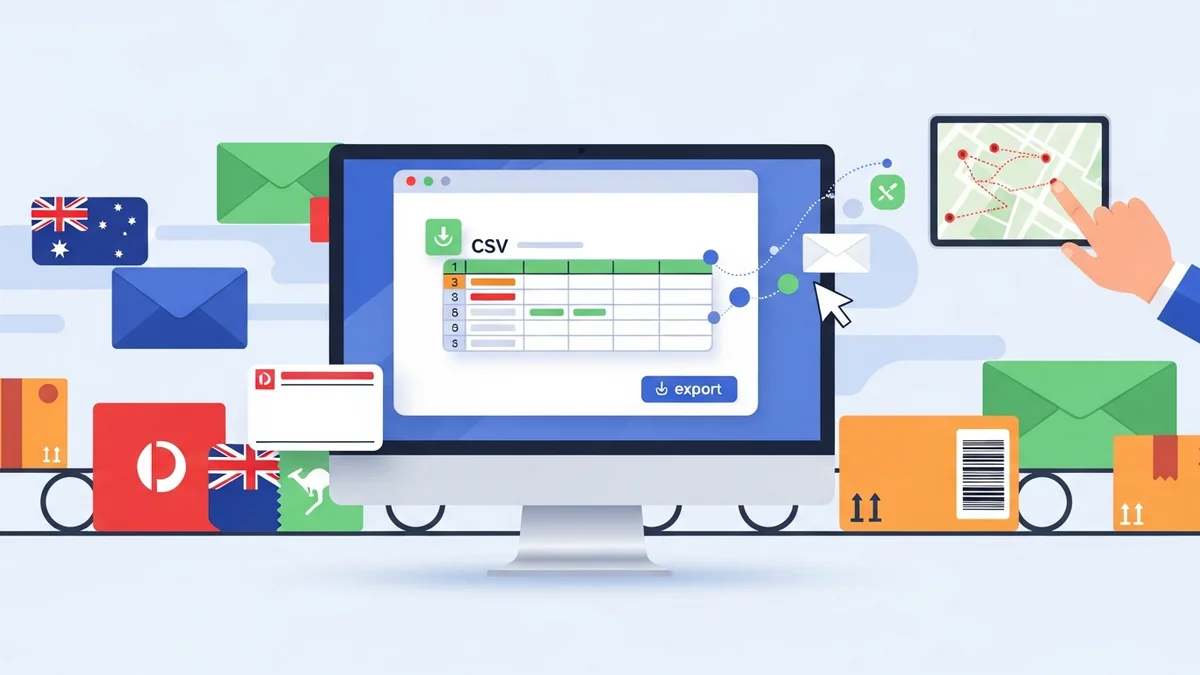
- Generate CSV: Click the appropriate export button. The plugin will download a CSV file to your computer.
- Upload to Australia Post: Log in to your Australia Post Business Portal and upload this CSV file. From there, you can review the shipments and generate your shipping labels in bulk.
This seamless process, facilitated by the WooCommerce Australia Post CSV Export Pro plugin, eliminates manual data entry into the Australia Post portal, saving significant time and reducing errors. For more detailed insights on the export process, you might find our article "How to Streamline WooCommerce Shipping with Australia Post CSV Export" helpful.
Best Practices for WooCommerce Australia Post Packaging
To maximise efficiency and accuracy when dealing with Australia Post satchels and packaging:
- Regularly Update Product Data: Ensure all new products have accurate weights and dimensions. Periodically review existing products for accuracy.
- Understand Australia Post Limits: Be aware of the maximum weight and dimension limits for each satchel size. Attempting to force an oversized item into a satchel can lead to issues and extra charges.
- Batch Similar Orders: If possible, process orders with similar packaging requirements together. This can simplify the review and adjustment process before export.
- Utilise Plugin Defaults Wisely: Set defaults that apply to the majority of your shipments. This minimises the number of individual order adjustments you'll need to make.
- Double-Check Before Export: Always quickly review your orders in the plugin's interface before exporting to catch any last-minute packaging or service selection errors.
Troubleshooting Common Packaging Issues
Even with a robust setup, you might encounter minor hiccups. Here are some common issues and their solutions:
- Incorrect Satchel Selection: This often stems from inaccurate product weights or dimensions. Revisit Step 1 and ensure your product data is correct.
- Orders Not Appearing for Export: Ensure your orders have the 'Processing' status in WooCommerce. The WooCommerce Australia Post CSV Export Pro plugin only displays orders with this status.
- Default Packaging Not Applying: Double-check the plugin's general settings (Step 3) to ensure your preferred default packaging options are saved correctly.
- Missing Customs Information for International Orders: Ensure your products have correct weights and that international sender details are configured within the plugin. The plugin automatically generates customs declarations from your order data, provided the necessary information is available.
Related Articles
Continue your learning with these related resources:
- The Complete Guide to WooCommerce Shipping for Australian Stores (Comprehensive Guide)
- How to Configure Default Shipping Service and Packaging in WooCommerce for Australia Post
- How to Customize Your Australia Post WooCommerce Export Table Columns
- How to Set Up Sender Details in WooCommerce for Australia Post CSV Export
- How to Set Up WooCommerce Product Weights for Accurate Australia Post CSV Export
- How to Set Signature on Delivery and Extra Cover Defaults for Australia Post WooCommerce Exports
Conclusion
Effectively setting up Australia Post satchels and packaging in your WooCommerce store is a vital step towards a professional and efficient shipping operation. By meticulously configuring product weights and dimensions, and leveraging the powerful features of the WooCommerce Australia Post CSV Export Pro plugin, you can streamline your order fulfilment process, reduce manual errors, and reclaim valuable time. This strategic approach not only benefits your business but also enhances the overall customer experience through accurate and timely deliveries.