Introduction
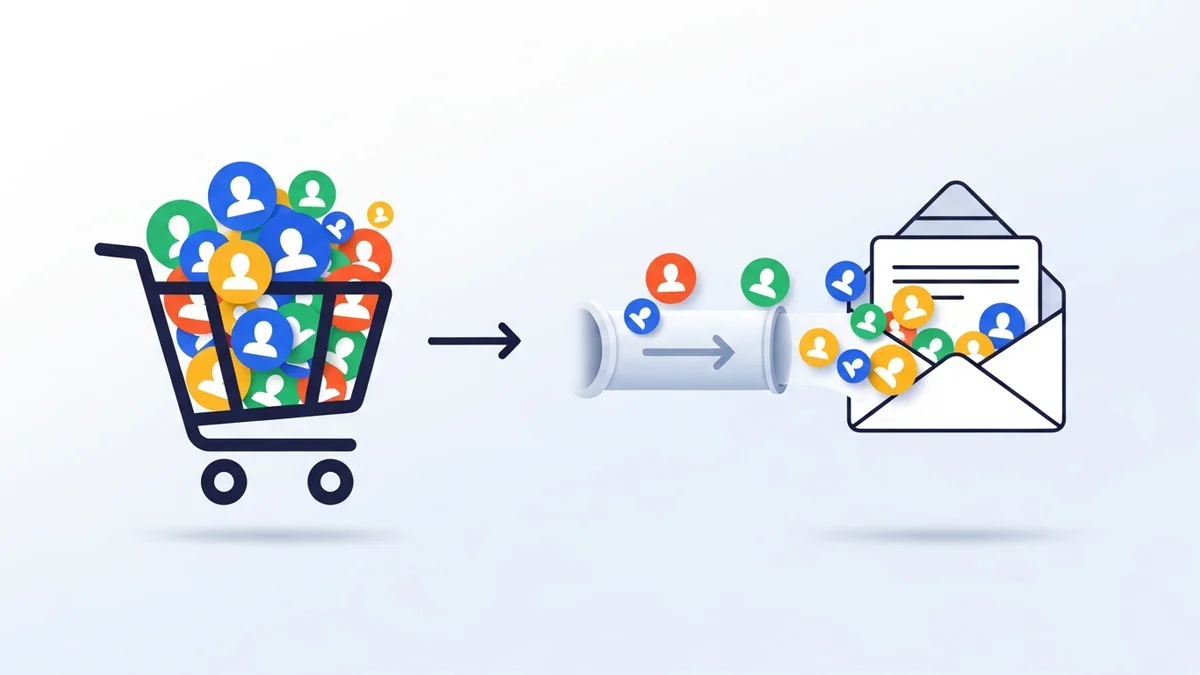
For any WooCommerce store owner, your existing customer base is a goldmine of marketing potential. When you decide to leverage the power of Campaign Monitor for your email marketing, bringing these valuable customers into your new system is a crucial first step. Manually adding hundreds or thousands of customers is simply not feasible, and that's where a bulk import solution becomes indispensable.
This guide will walk you through the process of how to bulk import your existing WooCommerce customers directly into your Campaign Monitor lists. We'll cover everything from preparation to execution, ensuring a smooth transition of your customer profile data, powered by the WooCommerce Campaign Monitor Pro plugin. The plugin syncs customer profile data only (such as name, email, phone, and billing address).
Why Bulk Import Your Existing Customers?
Transferring your established customer list from WooCommerce to Campaign Monitor isn't just about moving data; it's about unlocking immediate marketing opportunities. Here's why this process is so important for your e-commerce business:
- Kickstart Campaigns: Instantly engage your existing audience with welcome series, special offers, or important updates right after migrating to Campaign Monitor.
- Leverage Customer Data: Your past customers already know and trust your brand. Importing their contact details allows you to continue building those relationships and encourage repeat purchases through targeted email campaigns.
- Consolidate Data: Centralize all your customer contact information in one powerful email marketing platform, making it easier to manage, segment, and communicate.
- Avoid Manual Errors: Automated bulk import drastically reduces the chance of human error that can occur with manual data entry, ensuring accuracy and consistency.
- Save Time and Resources: Instead of spending hours or days on manual data transfer, a bulk import tool automates the process, freeing up your time for more strategic tasks.
Whether you're new to Campaign Monitor, consolidating systems, or simply want to ensure all your valuable customer data is in one place, bulk importing is a fundamental step for effective email marketing.
Before You Begin: Essential Preparations
Before you initiate a bulk import, a little preparation goes a long way. Taking these steps ensures your data is clean, your Campaign Monitor account is ready, and your import process is seamless.
1. Ensure WooCommerce Campaign Monitor Pro is Installed and Configured
The WooCommerce Campaign Monitor Pro plugin is your bridge between WooCommerce and Campaign Monitor. Make sure it's installed on your WordPress site and connected correctly to your Campaign Monitor account.
- Plugin Installation: Install and activate the plugin on your WooCommerce store.
- API Key Connection: Navigate to
WooCommerce > Settings > Campaign Monitor. Enter your Campaign Monitor API key and Client ID to establish the connection. The plugin securely encrypts your API key for your peace of mind. - Select a Default List: Choose the primary Campaign Monitor list where your customers will be imported. This list must already exist in your Campaign Monitor account.
2. Create Custom Fields in Campaign Monitor (If Needed)
WooCommerce stores a lot of valuable customer information beyond just an email address and name. To transfer this data effectively, you'll need corresponding custom fields in Campaign Monitor. The WooCommerce Campaign Monitor Pro plugin facilitates the transfer of customer profile data by allowing you to map WooCommerce fields like billing phone, country, or city to corresponding custom fields in Campaign Monitor. It's crucial to understand that the plugin does not create these custom fields for you; they must be set up within your Campaign Monitor account first.
- Identify Data Points: Decide which additional customer details from WooCommerce you want to sync (e.g., billing phone, billing country, billing city, shipping address).
- Create Fields in Campaign Monitor: Log into your Campaign Monitor account, go to your chosen list, and create custom fields for each data point you want to import. Ensure the field types (e.g., Text, Number) match the data they will hold. For example, if you want to import a customer's billing phone, you need a custom field named "Billing Phone" (or similar) in Campaign Monitor.
- Understand Field Mapping: The plugin doesn't automatically create these fields. You create them in Campaign Monitor first, then "map" them within the plugin's settings, telling the plugin which WooCommerce field corresponds to which Campaign Monitor custom field.
3. Review and Clean Your WooCommerce Customer Data
A clean mailing list is a healthy mailing list. Before importing, it's a good practice to ensure your WooCommerce customer data is as accurate as possible. While the plugin handles duplicates by updating existing subscribers, ensuring valid email addresses is key.
- Invalid Emails: Campaign Monitor will automatically reject invalid email addresses. While the plugin attempts to send all selected data, it's worth noting that malformed emails won't be added to your list.
- Old/Inactive Customers: Consider if you want to import every single customer, or only those who have made purchases recently. The bulk import tool provides filtering options, which we'll discuss next.
Step-by-Step: Bulk Importing WooCommerce Customers to Campaign Monitor
With your preparations complete, you're ready to begin the bulk import process. The WooCommerce Campaign Monitor Pro plugin makes this straightforward and efficient, even for large customer databases, thanks to its background processing capabilities.
Step 1: Access the Bulk Import Tool
- Log in to your WordPress admin dashboard.
- Navigate to
WooCommerce > Settings. - Click on the
Campaign Monitortab. - Within the Campaign Monitor settings, locate the section titled "Bulk Import Existing Customers". This is where you'll configure and initiate your import.
This section provides a dedicated interface for managing your customer migration, separate from the real-time checkout opt-in settings.
Step 2: Select Your Target Campaign Monitor List
The first crucial step is to specify which Campaign Monitor list your existing WooCommerce customers will be imported into. You must have already created this list in your Campaign Monitor account.
- Under the "Bulk Import Existing Customers" section, you'll see a dropdown menu labeled "Campaign Monitor List".
- Select the specific list where you want your customers to be added.
Tip: If you don't see your desired list, ensure your Campaign Monitor API key is correct and that the list exists in your Campaign Monitor account. The plugin retrieves available lists directly from Campaign Monitor.
Step 3: Configure Customer Field Mapping
This step is vital for ensuring that all the rich customer profile data you have in WooCommerce (such as names, email addresses, phone numbers, and billing/shipping addresses) is correctly transferred to Campaign Monitor. This is where those custom fields you created in Campaign Monitor come into play.
- Scroll down to the "Field Mapping" section within the Campaign Monitor plugin settings.
- You'll see a list of available WooCommerce customer fields (e.g., First Name, Last Name, Billing Phone, Billing Country, Billing City, etc.) on the left.
- Next to each WooCommerce field, you'll find a dropdown menu listing your Campaign Monitor custom fields.
- For each WooCommerce field you wish to import, select the corresponding Campaign Monitor custom field from the dropdown.
Example:
- Next to "Billing First Name", select your Campaign Monitor "First Name" field.
- Next to "Billing Last Name", select your Campaign Monitor "Last Name" field.
- Next to "Billing Phone", select your Campaign Monitor custom field you named "Phone" or "Billing Phone".
- Next to "Billing Country", select your Campaign Monitor custom field you named "Country".
Important: Only map fields for which you have created corresponding custom fields in Campaign Monitor. If a custom field doesn't exist in Campaign Monitor, the data cannot be imported for that specific field.
Step 4: Utilize Powerful Filtering Options
Not all existing customers might be relevant for your current marketing efforts, or you might want to filter your initial import to create specific groups in Campaign Monitor. The WooCommerce Campaign Monitor Pro plugin offers robust filtering options to help you select precisely which customers to import.
A. Filter by Order Status
This filter allows you to include only customers who have placed orders with specific statuses. This is highly useful for ensuring you're targeting active customers.
- Locate the "Only include customers who have purchased using these order statuses" option.
- Select one or more order statuses (e.g., "Completed", "Processing", "On hold"). Hold down the Ctrl (Windows) or Command (Mac) key to select multiple statuses.
Tip: For most marketing purposes, you'll likely want to focus on customers with "Completed" orders, as these represent successful transactions.
B. Filter by Date Range
You might only want to import customers who have made purchases within a certain timeframe, perhaps to focus on recent buyers or exclude very old, inactive customers.
- Use the "Only include customers who have placed an order between" fields.
- Click on the date input fields to open a calendar picker and select your desired start and end dates.
Example: To target customers who purchased in the last year, select a date range from 12 months ago to today.
C. Filter by Minimum Order Count
This option helps you target your most engaged customers – those who have made multiple purchases.
- Find the "Only include customers who have placed a minimum of X orders" field.
- Enter a number (e.g.,
2) to only import customers who have placed at least that many orders.
Use Case: You could import customers with 1+ orders into a general list, and then perform a separate import for customers with 5+ orders into a different Campaign Monitor list or segment, thereby creating a "VIP" group for exclusive offers.
D. Previous Opt-in Detection (MailChimp for WordPress)
If you've previously used another newsletter plugin like MailChimp for WordPress, you might have recorded customer opt-in preferences. This feature helps maintain consent by only importing customers who previously opted in.
- Check the box for "Only include customers who have previously opted-in via MailChimp for WordPress (if plugin active)".
Important: This option only appears if the MailChimp for WordPress plugin is active on your site. This ensures GDPR compliance by respecting past consent choices, even when migrating to a new email service.
Step 5: Initiate the Bulk Import
Once all your filters and settings are configured, you're ready to start the import process.
- Scroll to the bottom of the "Bulk Import Existing Customers" section.
- Click the "Start Import" button.
What Happens Next: Background Processing
For large stores with thousands of customers, direct import can lead to server timeouts. The WooCommerce Campaign Monitor Pro plugin uses WordPress Action Scheduler for background processing. This means:
- The import runs in batches, quietly in the background, without affecting your site's performance or requiring you to keep the browser window open.
- You'll see a progress bar and a status message indicating the number of customers processed and remaining.
- You can navigate away from the page, and the import will continue.
- Should you need to, you can also cancel an ongoing import.
This robust handling of large datasets ensures that your migration is reliable and won't overwhelm your server.
Step 6: Monitor Import Progress and Review Logs
After initiating the import, you'll want to keep an eye on its progress and verify that everything is working as expected.
- On the same "Bulk Import Existing Customers" section, you'll see a status area displaying the current progress, including the number of customers imported and the total count.
- To view more detailed information about the sync activity, navigate to
WooCommerce > Status > Logs. Here, you can filter logs by "Campaign Monitor" to see a complete record of all API calls and successful (or failed) subscriber syncs.
The activity logs are invaluable for troubleshooting any issues or simply confirming that your data is flowing correctly into Campaign Monitor. The plugin retains these logs for a configurable period, typically 30 days by default.
Best Practices for a Successful Migration
To maximize the impact of your bulk import and ensure a smooth transition, consider these best practices:
- Segment Immediately: Once imported, use Campaign Monitor's powerful segmentation tools to organize your new subscribers. You can segment based on the custom fields you imported (e.g., customers from a specific country).
- Craft a Welcome Series: Don't just import and forget. Set up an automated welcome series in Campaign Monitor for your newly imported subscribers to re-engage them and introduce them to your email marketing.
- Inform Your Audience: If your customers haven't heard from you via email in a while, consider sending a short, polite email explaining that you're improving your communication and they're now part of your Campaign Monitor list. Offer an easy unsubscribe link.
- Maintain Data Hygiene: Regularly review your Campaign Monitor lists for unsubscribes or bounces, and consider periodically checking your WooCommerce customer data for validity.
- Test with Opt-in at Checkout: After the bulk import, ensure your real-time checkout opt-in is configured correctly using WooCommerce Campaign Monitor Pro. This continuously adds new customers who opt-in directly from your store.
Leveraging Your Imported Data in Campaign Monitor
Once your customers are successfully imported into Campaign Monitor with their rich WooCommerce data, the real marketing begins. It's important to remember that the WooCommerce Campaign Monitor Pro plugin's role is to provide Campaign Monitor with accurate subscriber data; Campaign Monitor then takes over for email delivery, managing automations, and advanced segmentation. You can now:
- Create Targeted Segments: Use the mapped custom fields (like Billing Country, City) to create highly specific segments. This allows you to send relevant promotions, personalized content, and localized offers.
- Personalize Emails: Incorporate customer names or location into your email content to make messages feel more personal and increase engagement.
- Automate Journeys: Set up automated email journeys for different customer groups, such as a win-back campaign for inactive customers, or a birthday greeting.
The goal is to move beyond generic newsletters and build stronger relationships with your customers, leading to increased loyalty and sales.
Related Articles
Continue your learning with these related resources:
- Mastering WooCommerce Campaign Monitor Pro: Your Ultimate Integration Guide for E-commerce Growth (Comprehensive Guide)
- How to Optimize WooCommerce Order Sync Timing for Campaign Monitor
- How to Set the Subscriber Name Format Sent from WooCommerce to Campaign Monitor
- How to Manually Sync a WooCommerce Order to Campaign Monitor from the Order Admin
- How to Choose the Right Campaign Monitor List for Your WooCommerce Store
- How to Bypass Campaign Monitor Double Opt-in for WooCommerce Checkout Subscribers
Conclusion
Successfully bulk importing your existing WooCommerce customers to Campaign Monitor is a pivotal step in strengthening your email marketing strategy. With the WooCommerce Campaign Monitor Pro plugin, this once daunting task becomes a streamlined, efficient process, allowing you to leverage your valuable customer profile data for targeted campaigns.
By following the steps outlined in this guide – from initial setup and field mapping to intelligent filtering and background processing – you can confidently migrate your customer base. This ensures your hard-earned customer relationships continue to grow and thrive through the powerful capabilities of Campaign Monitor, directly fueled by your WooCommerce store.