Introduction
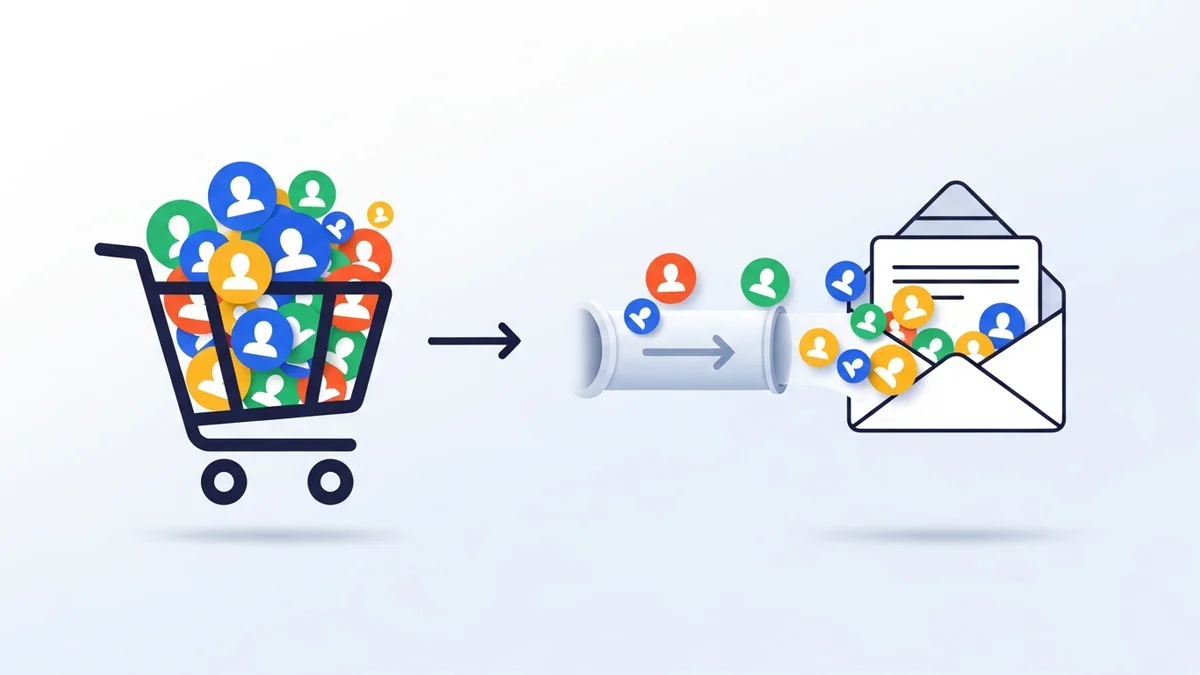
For any WooCommerce store owner, your customer list is a goldmine. It represents engaged individuals who have already shown interest in your products. Moving this valuable data to an email marketing platform like Campaign Monitor is a crucial step for building stronger customer relationships and driving repeat sales.
However, migrating a large existing customer database can seem daunting. Concerns about data integrity, server timeouts, and ensuring all customers are correctly transferred are common. This comprehensive guide will walk you through the process of monitoring and managing large WooCommerce customer imports to Campaign Monitor, ensuring a smooth and successful migration.
Why Bulk Import Existing Customers to Campaign Monitor?
You’ve already built a relationship with your existing WooCommerce customers. Don't let that valuable connection go untapped in your email marketing efforts. A bulk import allows you to quickly populate your Campaign Monitor lists with individuals who are already familiar with your brand.
Re-engage Past Buyers
Customers who have previously purchased from you are often the easiest to convert again. By importing them into Campaign Monitor, you can send targeted campaigns about new products, exclusive offers, or loyalty programs, encouraging them to return to your store.
Centralize Customer Data for Unified Marketing
Having all your customer information in one place—your WooCommerce store and your Campaign Monitor list—creates a unified view. This allows for consistent messaging across platforms and ensures no customer falls through the cracks. It streamlines your marketing efforts significantly.
Build Robust Email Lists Rapidly
Starting an email marketing strategy with an empty list is challenging. A bulk import instantly provides you with a substantial audience of real customers. This immediate boost empowers you to launch effective email campaigns much faster, leveraging your existing customer base.
Leverage Past Engagement for Future Segmentation
While the WooCommerce Campaign Monitor Pro plugin focuses on syncing customer profile data and does not sync individual order details, importing customers based on their registration date still provides a foundation. You can use criteria like the date they became a customer (through filtering during import) to create targeted groups of subscribers. For example, you might import only customers who registered within the last 12 months, allowing you to focus your outreach on recently active individuals within Campaign Monitor.
Understanding the WooCommerce to Campaign Monitor Connection
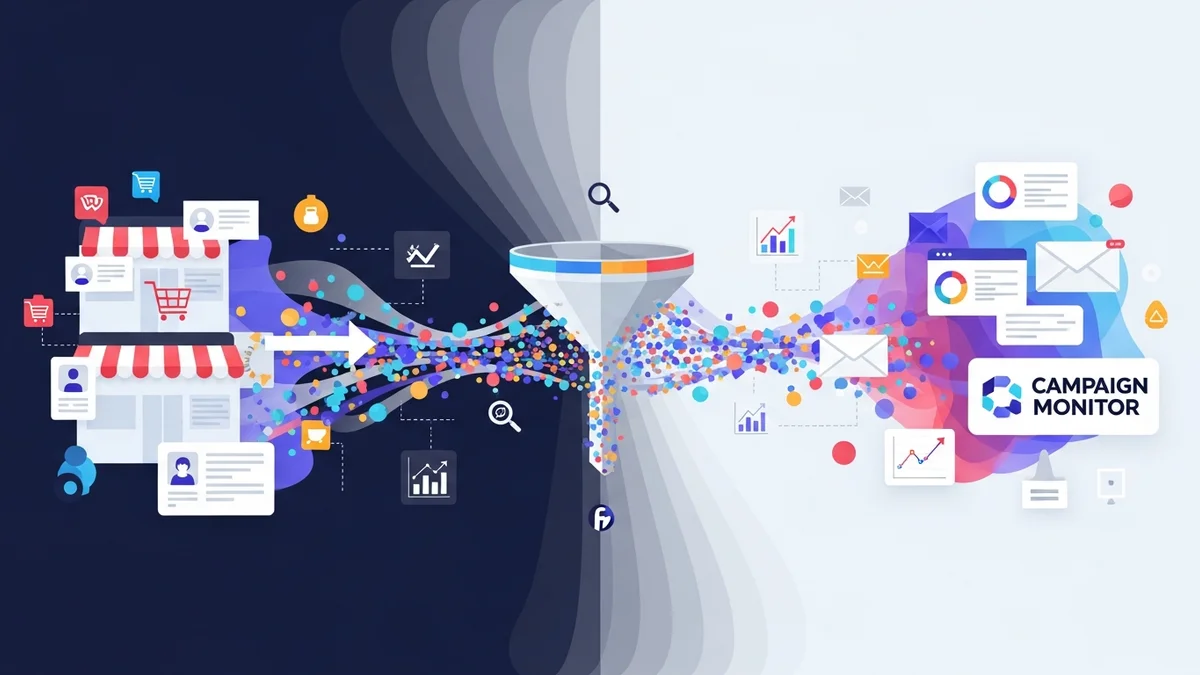
The WooCommerce Campaign Monitor Pro plugin acts as the bridge between your store and your email marketing platform. It's designed to automate the process of getting customer data from WooCommerce into Campaign Monitor efficiently and accurately. Specifically, it syncs customer profile data such as name, email address, phone number, and billing address details. It's important to remember that the plugin's role is to provide Campaign Monitor with this subscriber data; Campaign Monitor itself handles all aspects of email delivery, automation, and advanced segmentation based on the data it receives.
When you perform a bulk import, the plugin uses Campaign Monitor's API to send customer details. Campaign Monitor uses the email address as the unique identifier. If a customer's email already exists on your list, their details will be updated; otherwise, a new subscriber record will be created. This prevents duplicates and keeps your list clean.
A key feature is field mapping, which allows you to connect specific WooCommerce customer fields (like billing first name, billing last name, billing country, or phone number) to corresponding custom fields you've set up in Campaign Monitor. It's critical to understand that these custom fields must already exist in your Campaign Monitor list settings before you can map them in the plugin. The plugin does not create custom fields in Campaign Monitor; it only populates existing ones. This rich data is crucial for advanced segmentation and personalization down the line.
Preparing for a Large Customer Import
Before initiating a large-scale import, a little preparation goes a long way. Taking these steps ensures your data is clean, your Campaign Monitor account is ready, and your import runs without a hitch.
Clean Your WooCommerce Customer Data
While the plugin handles the technical transfer, the quality of your existing WooCommerce customer records directly impacts the success of your email campaigns. It's always a good idea to ensure your customer data is as accurate and up-to-date as possible.
Consider reviewing your WooCommerce users for any obvious anomalies, such as incomplete email addresses or outdated contact information. While you won't be manually cleaning hundreds of thousands of entries, a quick scan for common data entry errors can be beneficial.
Set Up Your Campaign Monitor Account
Your Campaign Monitor account needs to be prepared to receive the incoming customer data. This involves two critical steps:
- Create Your Target List: Ensure you have an active Campaign Monitor list where you want your WooCommerce customers to be added. The plugin does not create lists; it syncs to an existing one.
- Create Custom Fields: Decide what additional customer data beyond email and name you want to import. Common examples include billing country, city, or phone number. You must create these custom fields within your Campaign Monitor list settings before you attempt to map them in the plugin. For instance, if you want to store a customer's billing country, create a custom field named "Billing Country" (or similar) in Campaign Monitor.
Configure the WooCommerce Campaign Monitor Pro Plugin
Proper configuration of the plugin is essential for a successful import:
- Enter Your API Key: Navigate to the plugin settings in your WordPress admin area. Enter your Campaign Monitor API key and Client ID. The plugin encrypts this information for security.
- Select Your Target List: Choose the Campaign Monitor list you prepared earlier from the dropdown menu in the plugin settings. This is where all imported customers will be added.
- Crucial: Field Mapping: This is where you tell the plugin which WooCommerce customer *profile data* should go into which Campaign Monitor field.
- Map WooCommerce "Billing First Name" to Campaign Monitor's "Name" (or your custom First Name field).
- Map "Billing Last Name" to a custom Last Name field in Campaign Monitor.
- For any additional *profile data points* you want to transfer (e.g., "Billing Country," "Billing Phone"), select the corresponding WooCommerce field and map it to the custom field you created in Campaign Monitor.
- Ensure that the data types in Campaign Monitor (e.g., text, number) match the type of data being imported from WooCommerce.
Accurate field mapping is vital for leveraging your customer *profile data* for advanced segmentation and personalised campaigns later on.
Step-by-Step Guide to Bulk Importing Customers
Once your preparations are complete, you're ready to initiate the bulk import process using the WooCommerce Campaign Monitor Pro plugin. The plugin provides powerful filtering options to give you granular control over which customers are imported.
Accessing the Import Tool
Within your WordPress admin, navigate to the WooCommerce Campaign Monitor Pro settings. You'll find a dedicated section for "Bulk Import" or "Existing Customer Import." This is your starting point for migrating your customer base.
Leveraging Powerful Filtering Options (Critical for Large Imports)
The plugin's filtering capabilities are essential for managing large imports effectively, allowing you to segment your customer base even before they reach Campaign Monitor. This prevents unnecessary data transfer and ensures you're only importing the most relevant customers.
-
Date Range Filtering: This is incredibly useful for importing customers from a specific period.
- Example: You might only want to import customers who registered their account in the last 12 months to ensure your list is fresh and engaged. Set the start and end dates accordingly. This helps avoid sending emails to very old, potentially inactive customers immediately.
-
Previous Opt-in Detection: This smart feature helps respect customer preferences and avoid re-subscribing individuals who may have previously opted out or already exist on your list from another source.
- Scenario: If you previously used another newsletter plugin (like MailChimp for WordPress) and are now migrating, the WooCommerce Campaign Monitor Pro plugin can detect if a customer had previously opted in or out via that older system. This ensures you're not overriding existing consent or inadvertently re-subscribing someone who explicitly chose not to receive emails.
-
Include/Exclude Guest Checkouts: Many WooCommerce stores allow guest checkouts. You have the option to include these customers in your import, provided they supplied an email address during their purchase. This can significantly expand your list.
- Consideration: While convenient, ensure your email strategy for guest customers is appropriate, as they haven't created an account or explicitly opted in via a checkbox. They are customers, but their consent context might differ.
-
GDPR Considerations: When performing a bulk import, it's paramount to consider GDPR and other privacy regulations. The plugin provides the tools, but you, as the store owner, are responsible for ensuring compliance.
- Best Practice: Only import customers for whom you have a legitimate business interest or implied consent (e.g., they registered recently). If in doubt, consider segmenting these customers into a specific list in Campaign Monitor and sending a re-permission campaign first, especially for very old customer data. The plugin helps by allowing you to filter by date range, making it easier to target recently active customers.
Initiating the Import
Once you've set your desired filters, carefully review your selections. When you're confident, click the "Start Import" or "Run Import" button. The plugin will then begin processing your customer data.
For large imports, the plugin doesn't try to send all data at once. Instead, it intelligently breaks the process into smaller, manageable batches. This is critical for preventing server timeouts and ensuring a reliable transfer of information, which brings us to the next crucial aspect: monitoring.
Monitoring Large Imports with Background Processing
One of the most significant challenges with large data migrations is ensuring they complete successfully without crashing your website or timing out. The WooCommerce Campaign Monitor Pro plugin addresses this head-on with robust background processing.
The Challenge of Large Datasets
Directly importing thousands or hundreds of thousands of customer records in one go can overwhelm a typical web server. This often leads to "504 Gateway Timeout" errors, incomplete imports, or a completely stalled WordPress site. Traditional web processes aren't designed for such long-running tasks.
Action Scheduler to the Rescue
The plugin leverages WordPress Action Scheduler, a powerful and reliable library used by many popular plugins (including WooCommerce itself) for handling background tasks. Action Scheduler works by queueing up jobs and processing them in batches, independently of the user's active browser session.
This means your bulk import will run in the background, even if you close your browser or navigate away from the page. It’s designed to be resilient, resuming where it left off if there's a temporary hiccup, making it ideal for managing extensive customer databases.
How Background Processing Works
When you initiate a bulk import:
- The plugin identifies all customers matching your filter criteria.
- It then breaks this large list into smaller chunks or "batches."
- Each batch is added to the Action Scheduler queue as a separate task.
- Action Scheduler processes these tasks one by one, sending customer data from WooCommerce to Campaign Monitor via the API.
- The process continues until all batches are completed, without requiring you to keep a browser window open.
Real-time Progress Monitoring
Even though the import runs in the background, you don't have to guess its status. The WooCommerce Campaign Monitor Pro plugin provides a dedicated interface within your WordPress admin to monitor the progress of your bulk import in real-time.
You'll typically see a progress bar or a count of customers processed versus the total. This visual feedback allows you to track the migration and confirm that it's proceeding as expected. If you need to stop an import for any reason (e.g., you realise you made a mistake in your filters), the interface also offers an option to pause or cancel the ongoing process, providing you with full control.
Comprehensive Activity Logs
Beyond real-time monitoring, the plugin keeps detailed activity logs. These logs record every API call made to Campaign Monitor and the outcome of each attempted sync. If any errors occur during the import (e.g., an invalid email address, a Campaign Monitor API issue), they will be recorded here.
These logs are invaluable for troubleshooting. If you notice that some customers aren't appearing in Campaign Monitor, or if the import seems stuck, checking the activity logs is the first place to look for specific error messages. The logs also provide an auditable trail of all synchronisation activities, which can be useful for compliance and record-keeping.
You can configure the retention period for these logs in the plugin settings, allowing you to keep them for as long as necessary without cluttering your database indefinitely.
Post-Import Strategies and Best Practices
Successfully importing your customers is just the first step. The real value comes from what you do with that data in Campaign Monitor.
Segment Your Newly Imported Subscribers
Thanks to your careful field mapping, your Campaign Monitor list now contains richer customer data (names, locations, etc.). Use this immediately for powerful segmentation:
- Geographic Segmentation: Target customers in specific countries or cities with localised offers or events.
- Engagement Segmentation: While the plugin does not sync order history, if you used date range filtering during import (e.g., importing only customers who registered within the last 12 months), you can create segments based on the date they were added to Campaign Monitor or by creating a specific list for that import (e.g., "Q4 2023 Registrants") to target recently active customers.
- Personalised Campaigns: Use first names in your email greetings to make your messages more personal and engaging.
Set Up an Automated Welcome Series
For newly imported customers, especially those who haven't received emails from you via Campaign Monitor before, a welcome series is crucial. This series can:
- Re-introduce your brand.
- Highlight popular products.
- Offer a special discount for their next purchase.
- Encourage them to explore your website.
Campaign Monitor's automation features will then handle the delivery of this series based on when subscribers are added to your list. This helps to immediately establish a relationship and prevent your initial emails from feeling out of the blue.
Differentiate Regular Sync vs. Bulk Import
Understand that the bulk import is typically a one-time (or infrequent) migration. Once completed, the WooCommerce Campaign Monitor Pro plugin continues to automatically sync new subscribers in real-time. Any customer who opts into your newsletter via the checkout checkbox will be added to your Campaign Monitor list automatically.
This ongoing, real-time sync ensures your list remains up-to-date with new customers without requiring further manual intervention or bulk imports.
Maintain Data Hygiene
Even after a successful import, ongoing data hygiene is important. Regularly review your Campaign Monitor list for unengaged subscribers or bounces. Campaign Monitor provides tools to help you identify and manage these. A clean list improves deliverability and ensures your messages reach active subscribers.
Test and Verify
After your import is complete, always perform a quick check. Log into your Campaign Monitor account and verify:
- That the correct number of subscribers has been added or updated.
- That custom fields are populated correctly for a sample of customers.
- Send a test email to a segment of the newly imported list to ensure everything looks good.
Troubleshooting Common Import Issues
While the WooCommerce Campaign Monitor Pro plugin is designed for reliability, occasional issues can arise. Knowing where to look for solutions can save you time and frustration.
- API Key Errors: If the import fails immediately or the plugin can't connect, double-check your Campaign Monitor API key and Client ID. Ensure there are no extra spaces and that they are copied exactly from your Campaign Monitor account settings.
-
Field Mapping Problems: If data isn't appearing correctly in Campaign Monitor (e.g., billing country is empty), revisit your field mapping settings in the plugin.
- Confirm that you've created the corresponding custom fields in Campaign Monitor before mapping them in the plugin.
- Ensure the WooCommerce field is correctly matched to the Campaign Monitor custom field.
-
Import Stalls or Seems Slow: For extremely large databases, while Action Scheduler handles batching, server resources can still play a role.
- Check your WordPress site's health status for any critical errors or recommended PHP memory limit increases.
- Review the plugin's activity logs for any recurring errors that might indicate an underlying issue.
-
Customers Not Appearing:
- Check your import filters. Did you accidentally apply a too-restrictive date range?
- Review the activity logs for any specific error messages related to individual customer syncs.
- Confirm the customer's email address is valid in WooCommerce.
The activity logs are your best friend for detailed insights into what happened during the import process. They provide specific error messages that can guide you to the exact problem.
Related Articles
Continue your learning with these related resources:
- Mastering WooCommerce Campaign Monitor Pro: Your Ultimate Integration Guide for E-commerce Growth (Comprehensive Guide)
- How to Optimize WooCommerce Order Sync Timing for Campaign Monitor
- How to Set the Subscriber Name Format Sent from WooCommerce to Campaign Monitor
- How to Manually Sync a WooCommerce Order to Campaign Monitor from the Order Admin
- How to Choose the Right Campaign Monitor List for Your WooCommerce Store
- How to Bypass Campaign Monitor Double Opt-in for WooCommerce Checkout Subscribers
Conclusion
Migrating your existing WooCommerce customer database to Campaign Monitor is a strategic move that can significantly boost your email marketing efforts. With the WooCommerce Campaign Monitor Pro plugin, this process, even for large datasets, becomes manageable and reliable thanks to its intelligent filtering options, robust background processing, and real-time monitoring tools.
By carefully preparing your data, configuring your settings, and leveraging the plugin's features, you can seamlessly transition your valuable customer base to Campaign Monitor. This empowers you to engage past buyers, centralise your marketing efforts, and build stronger relationships that translate into lasting customer loyalty and increased sales.